Photograph receipts from the Lock Screen, Control Center and Camera Control
Snap receipts without unlocking your iPhone: the ReceiptBook Scan receipt control opens a camera on the Lock Screen and files the photos when you open the app.
Short answer
Add the Scan receipt control to your Lock Screen or Control Center, or set it on Camera Control, and you can photograph a receipt without unlocking your iPhone. The camera that opens can only take photos: up to 60 in one go, and nothing already in ReceiptBook is visible. The photos are filed in your Inbox the next time you open the app, where they are read on your iPhone like any other scan.
The best moment to capture a receipt is the second the cashier hands it to you. The worst moment is three weeks later, when the thermal print has faded and you can't remember what the lunch was for. ReceiptBook shortens the gap by putting a receipt camera one press away from the Lock Screen, so you don't have to unlock, find the app and tap through to the scanner while someone waits behind you at the till.
Where you can start it
The feature is one system camera extension called Scan receipt, with several doors into it:
| Starting point | What happens |
|---|---|
| Lock Screen control | Press the Scan receipt button at the bottom of the Lock Screen. The receipt camera opens while the iPhone stays locked. |
| Control Center | Swipe down and tap Scan receipt. Locked, you get the receipt camera; unlocked, ReceiptBook opens at its scanner. |
| Camera Control | On iPhones with Camera Control, choose ReceiptBook as the app the button opens in the iPhone's Camera Control settings. |
| Action button | Controls can also be put on the Action button, so a long press opens the same camera. |
The control's description in the gallery sums it up: it photographs receipts, also from the Lock Screen, and nothing in ReceiptBook can be seen from there. If you prefer a Home Screen shortcut, the Spend and scan widget has its own scan button; the widget and Shortcuts post covers it.
Add Scan receipt to your Lock Screen
- Touch and hold the Lock Screen, then tap Customize and choose Lock Screen.
- Tap one of the two control buttons at the bottom (remove the existing one first if needed).
- Search for ReceiptBook and pick Scan receipt. Tap Done.
- Lock your iPhone and press the new button. The camera opens with a Photos taken counter at the top.
- Tap the shutter for each receipt. The volume buttons and Camera Control take a photo too.
- Open ReceiptBook later. The photos appear in the Inbox and are read there.
What the Lock Screen camera can and can't do
The camera extension is deliberately small. It shows the camera, a shutter, a counter that says Photos taken with the number so far, and a button to open ReceiptBook. The note at the top reads that photos stay on this iPhone and go to your Inbox when you open ReceiptBook.
It cannot show your receipts, your totals or even the photos you just took. That is a privacy choice: anyone can press a Lock Screen control, so the extension never touches your book. The photos sit in a holding folder that only the system and ReceiptBook can reach, and they move into the app when you open it. Opening the app needs your iPhone unlocked, and Face ID as well if you turned on Lock with Face ID.
One go holds up to 60 photos. At the limit the camera says that's as many as one go can hold and asks you to open ReceiptBook to file them. Sixty is plenty for a work trip or a market day; if you have a bigger stack at your desk, the folder import or the in-app scanner is the better tool.
What happens when you open the app
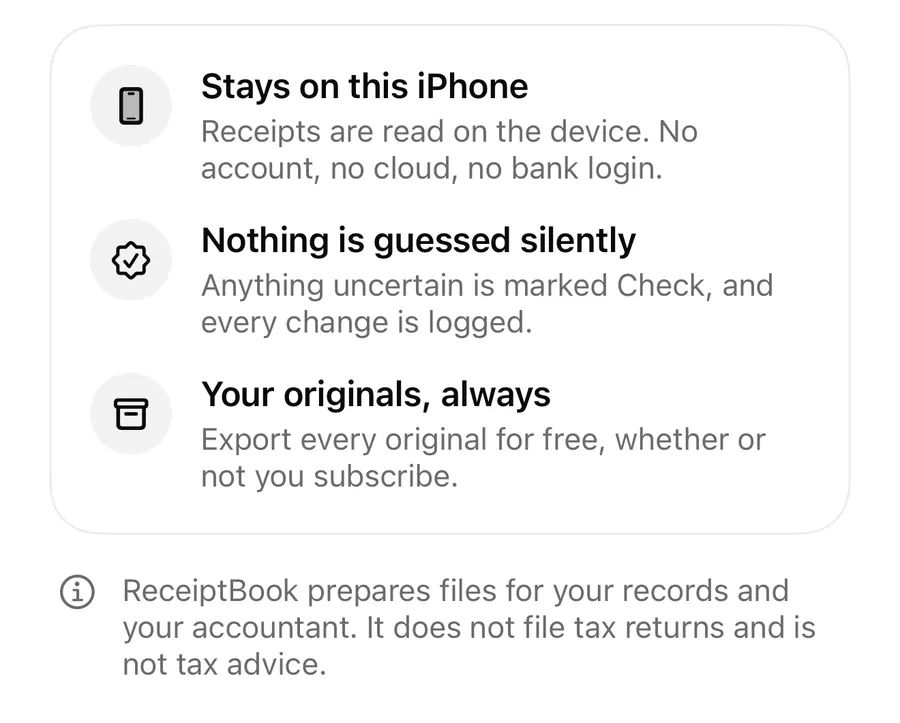
When ReceiptBook opens, it collects the waiting photos, oldest first, and adds them to the Inbox. A short notice tells you how many were added. Each photo is kept unchanged as the original and read on the device: vendor, date, total, VAT or sales tax, currency, payment method and the rest.
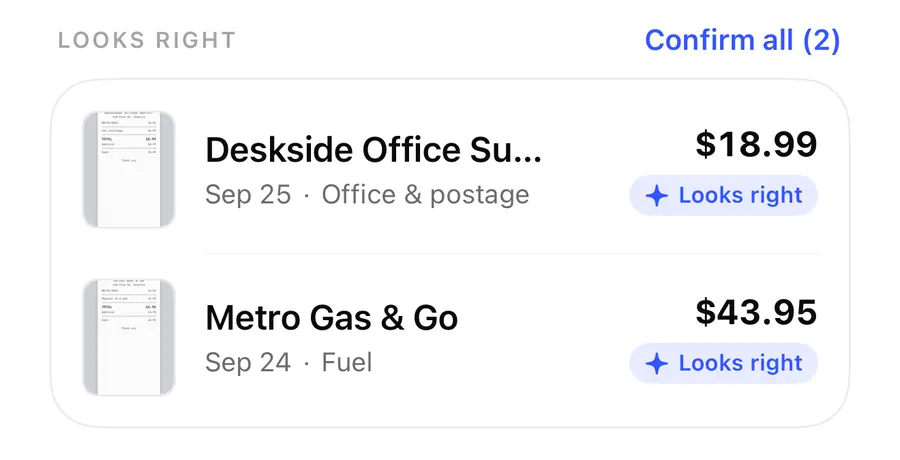
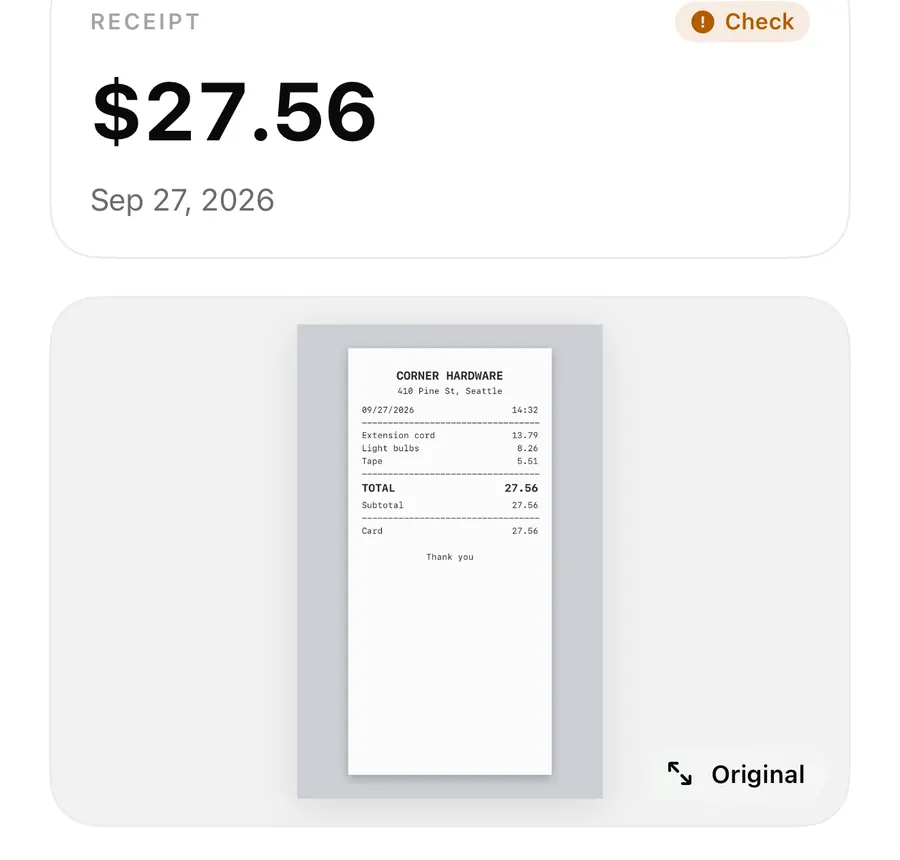
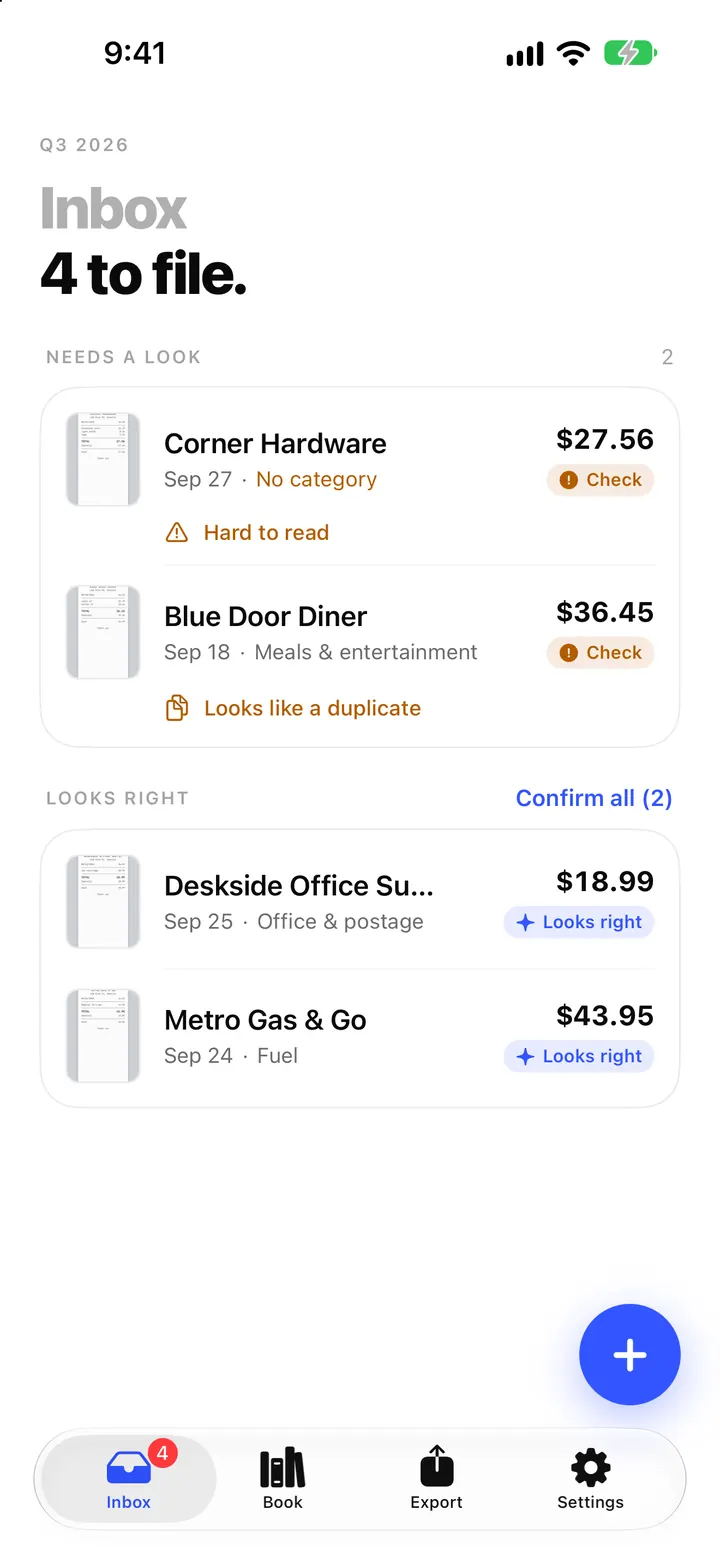
From there it is the normal flow. Photos that read cleanly land in Looks right, ready to confirm. Anything uncertain goes to Needs a look with an amber Check badge. The Inbox post explains the sections, and Check badges and field sources explains what each mark means.
Lock Screen photo or in-app scan?
The Lock Screen camera takes plain photos. The in-app Scan a receipt option uses the iPhone document scanner, which finds the edges, straightens the page and can join several pages into one PDF. On iOS 26 the scanner also checks for a smudged lens and asks Clean the lens? before it saves, with Scan again or Save anyway. That check belongs to the in-app scanner; Lock Screen photos are saved as you take them.
So use the Lock Screen for speed (one receipt at the counter, a taxi receipt on the way out) and the scanner for long invoices, crumpled paper or anything you want straightened. The multi-page post covers the scanner's page and receipt prompts.
FAQ
Can someone else see my receipts from the Lock Screen?
No. The camera extension can only take photos. It shows no receipts, no totals and not even the photos just taken. Your book opens only after the iPhone is unlocked, and after Face ID too if you use Lock with Face ID.
Why aren't my Lock Screen photos in the Inbox yet?
They are collected when you open ReceiptBook. Open the app once the iPhone is unlocked and they are added and read.
How many receipts can I photograph at once?
Up to 60 in one go. When you reach the limit, open ReceiptBook to file them, then start again.
Does it work without internet?
Yes. Taking the photos and reading them both happen on your iPhone.
What does Scan receipt do when my iPhone is unlocked?
It opens ReceiptBook at its document scanner, so you get edge finding and multi-page scans instead of plain photos.
Download ReceiptBook and put a receipt camera on your Lock Screen.
Keep reading
Scan receipts with your iPhone: how ReceiptBook reads and files them
Scan a paper receipt, pick a photo or import a PDF, and ReceiptBook reads vendor, date, total and tax on your iPhone, then files it once you have checked it.
Read
Import PDF invoices on iPhone: share sheet, Files and whole folders
Send PDF invoices to ReceiptBook from Mail or Files, open e-invoices directly or import a whole folder at once. Files already in ReceiptBook are skipped.
ReadReceiptBook widget, Siri, Shortcuts and Spotlight: file receipts faster
Scan from a Home Screen widget or a Control Center button, ask Siri what you spent this quarter, log an expense by voice and find receipts in Spotlight.
ReadA Workflow for Processing a Backlog of Paper Receipts
Safely process a box of paper receipts with sorting, capture, OCR, review, original retention and ReceiptBook export.
Read guide