Multi-page invoices and several receipts in one photo with ReceiptBook
Scan a long invoice as one PDF or file each page alone, and split a photo of several receipts into separate documents. ReceiptBook keeps the original photo.
Short answer
When you scan more than one page, ReceiptBook asks whether the pages are One document (a long invoice) or A document per page (several receipts). When one photo or one-page scan holds several receipts side by side, it offers to cut each one out, straighten it and file it as its own document, and the photo is kept as it is either way. On iOS 26 it also asks Clean the lens? if the scan looks smudged.
Paper doesn't arrive one neat receipt at a time. A supplier invoice runs to three pages; a business trip leaves you with a pocket of taxi, parking and coffee receipts. ReceiptBook has two small questions for these cases so you don't have to scan each piece separately or untangle a merged mess later.
Several pages: one document or one per page?
The in-app scanner (+, then Scan a receipt) uses the iPhone document scanner. It finds the edges of each page and straightens it, and you can keep scanning page after page before you tap save.
If you scanned more than one page, ReceiptBook asks You scanned 3 pages (with your number), and explains the choice: keep the pages together, like an invoice of several pages, or file each page on its own, like several receipts.
| Choice | Result | Use it for |
|---|---|---|
| One document | One PDF with all pages, read as one invoice | A multi-page supplier invoice, a hotel folio, a contract with an invoice on the last page |
| A document per page | Each page becomes its own document, read separately | A stack of single receipts you scanned in one session |
If the question disappears without an answer, for example because the app locked, the pages stay together as one document. Nothing you scanned is lost.
Scan a three-page invoice
- Tap + in the Inbox, then Scan a receipt.
- Scan page one, then page two and page three. Keep the pages in order.
- Tap save. On iOS 26, if the lens looks smudged, wipe it and choose Scan again, or Save anyway.
- When ReceiptBook asks You scanned 3 pages, choose One document.
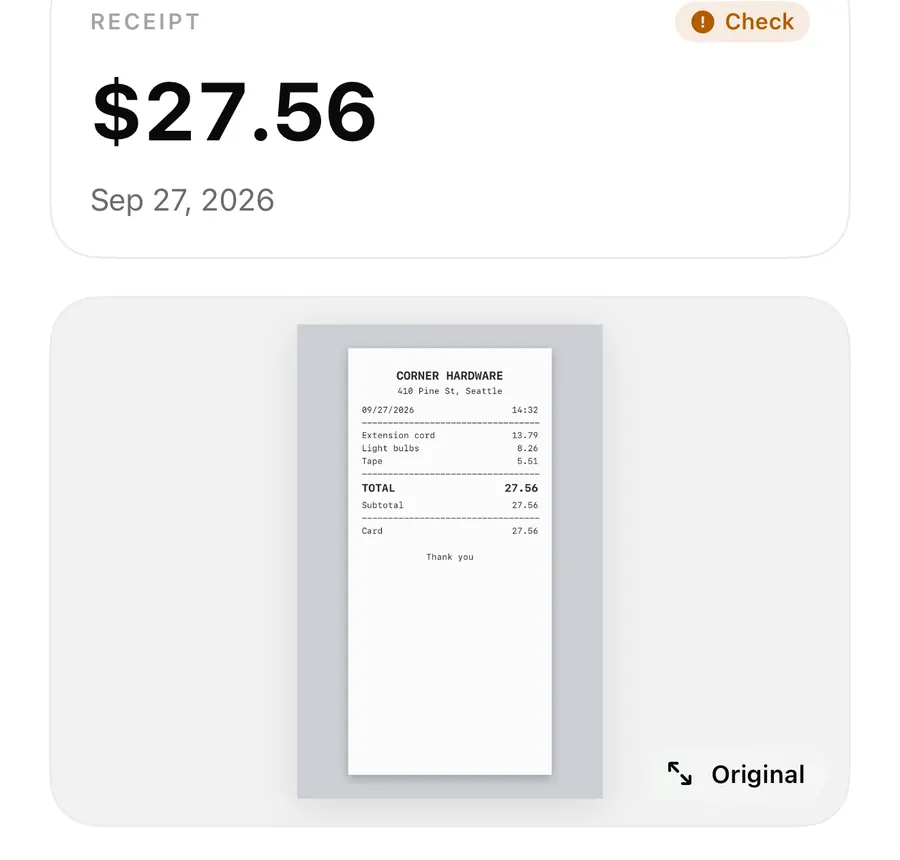
- The invoice appears under Reading, then in Looks right or Needs a look. Open it and check the total from the last page.
Several receipts in one photo
Sometimes it's faster to lay four receipts on the table and take one picture. ReceiptBook looks for separate receipts in a single photo picked with Choose from Photos, or in a one-page scan. If it finds two or more, it asks Found 4 receipts (with the number it found) and offers 4 documents or One document. The explanation reads that each receipt can be cut out, straightened and filed on its own, and that the photo is kept as it is either way.
Choose the documents option and each receipt is cut out of the photo along its edges, straightened, and filed as a separate document that is read on its own. Choose One document and the photo is filed as one, which suits a receipt with a stapled card slip that you want to keep together.
How it decides what counts as a receipt: it looks for rectangles in the photo, ignores one that covers most of the picture (that's the table or the sheet they lie on), ignores tiny ones like logos and QR codes, and ignores shapes that sit inside another. The receipts are taken in order, top to bottom and left to right.
What happens to the original photo
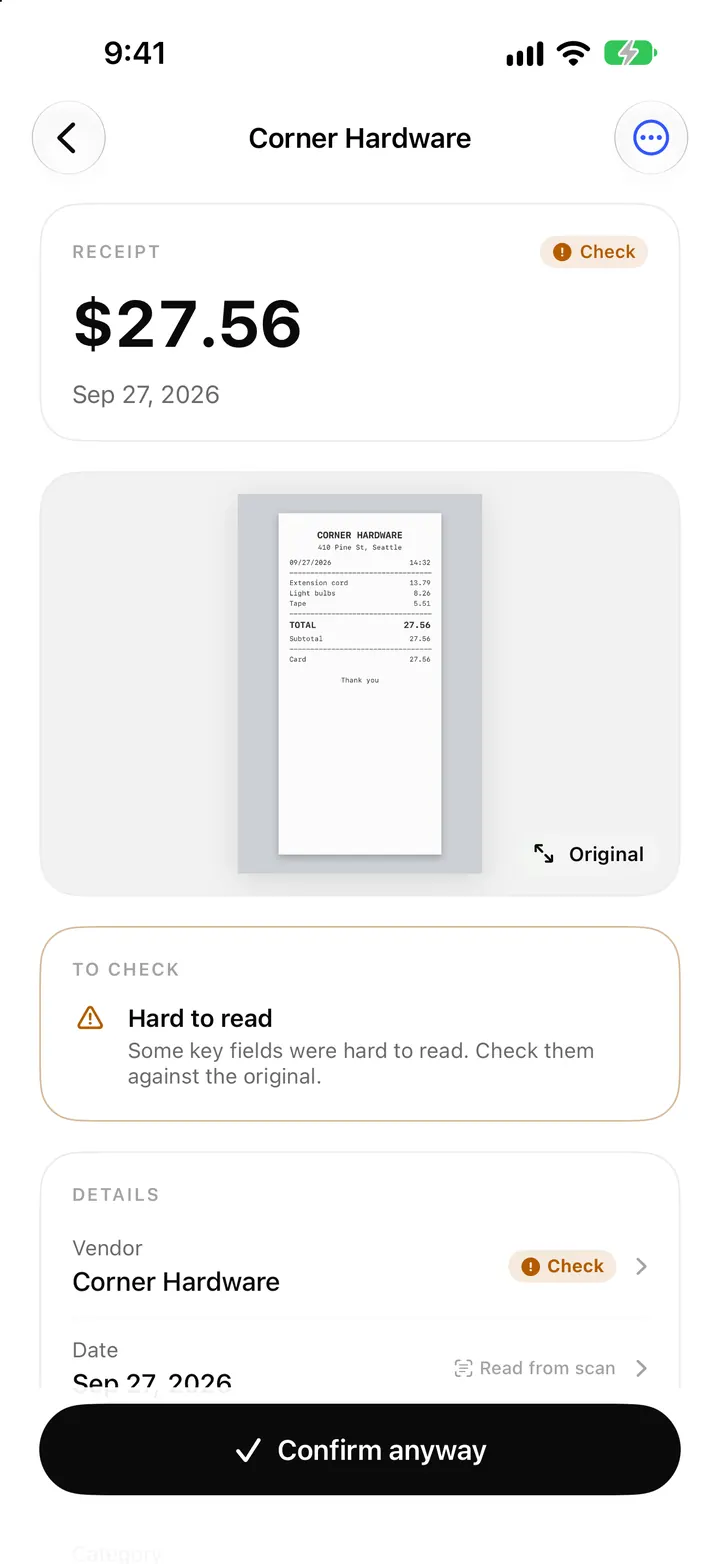
The photo itself is never altered. Each cut-out is a new image and becomes that document's original, the one that is read. The whole photo travels along with each document, unchanged, so you can show the full picture if anyone asks where a receipt came from. That fits ReceiptBook's promise that your originals are kept exactly as captured.
When it's offered and when not
The several-receipts question appears for a single photo from Choose from Photos and for a one-page scan. If you pick several photos at once, each photo is filed as it is. Lock Screen photos, shared files and imported PDFs are also filed as they come in. If you dismiss the question, the photo is kept as one document.
Clean the lens?
On iOS 26, ReceiptBook checks the first pages of each scan for a smudged camera lens before saving. A fingerprint on the lens makes text soft and numbers hard to read. If the check is fairly sure, you see Clean the lens? with the note that the camera lens looks smudged, so the text may not read well. Scan again drops the scan and reopens the scanner; Save anyway keeps it. On iOS 18 there is no lens check and scans save straight away.
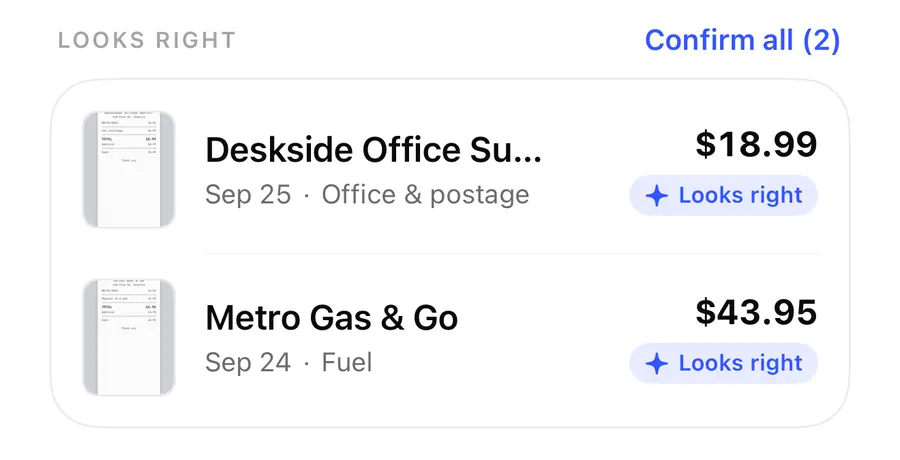
After the split, the normal review applies. The Inbox post explains where each document lands, and Lock Screen capture is the quick option for single receipts on the go. Questions about scanning in general are answered in the FAQ.
FAQ
Can I change my mind after choosing One document?
The choice is made when you save the scan. If a multi-page scan should have been separate receipts, move the document to Recently Deleted and scan the pages again, choosing A document per page.
Does splitting a photo lose image quality?
Each cut-out is saved as a new image of that receipt, straightened. The full photo is kept unchanged alongside every document, so the original is always there.
Why didn't ReceiptBook offer to split my photo?
It only asks when it finds at least two separate receipts in a single photo or one-page scan. Receipts that overlap or touch may be seen as one. Picking several photos at once also skips the question.
Is the lens check available on every iPhone?
It needs iOS 26. On earlier versions scans are saved straight away without the check.
Download ReceiptBook and scan the whole stack in one go.
Keep reading
Scan receipts with your iPhone: how ReceiptBook reads and files them
Scan a paper receipt, pick a photo or import a PDF, and ReceiptBook reads vendor, date, total and tax on your iPhone, then files it once you have checked it.
ReadPhotograph receipts from the Lock Screen, Control Center and Camera Control
Snap receipts without unlocking your iPhone: the ReceiptBook Scan receipt control opens a camera on the Lock Screen and files the photos when you open the app.
Read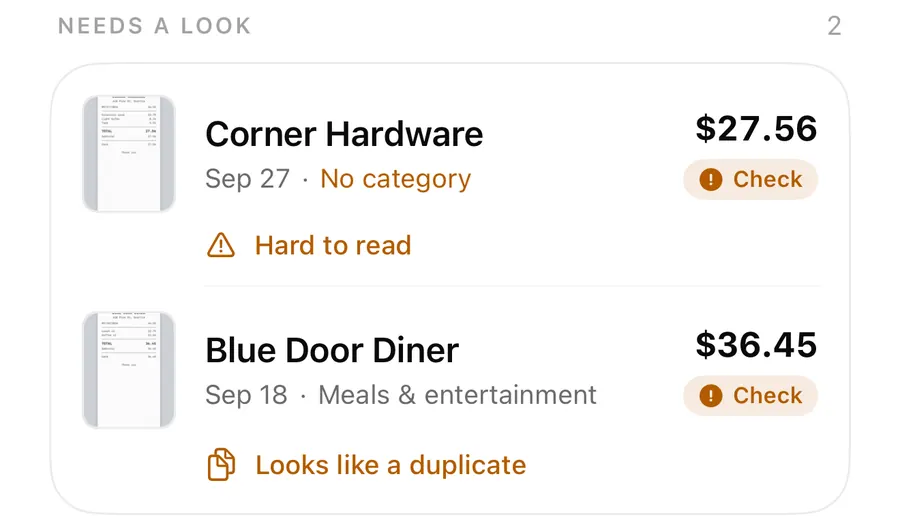
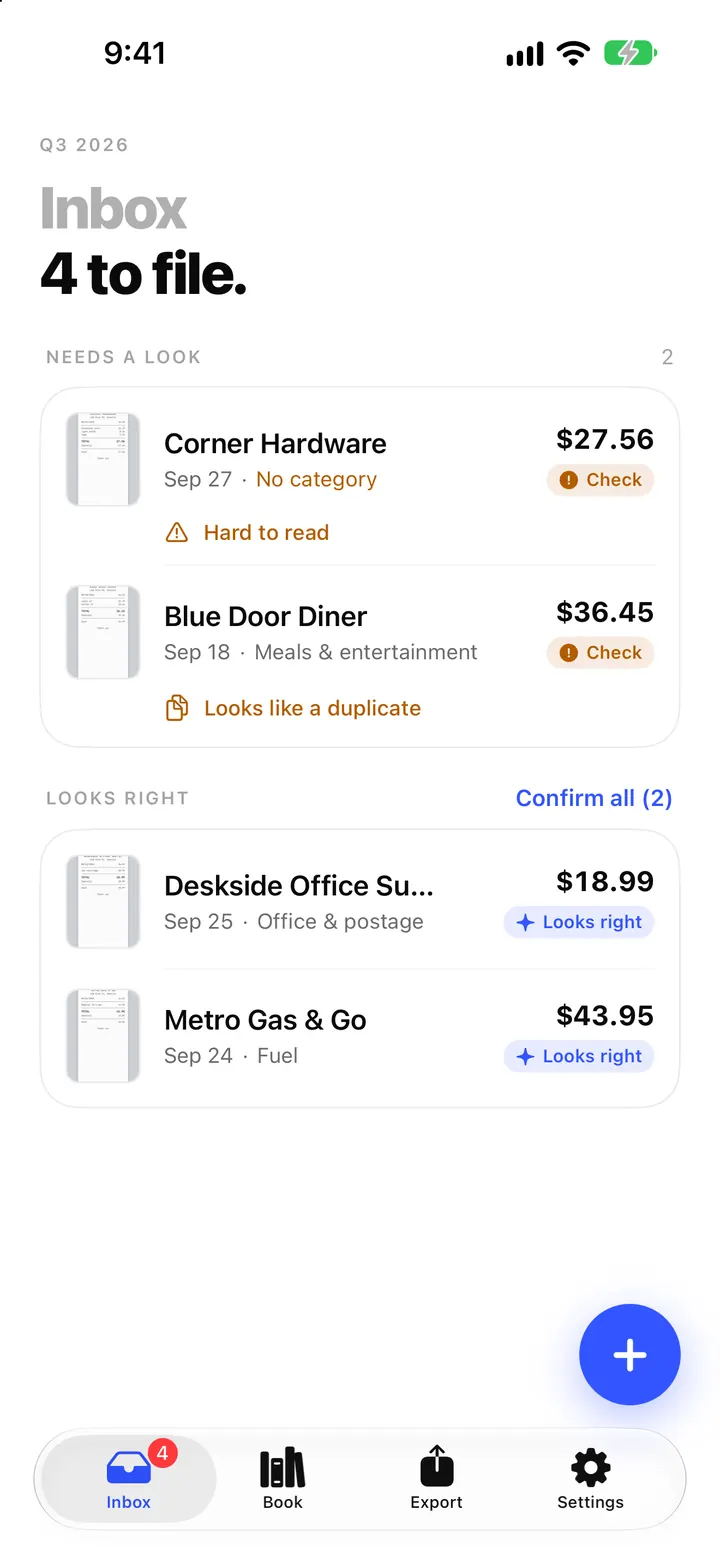
The ReceiptBook Inbox: Needs a look, Looks right and Confirm all
How the ReceiptBook Inbox sorts new receipts into Reading, Couldn't read, Needs a look and Looks right, and when to use Confirm all or open a receipt first.
ReadA Workflow for Processing a Backlog of Paper Receipts
Safely process a box of paper receipts with sorting, capture, OCR, review, original retention and ReceiptBook export.
Read guide