Scan receipts with your iPhone: how ReceiptBook reads and files them
Scan a paper receipt, pick a photo or import a PDF, and ReceiptBook reads vendor, date, total and tax on your iPhone, then files it once you have checked it.
Short answer
In ReceiptBook you tap the + button, scan a paper receipt, pick photos or import a PDF or e-invoice. The app reads the vendor, date, total and tax on your iPhone and puts the document in the Inbox. Anything it isn't sure about is marked Check, so you look at it before it is filed in your book. Nothing is uploaded, and there is no account.
A shoebox of receipts turns into a problem at the end of the quarter, when your accountant asks for everything at once. ReceiptBook moves that work to the moment you get the receipt: scan it, glance at what was read, confirm it. When the period ends, the documents are already sorted and ready to export. Scanning and reading are free.
Four ways to add a document
Everything starts from the round + button on the Inbox (its accessibility label is Add a document). The menu offers:
| Option | Use it for |
|---|---|
| Scan a receipt | Paper receipts and printed invoices. Uses the iPhone document scanner, which finds the edges and straightens the page. |
| Choose from Photos | Receipt photos you already took. Up to 20 at a time. |
| Import PDF or e-invoice | PDF invoices, images and XML e-invoices saved in Files. |
| Import a folder | A backlog: a whole folder of PDFs, images and XML files at once. |
You can also share a PDF from Mail or Files straight to ReceiptBook, or photograph receipts from the Lock Screen. Those routes are covered in sharing PDFs and importing folders and Lock Screen capture.
Scan a paper receipt
- Open the Inbox and tap +, then Scan a receipt.
- Lay the receipt flat on a darker surface with good light, and let the scanner find the edges.
- Scan the next page if the invoice has more than one. ReceiptBook asks whether the pages are One document or A document per page.
- Tap save. The document appears under Reading while the text is read on your iPhone.
- When it moves to Looks right, check the amount and vendor and confirm it. If it lands in Needs a look, open it and fix what is marked.
What ReceiptBook reads
For each document the app looks for the vendor, the date, the total, the net amount, the VAT or sales tax (several rates on one receipt are supported), the currency, the invoice number, the vendor's tax ID and the payment method (Card, Cash, Bank transfer or Other). It also decides whether the document is a Receipt, an Invoice or a Credit note, and whether it is an expense or income.
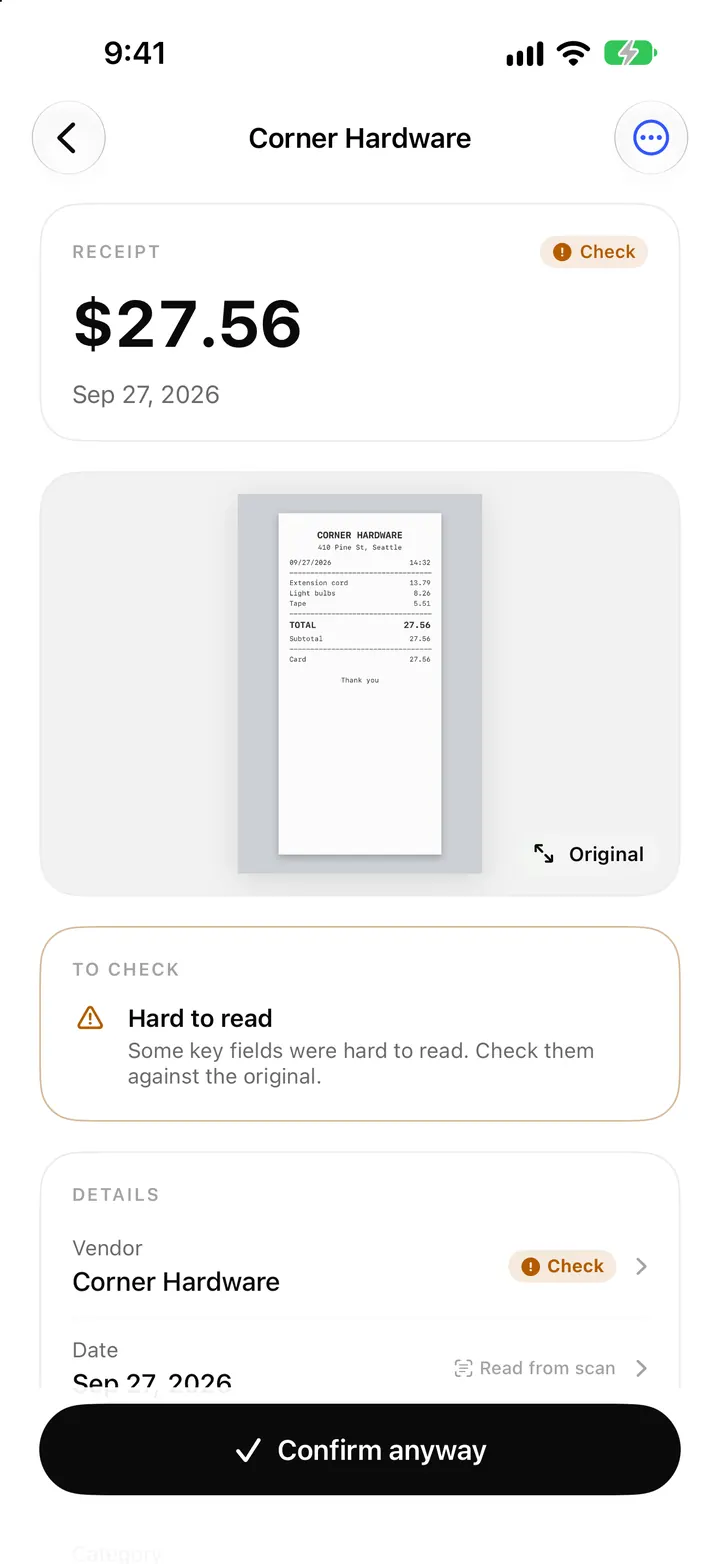
It uses the best source it has. An XML e-invoice is read exactly. A PDF with a text layer is read from that text. A photo or scan is read with Apple's on-device text recognition. Each field then shows where its value came from, such as Read from scan, Read from PDF or From e-invoice, and tapping a field shows Where it was read on the original.
Nothing is guessed silently
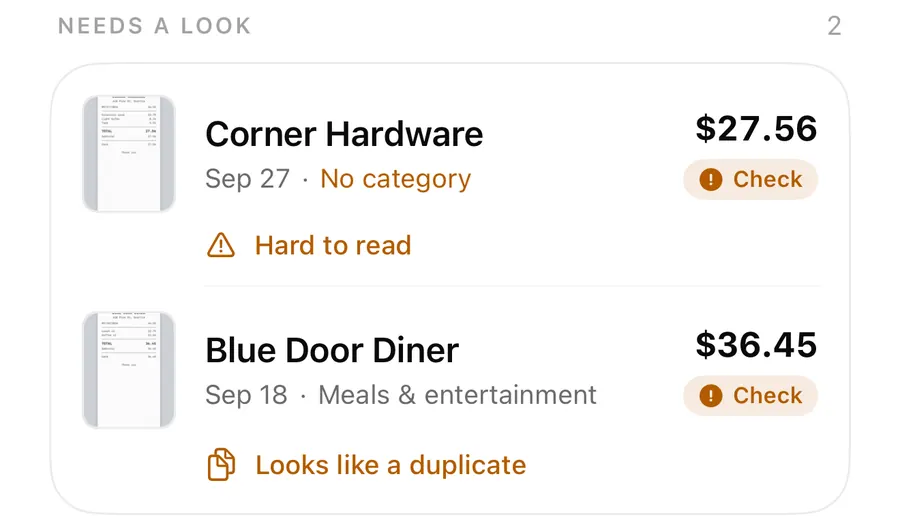
Receipts fade, crumple and get printed on thermal paper. ReceiptBook doesn't hide that. When a value falls below the confidence it trusts, the field gets an amber Check badge and the document stays out of Looks right. If the vendor, date or total was hard to read, you'll see Hard to read with the advice to check them against the original.
Some issues keep a document out of Looks right until you look at it: No total found, No date found, VAT doesn't add up and Date is in the future. A missing total is the only one that stops filing altogether; for the others you can compare with the original and use Confirm anyway. Warnings such as Looks like a duplicate appear when another document has the same vendor, date and total. The Check badges post explains each one.
Filing and what comes next
Confirmed documents move to the Book tab, sorted into the period you chose (monthly, quarterly or yearly) with totals and a breakdown of Where it went by category. When the period is done, the Export tab builds the files for your accountant: an accountant package ZIP with a CSV, a PDF report, every original and a SHA-256 manifest. That export needs ReceiptBook Pro; the accountant package post shows what is inside.
FAQ
Does ReceiptBook work without internet?
Yes. Scanning, text recognition and filing all run on your iPhone, so you can file a receipt on a train or in a basement car park.
Can I scan a long invoice with several pages?
Yes. Scan every page, then choose One document to keep them together as one PDF. Choose A document per page when each page is a separate receipt.
What happens to the original photo?
It is kept exactly as captured and goes into the accountant package with the export. You can also share the original from the review screen at any time.
Do I have to fix every Check badge?
No. Only a missing total stops you from filing. For everything else you can use Confirm anyway after you have compared the value with the original.
Download ReceiptBook and file today's receipts before they fade.
Keep reading
The ReceiptBook Inbox: Needs a look, Looks right and Confirm all
How the ReceiptBook Inbox sorts new receipts into Reading, Couldn't read, Needs a look and Looks right, and when to use Confirm all or open a receipt first.
ReadCheck badges and field sources: how ReceiptBook shows what it read
What the amber Check badge means in ReceiptBook, where each value came from (scan, PDF, e-invoice, your rule), and how duplicates and edits are flagged.
Read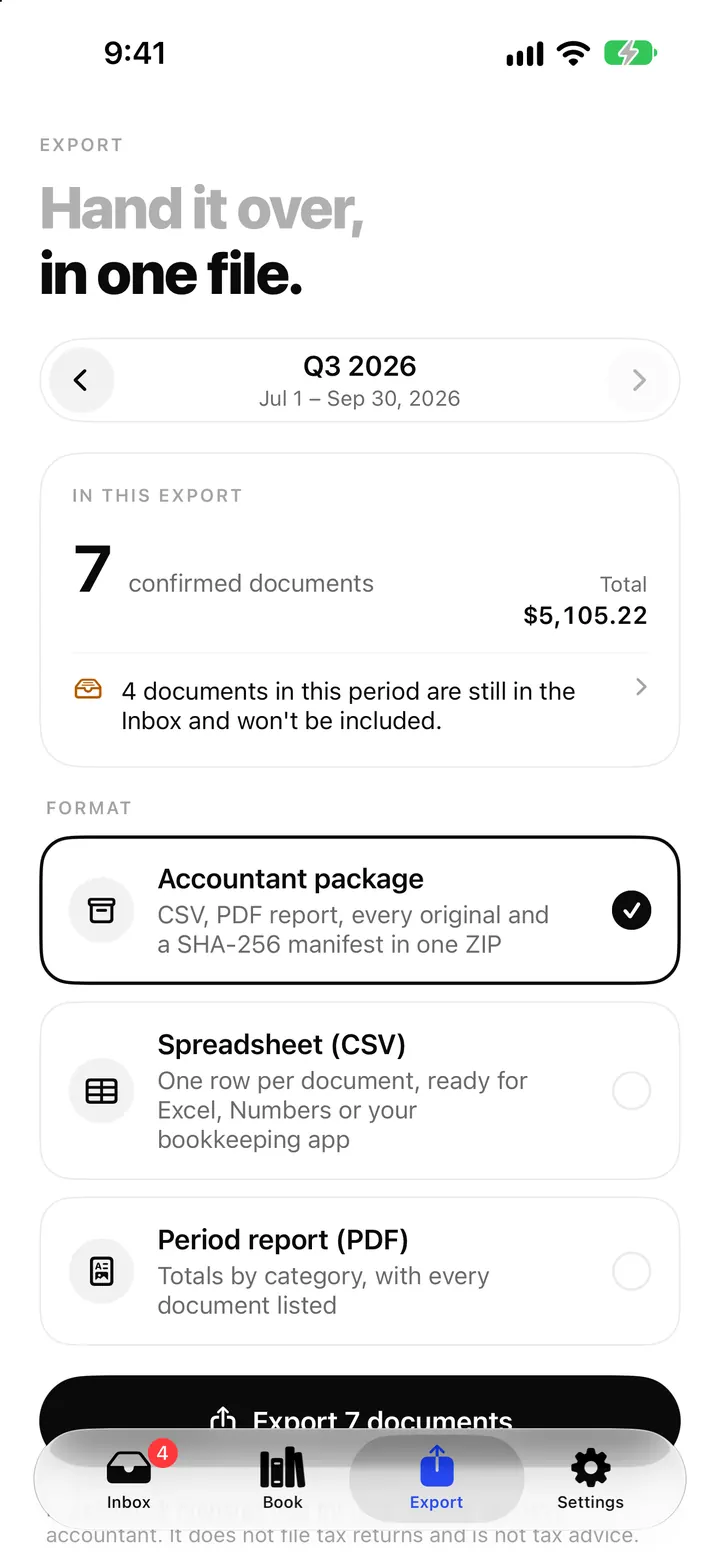
The accountant package: export a whole period as one ZIP from ReceiptBook
Export a period as one ZIP with transactions.csv, summary.csv, a PDF report, every original and a SHA-256 manifest, or as CSV, Excel or PDF, all on your iPhone.
ReadA ReceiptBook Workflow for Capturing, Reviewing, and Exporting Invoices
Build a repeatable ReceiptBook process from invoice capture and OCR review to categorisation, source checks, and scheduled exports.
Read guide