Check badges and field sources: how ReceiptBook shows what it read
What the amber Check badge means in ReceiptBook, where each value came from (scan, PDF, e-invoice, your rule), and how duplicates and edits are flagged.
Short answer
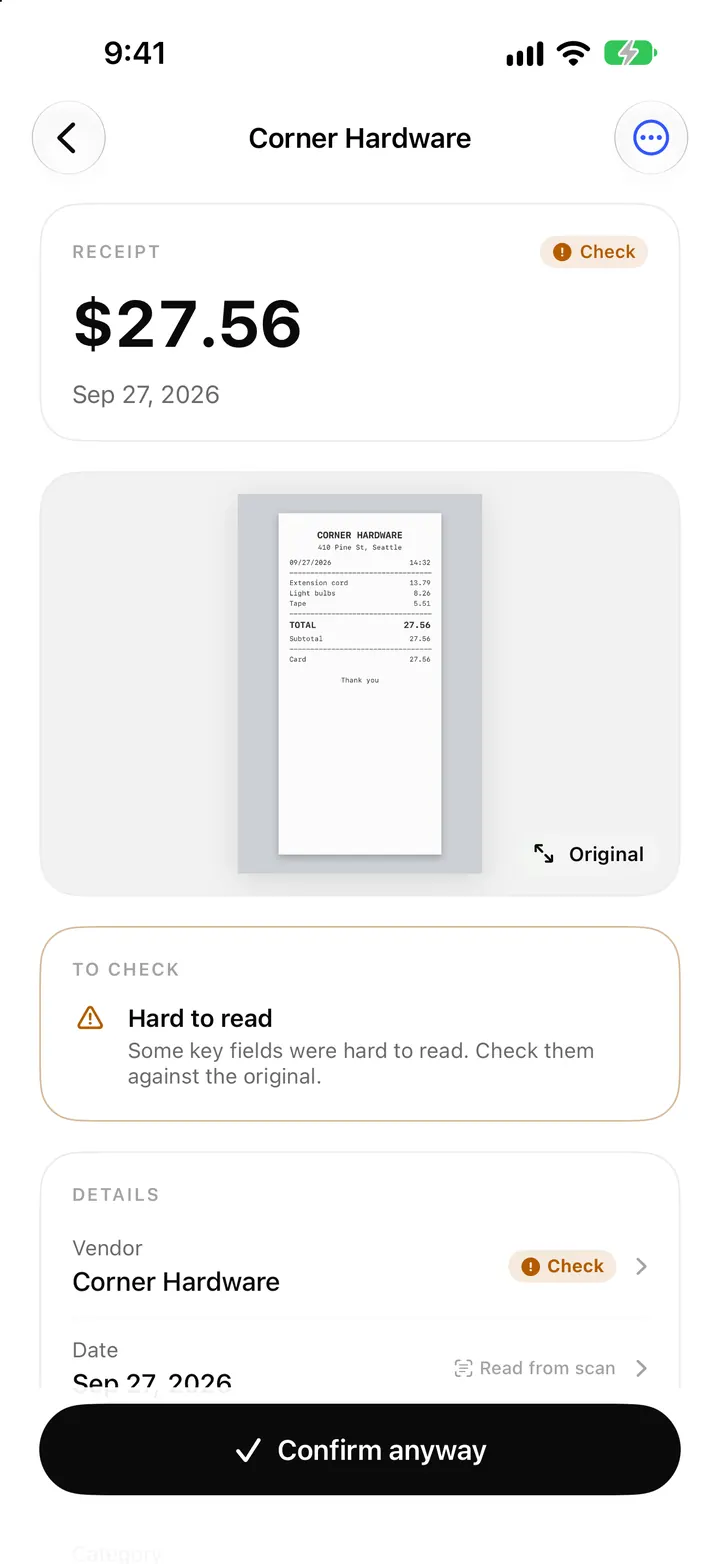
In ReceiptBook every field shows where its value came from, such as Read from scan, Read from PDF, From e-invoice, Your rule or Edited. When a value was read with low confidence it gets an amber Check badge and the document stays out of Looks right. Tap the field to see Where it was read on the original, and open History to see every change with its source.
Text recognition is good, not perfect. A crumpled thermal receipt, a stamp across the total or a handwritten tip can all fool it. ReceiptBook doesn't pretend otherwise. Its promise is that nothing is guessed silently: anything uncertain is marked Check, and every change is logged. This post explains the marks you see on the review screen and what to do about them.
The Check badge
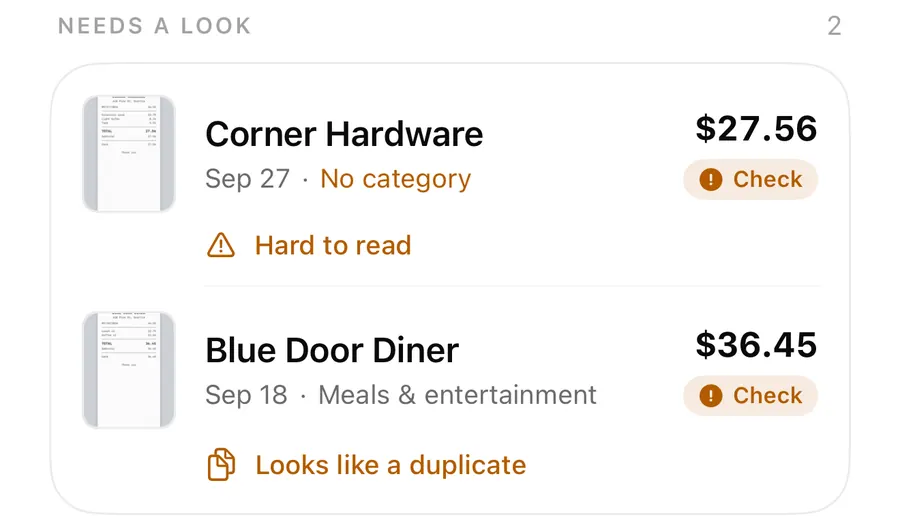
Each value ReceiptBook reads comes with a confidence score. Below the level it trusts, the field gets an amber Check badge. One such field is enough to keep the whole document out of Looks right and in Needs a look, so it can't be filed by Confirm all without you seeing it.
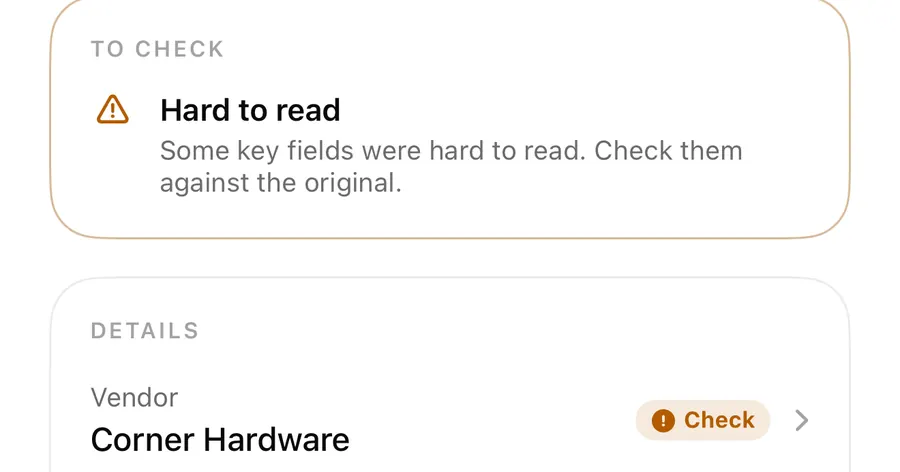
When the uncertain field is one of the three that matter most (vendor, date or total), the document also gets the issue Hard to read, with the advice that some key fields were hard to read and you should check them against the original.
Field sources: where each value came from
Next to each field, ReceiptBook names its source:
| Label | Meaning |
|---|---|
| From e-invoice | Taken from the structured data of an XML e-invoice, or the XML inside a ZUGFeRD or Factur-X PDF. Read exactly. |
| Read from PDF | Read from the text layer of a PDF. |
| Read from scan | Recognized from a photo or scan with Apple's on-device text recognition. |
| Apple Intelligence | Filled in by Apple Intelligence on the iPhone (Pro, iOS 26, supported devices). |
| Edited | You changed it. |
| Your rule | Set by one of your vendor rules or category rules. |
| Suggested | A category picked by the automatic keyword and merchant matching (Pro). |
| Not found | Nothing usable was found on the document. Fill it in yourself. |
The order of trust follows the same list: e-invoice data first, then a PDF's text, then the scan. A field marked Edited is your own value, and the change is logged. For how the Apple Intelligence label works, see Apple Intelligence receipt reading.
Where it was read
When a value came from the page itself, tap the field to edit it and ReceiptBook shows Where it was read: a strip of the original with the spot outlined. Checking a total becomes a glance instead of a hunt through a long receipt. This works for scans, photos and PDFs. XML e-invoices have no image, so there is nothing to outline; their values come straight from the data.
Check a field marked Check
- Open the document from Needs a look.
- Read the To check card at the top to see why it's there.
- Tap the field with the amber Check badge. Look at Where it was read on the original.
- If the value is right, leave it. If not, type the correct one; the source changes to Edited.
- Tap Confirm, or Confirm anyway if an issue remains and you're sure the document is right.
Looks like a duplicate
The same purchase often reaches you twice: the paper receipt and the emailed PDF, or two photos of one bill. ReceiptBook compares each new document with the ones you have, using the total, the date (within a day), the vendor and the invoice number. The same vendor tax ID with the same invoice number also counts as a match.
A likely match shows Looks like a duplicate, explaining that another document has the same vendor, date and total, with a link to Open the earlier copy. You compare the two and move the extra one to Recently Deleted, or confirm both if they really are two purchases (two coffees on the same day at the same price are not unusual). Exact byte-for-byte copies of a file never get this far; they are skipped on import as Already in ReceiptBook, as the import post explains.
History: every change, with its source
Each document has a History in the review screen's menu, described as every change to this document, with its source. It starts with how the document came in (Camera scan, Photos, Files, Shared from another app or Typed in), then lists each value read, each change you made (shown as By you), each confirmation, Reopened, Moved to Recently Deleted and Restored.
That record goes with your exports: the accountant package includes an audit.csv with the change history of the exported documents. Every original also gets a SHA-256 fingerprint when it comes in, and the history is chained so that a later change outside the app shows up in the weekly Integrity check.
FAQ
Why does a clear receipt still show Check?
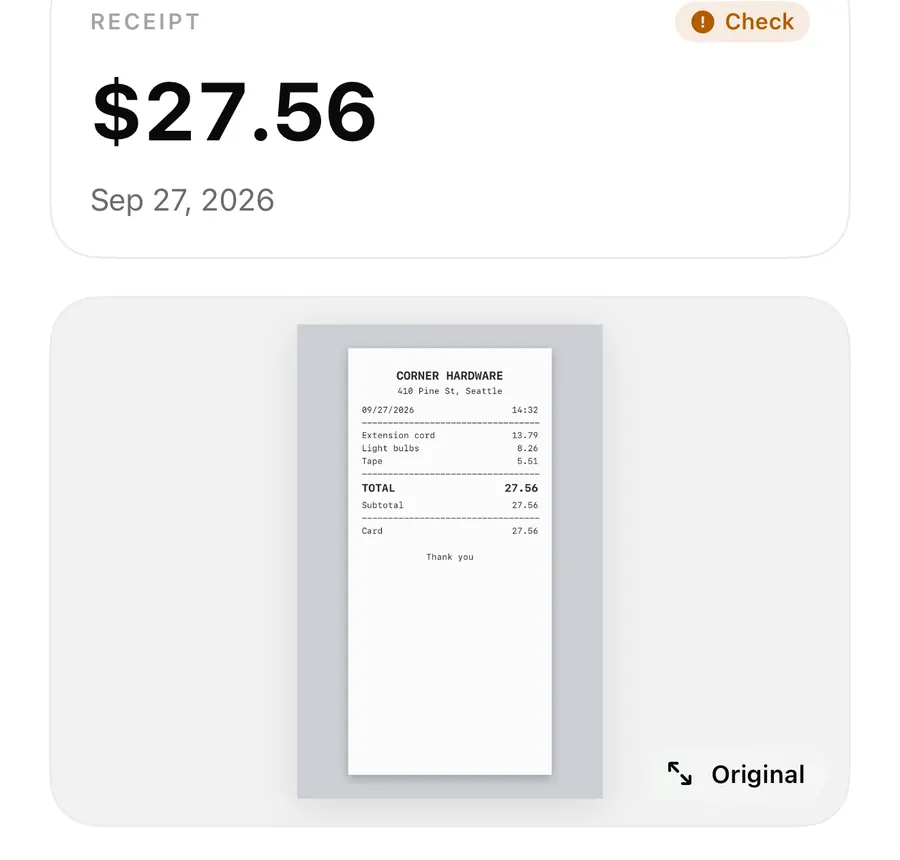
The confidence score is per field. A total next to a smudge, or a vendor name printed as a logo, may score low even when the rest is crisp. Compare it with the original and confirm.
What does Not found mean?
Nothing usable was found for that field on the document. Type the value in; it will show as Edited.
Will a rule change a category I picked?
No. Category rules and automatic categories are applied to new documents, and a category you picked yourself is never changed by them. Your edits show as Edited and are logged in History.
Is the history included when I send files to my accountant?
Yes. The accountant package contains audit.csv with the change history of the documents in that export. More about privacy and records is on the support page.
Download ReceiptBook and see exactly where every number came from.
Keep reading
The ReceiptBook Inbox: Needs a look, Looks right and Confirm all
How the ReceiptBook Inbox sorts new receipts into Reading, Couldn't read, Needs a look and Looks right, and when to use Confirm all or open a receipt first.
Read
Apple Intelligence receipt reading in ReceiptBook: what it fills in
With ReceiptBook Pro on iOS 26, Apple Intelligence fills gaps in vendor, date, total and category on your iPhone, and what it alone found is marked Check.
Read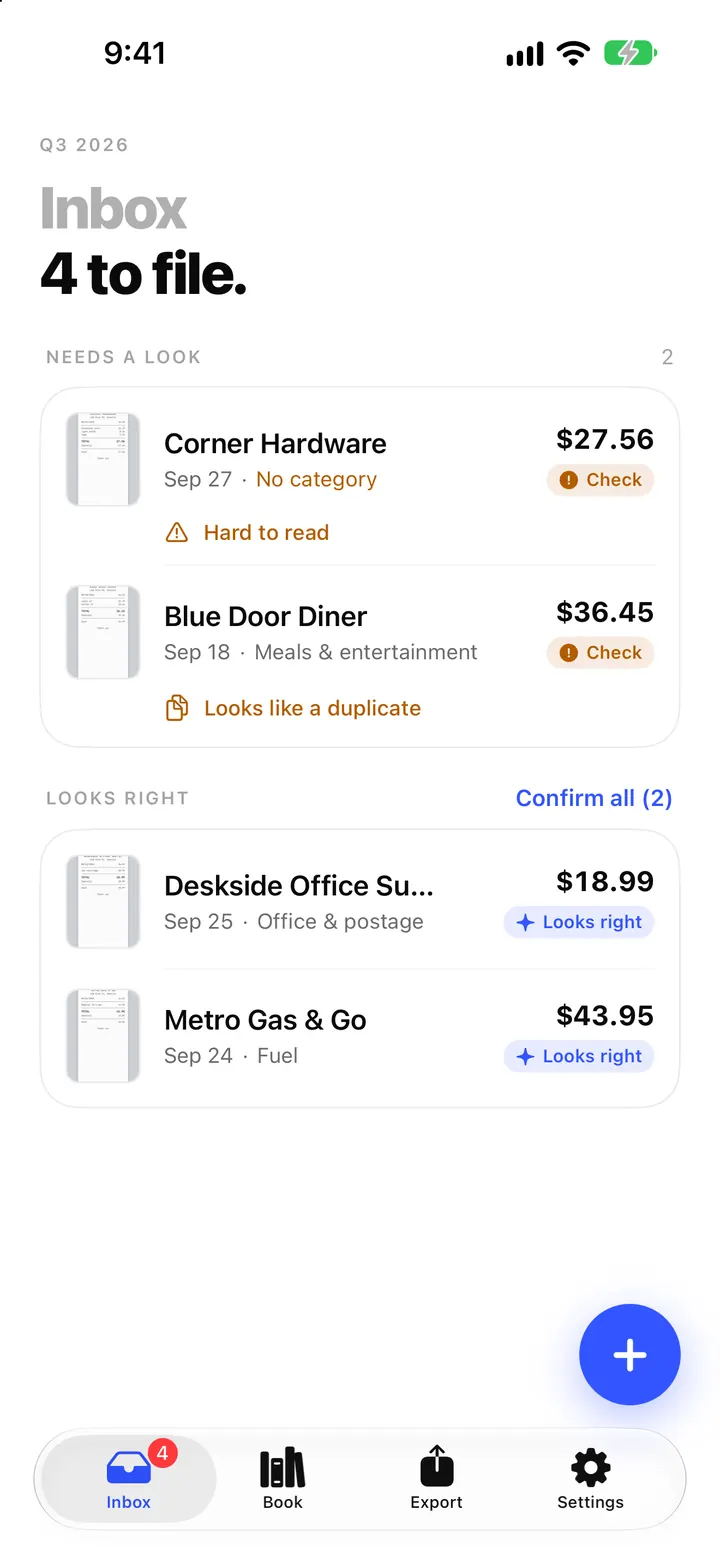
Scan receipts with your iPhone: how ReceiptBook reads and files them
Scan a paper receipt, pick a photo or import a PDF, and ReceiptBook reads vendor, date, total and tax on your iPhone, then files it once you have checked it.
ReadWhy ReceiptBook OCR should not be trusted blindly
Learn why ReceiptBook OCR needs review and how to check vendors, dates, VAT, totals and originals before saving.
Read guide