Apple Intelligence receipt reading in ReceiptBook: what it fills in
With ReceiptBook Pro on iOS 26, Apple Intelligence fills gaps in vendor, date, total and category on your iPhone, and what it alone found is marked Check.
Short answer
With ReceiptBook Pro on iOS 26, on an iPhone with Apple Intelligence, ReceiptBook can ask the on-device model to fill gaps the regular reading left: vendor, date, total, currency, invoice number and category. It only runs when a key field is weak, the invoice number is missing or there's no category, and never on e-invoices. Where it agrees with the regular reading, confidence goes up; where it disagrees or found a value on its own, you're asked to check.
ReceiptBook reads every receipt with fixed rules first: Apple's on-device text recognition, followed by pattern matching for totals, dates, VAT and vendor names in seven languages. That handles most receipts. Apple Intelligence is a second opinion for the ones the rules struggle with, such as an unusual layout or a vendor name that only appears as a logo. It runs on your iPhone, like everything else in the app, and it follows the same rule: nothing is guessed silently.
When it runs
All of these have to be true:
- ReceiptBook Pro is on.
- The iPhone runs iOS 26 and supports Apple Intelligence, with Apple Intelligence turned on and its model ready.
- The receipt's language is one the model supports. If not, the regular reading stands.
- The document is not an XML e-invoice or a PDF with embedded e-invoice data. Those are read exactly from their data, so a model would add nothing.
- Something is missing or uncertain: the vendor, date or total is below the confidence ReceiptBook trusts, the invoice number wasn't found, or no category was picked.
A clean receipt that the rules read with confidence, with a category from one of your rules, is filed without the model being asked at all.
What it can fill in
The model is given the text of the receipt and asked for the vendor, the date, the total, the currency, the invoice number and a category. For the category, it chooses from the standard list and from Your categories, the custom categories you made, so a receipt can land directly in, say, a client project category you set up.
Two details keep the numbers honest. The model copies values as printed, and ReceiptBook parses amounts and dates itself, so money never passes through a guess at decimals. And a date the model returns that is far in the past or after tomorrow is ignored.
A value it found on its own, and a category it picked, is labeled Apple Intelligence as its source, next to labels like Read from scan and Your rule. The field sources post lists them all.
Agree, disagree, or found alone
ReceiptBook combines the two readings field by field:
| Situation | Result |
|---|---|
| The model agrees with the rule-based reading | The value stays, and its confidence goes up a little. |
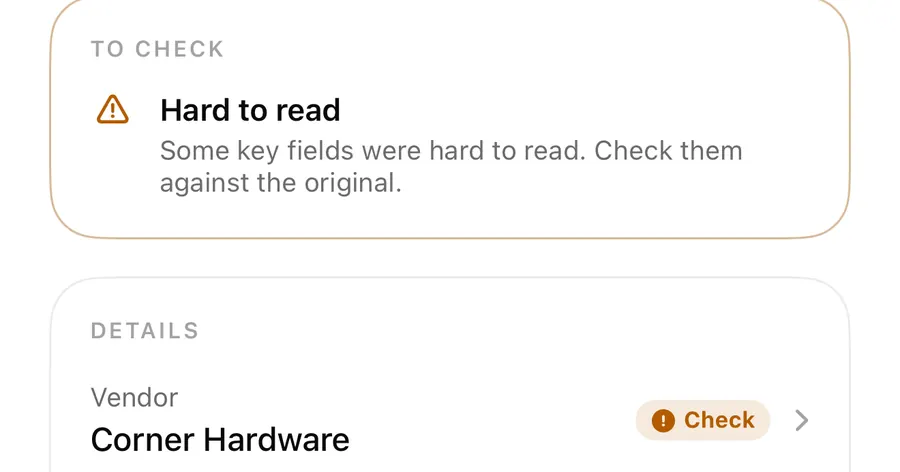
| The model disagrees, and the rule reading was uncertain | The rule value stays, marked Check, so the document goes to review. |
| The model disagrees, and the rule reading was very confident | The rule value stands. |
| Only the model found a value | It's filled in, labeled Apple Intelligence, and marked Check. |
The last row is the important one. A value found only by the model is used but never trusted without you looking at it. The one exception is a vendor name that matches a merchant ReceiptBook already knows, which counts as well read. Categories from the model only fill an empty category; they never replace one from your rules or one you picked.
Check a receipt the model helped with
- Open the document from Needs a look in the Inbox.
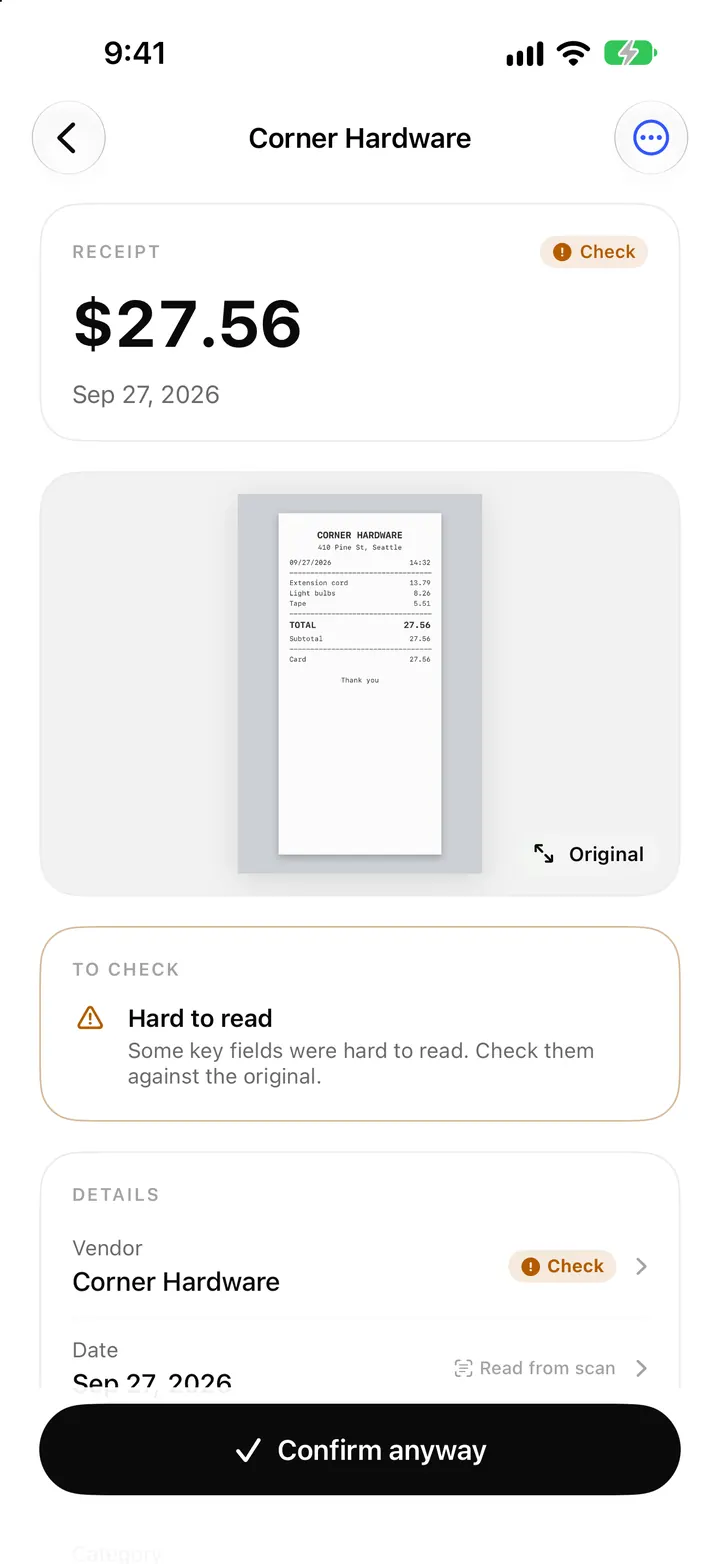
- Look for fields labeled Apple Intelligence with an amber Check badge.
- Tap each one and compare it with Where it was read or the original image.
- Correct anything wrong. The label changes to Edited.
- Confirm. If the vendor comes up often, accept the vendor rule offer so the category is set by Your rule next time.
Where it sits among categories
Categories are chosen in a fixed order: your vendor rules, then your Category rules, then the automatic keyword and merchant matching (Pro, shown as Suggested), and last Apple Intelligence. Rules always win. The rules post shows how to set them up so the model is rarely needed.
Dictated notes and Suggest purpose and attendees
Meals and trips often need a note: what the expense was for and who was there. In the note field, the Dictate button turns your speech into text on the iPhone; your voice is not uploaded. Dictation is free and works on iOS 18 and later wherever the language can be transcribed on the device.
With Pro on iOS 26, a note can go one step further. Tap Suggest purpose and attendees and Apple Intelligence turns what you said into Purpose and Attendees lines. The result is shown in a card labeled Suggested by Apple Intelligence, with Add to note or Not now. Nothing goes into the note until you add it.
FAQ
Does ReceiptBook need Apple Intelligence to read receipts?
No. Every receipt is read with on-device text recognition and rules, which is free and works on iOS 18. Apple Intelligence only fills gaps for Pro users on iOS 26.
Why didn't Apple Intelligence run on my receipt?
It runs only when something is missing or uncertain. It also needs Pro, iOS 26, a supported iPhone, Apple Intelligence turned on and a receipt language the model supports. It never runs on e-invoices.
Can it change a category I set?
No. It only fills a missing category. Your rules and your own choices come first.
Is my receipt sent to the cloud?
No. The model runs on the iPhone. See the FAQ for more on privacy.
Download ReceiptBook and let the rules, and your iPhone, do the reading.
Keep reading
Check badges and field sources: how ReceiptBook shows what it read
What the amber Check badge means in ReceiptBook, where each value came from (scan, PDF, e-invoice, your rule), and how duplicates and edits are flagged.
Read
Vendor and category rules: file receipts automatically in ReceiptBook
Let ReceiptBook file receipts for you: vendor rules it offers after a few receipts, and category rules by keyword, amount, currency, VAT rate or payment method.
ReadReceiptBook Pro: what it adds, the plans, and what stays free
Scanning, reading, the Inbox, the Book and exporting your originals are free in ReceiptBook. Pro adds accountant exports, auto-categories and more businesses.
ReadOn-device receipt reading versus cloud upload
Compare on-device receipt reading with cloud services and see how ReceiptBook keeps export and sharing decisions in your hands.
Read guide