Vendor and category rules: file receipts automatically in ReceiptBook
Let ReceiptBook file receipts for you: vendor rules it offers after a few receipts, and category rules by keyword, amount, currency, VAT rate or payment method.
Short answer
ReceiptBook can pick the category for you in two ways, both free. A vendor rule files every new document from one vendor under the same category; the app offers one after you have filed the same vendor the same way a couple of times. A category rule matches a word, an amount range, a currency, a VAT rate or a payment method. A category you picked yourself is never changed by a rule.
Choosing a category for the tenth fuel receipt of the quarter is busywork. ReceiptBook learns from what you have already filed and lets you write your own rules, so most new documents arrive in the Inbox with the right category already set. You still see every document before it's filed.
Vendor rules: offered, never forced
When you have confirmed at least two documents from the same vendor and most of them went under the same category, ReceiptBook asks, for example, Always file Metro Gas & Go under Fuel? with the explanation that new documents from this vendor get the same category and that you can remove the rule in Settings.
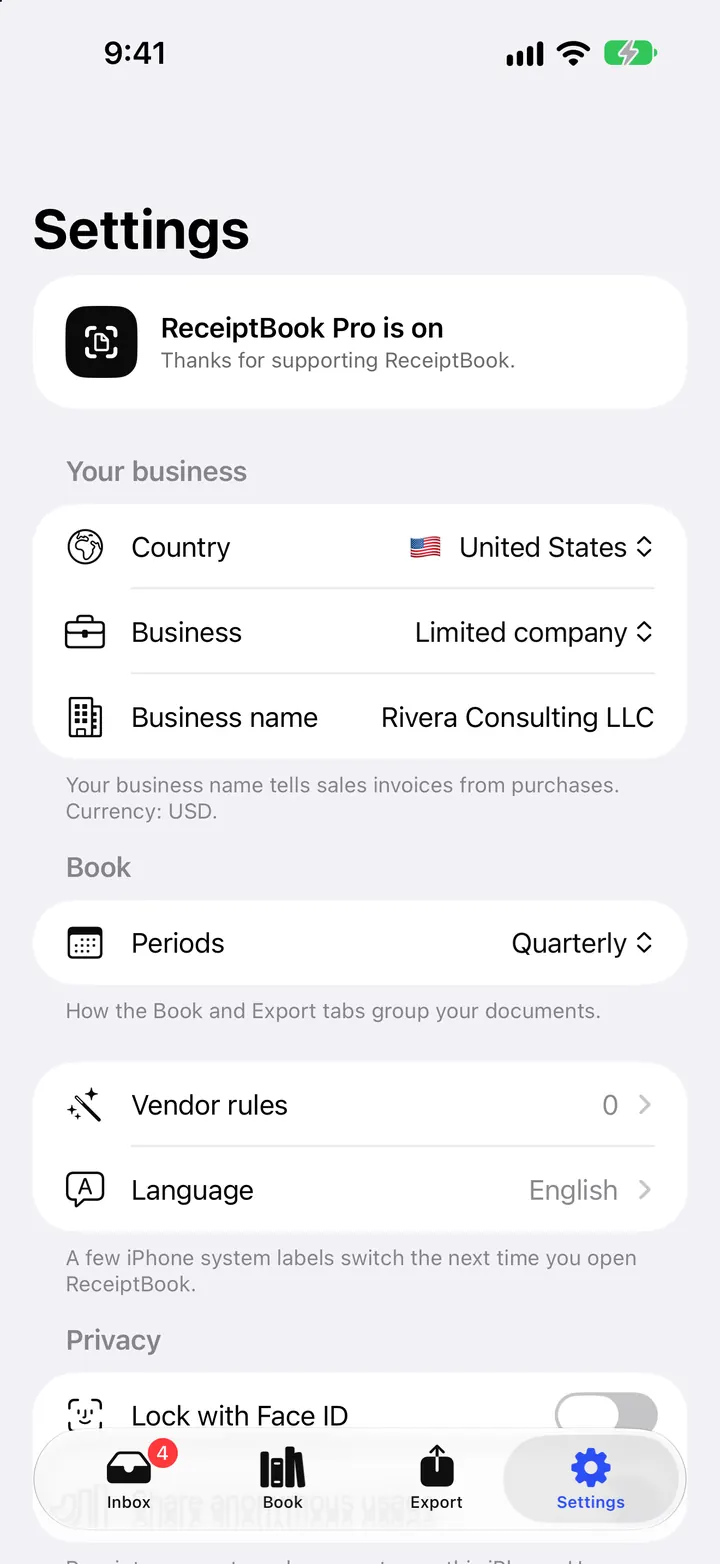
Tap Always to create the rule, or Not now to keep choosing by hand. From then on, new documents from that vendor get the category as soon as they're read, and the field shows the source Your rule. The rule also works with your own categories, so a vendor can go straight to something like Tools under Goods & materials.
Category rules: match more than the vendor name
Some patterns aren't about one vendor. Parking from three different car parks, small cash purchases, or anything paid in Swiss francs might all belong in one place. Category rules handle that.
In Settings > Rules, tap New rule. Under When a new document, set any of these conditions:
| Condition | Example |
|---|---|
| Vendor or text contains | parking, baumarkt, adobe |
| From / Up to an amount, in a chosen currency | up to 20.00 |
| VAT rate | 7 % |
| Paid by | Card, Cash, Bank transfer or Other |
Every condition you set must match; leave one empty to accept anything. The total is compared in the currency shown next to the amounts. Under File it under, choose a standard category or one of your own.
Turn a receipt into a rule
- Open a document in the Inbox and pick its category yourself.
- Below the details, ReceiptBook asks File documents like this one the same way?
- Tap Make a rule…. The editor opens filled in from this document.
- Remove the conditions you don't need, for example keep only the keyword and the payment method.
- Check the category under File it under and tap Save. Nothing is saved before you do.
The list shows each category rule with its conditions on one line and how many documents it has filed so far. Tap a rule to change it, or swipe to delete it. Vendor rules are listed below the category rules.
Which rule wins
ReceiptBook checks in a fixed order, and stops at the first match:
- A category you picked yourself. Rules never overwrite it.
- Vendor rules.
- Category rules, checked on every new document after the vendor rules.
- Automatic keyword and merchant categories (ReceiptBook Pro).
- Apple Intelligence, on supported iPhones with iOS 26 (ReceiptBook Pro).
So a vendor rule for your office supplier beats a general under 20.00, Cash rule. If neither applies and you don't have Pro, the document arrives without a category and you choose one in review. The Inbox shows No category so it doesn't slip through.
Vendor names
Receipts print vendor names in odd ways: all caps, a branch number, a legal entity you don't recognize. In review, rename the vendor, and later documents from it show your name. Settings > Vendor names lists the names ReceiptBook has learned. Swipe to forget a name; later documents then show the vendor as printed.
ReceiptBook also remembers what is usual for a vendor, such as its currency, VAT rate and payment method, which helps when a receipt is hard to read.
Automatic categories with Pro
Without any rule, ReceiptBook Pro can still suggest a category from keywords and well-known merchant names on the receipt, on the iPhone. On supported devices, Apple Intelligence can fill a missing category too, including one of your own categories. Both are suggestions: the field is marked so you can see where it came from, and you confirm the document as usual. The Apple Intelligence post explains when it runs.
FAQ
Do rules file documents without me seeing them?
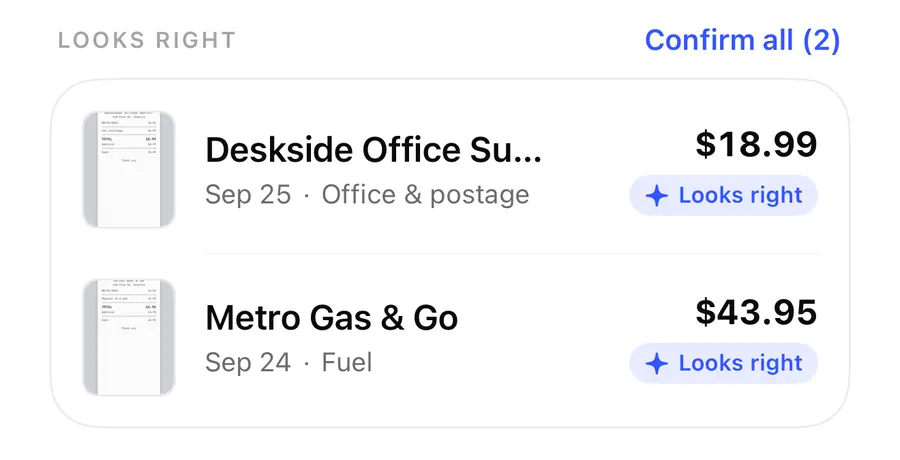
No. A rule only sets the category. The document still goes through the Inbox, and you confirm it there, alone or with Confirm all.
How do I delete a vendor rule?
Go to Settings > Rules and swipe the rule to remove it. New documents from that vendor then go back to the normal order.
Can a rule use one of my own categories?
Yes. Both vendor rules and category rules can file under your own categories. Exports still use the standard category's code. See categories, splits and business use.
Are rules part of ReceiptBook Pro?
No. Vendor rules and category rules are free. Pro adds the automatic keyword, merchant and Apple Intelligence suggestions on top.
Download ReceiptBook and let your regular receipts file themselves.
Keep reading
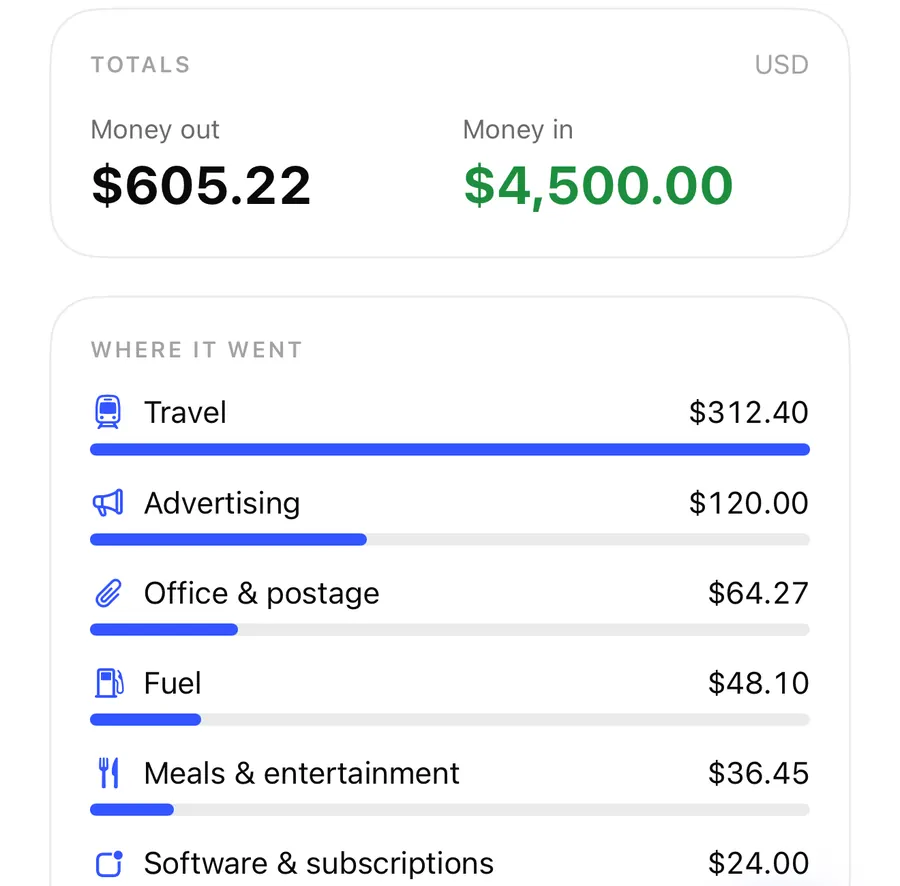
Categories, split receipts and business use percentage in ReceiptBook
Sort receipts into standard categories or your own, split one receipt across several categories, and count only the business share of a phone or car bill.
Read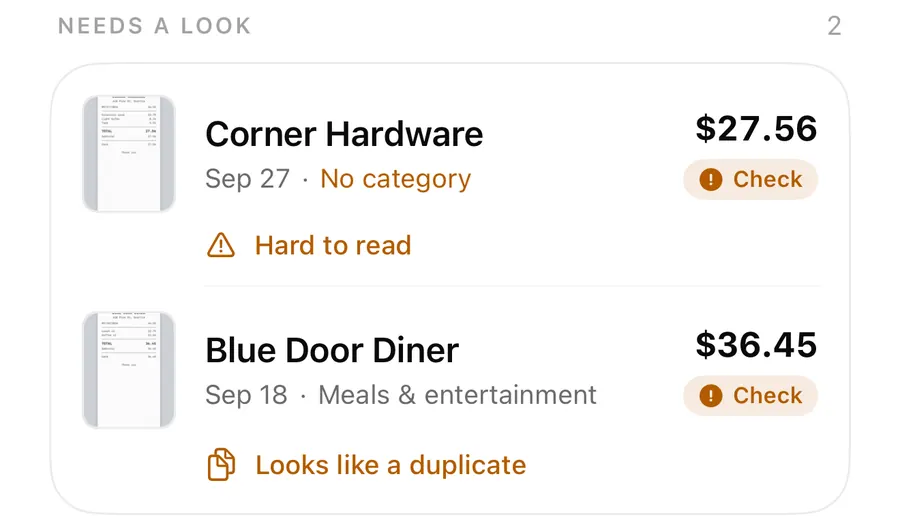
The ReceiptBook Inbox: Needs a look, Looks right and Confirm all
How the ReceiptBook Inbox sorts new receipts into Reading, Couldn't read, Needs a look and Looks right, and when to use Confirm all or open a receipt first.
Read
Apple Intelligence receipt reading in ReceiptBook: what it fills in
With ReceiptBook Pro on iOS 26, Apple Intelligence fills gaps in vendor, date, total and category on your iPhone, and what it alone found is marked Check.
ReadWhat Is a Vendor Rule? Classify Receipts Faster Without Losing Review
Learn how ReceiptBook vendor rules remember categories, when to create one, and why exceptions should remain visible for review.
Read guide