Categories, split receipts and business use percentage in ReceiptBook
Sort receipts into standard categories or your own, split one receipt across several categories, and count only the business share of a phone or car bill.
Short answer
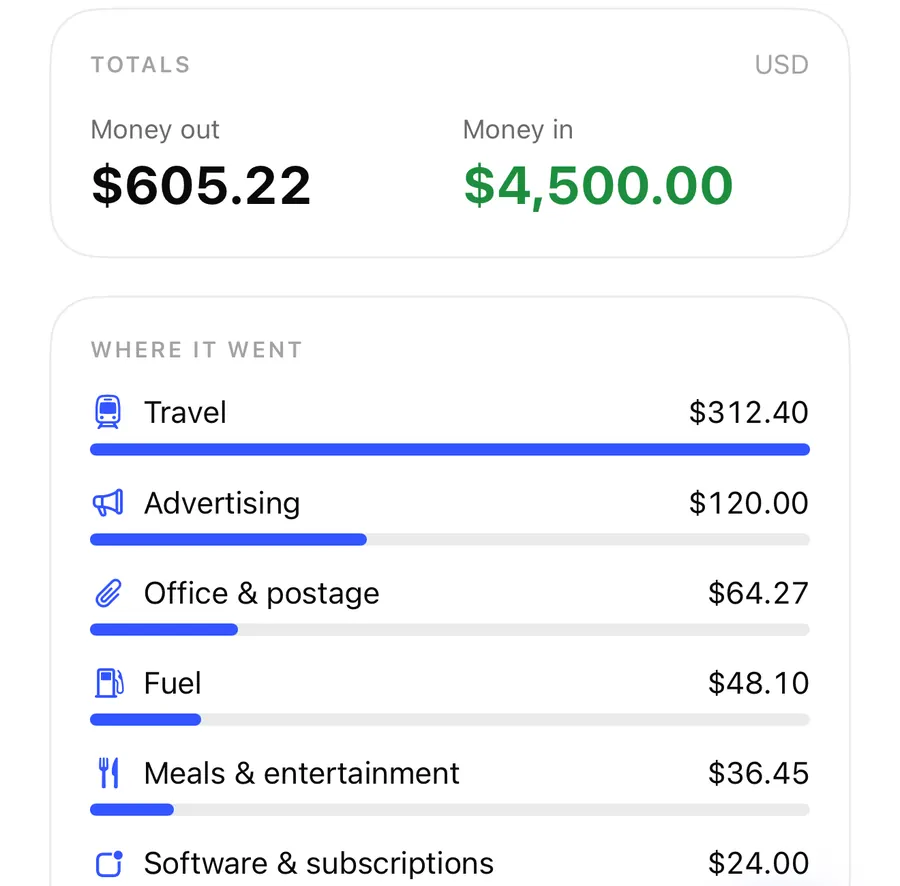
Every expense in ReceiptBook goes under a standard category such as Fuel or Office & postage, and you can add Your categories underneath them. One receipt that covers different things can be split across categories, and a mixed-use bill like a phone contract can count only its Business use percentage. Totals and exports follow what you set, while the original amount stays on the document.
Your accountant thinks in categories; your receipts don't. A hardware store receipt can hold tools and office supplies, and your phone bill pays for private calls too. ReceiptBook gives you three tools for that in the review screen: the category, the split and the business share.
Standard categories
For every country except Vietnam, ReceiptBook uses the same 16 expense categories, plus Income for money in:
| Goods & materials | Vehicle costs | Fuel | Travel |
|---|---|---|---|
| Rent & utilities | Repairs & maintenance | Office & postage | Phone & internet |
| Software & subscriptions | Advertising | Meals & entertainment | Training & books |
| Professional fees | Insurance | Bank & payment fees | Other expenses |
Vietnam has its own list for household businesses, such as Goods & raw materials, Labor, Electricity and Rent of premises.
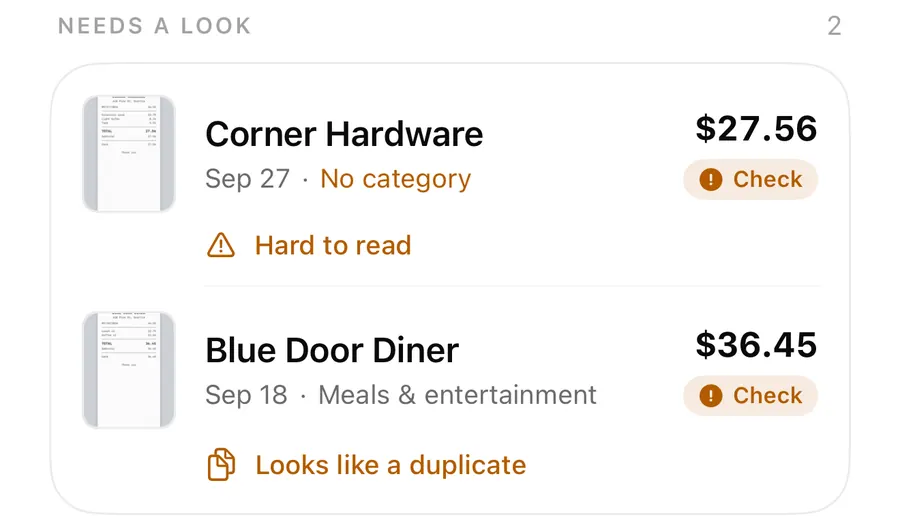
Each standard category has a fixed code in the exports, which is what lets an accountant map your file to their chart of accounts once and reuse that mapping every period. You pick the category in review, or a vendor or category rule picks it for you. A document without one shows No category in the Inbox.
Your categories
Sixteen categories are deliberately broad. If you want to see Tools apart from the rest of Goods & materials, or Trade fairs apart from Advertising, create your own.
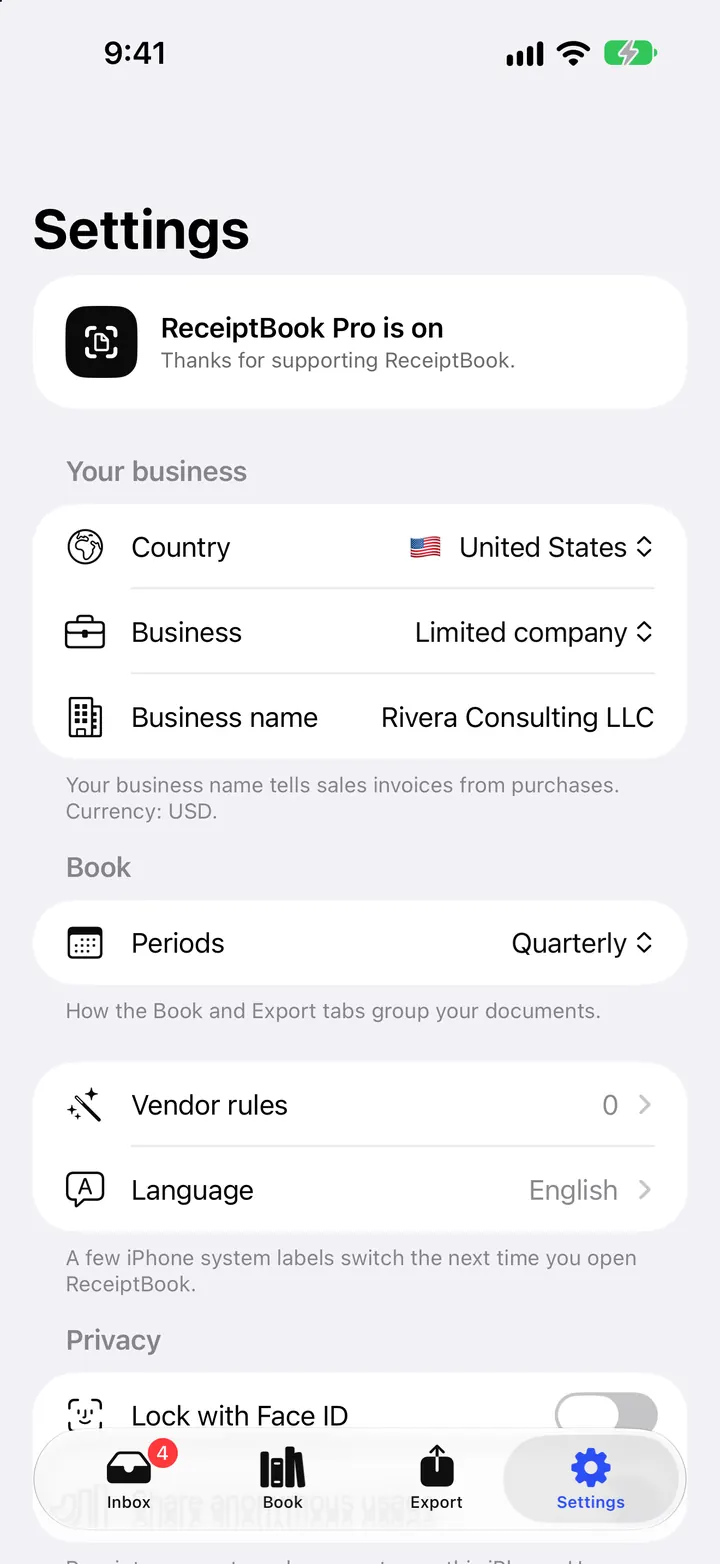
Go to Settings > Your categories, or tap New category… right in the category picker. Give it a name (the app suggests something like Tools or Fairs) and choose which standard category it Counts under.
Your category then appears at the top of the picker. Totals and the accountant's exports keep the standard category's code, so their mapping keeps working, and transactions.csv adds your name in an own_category column. If you remove one later, its documents are filed under the standard category again.
Split one receipt across categories
Split a receipt
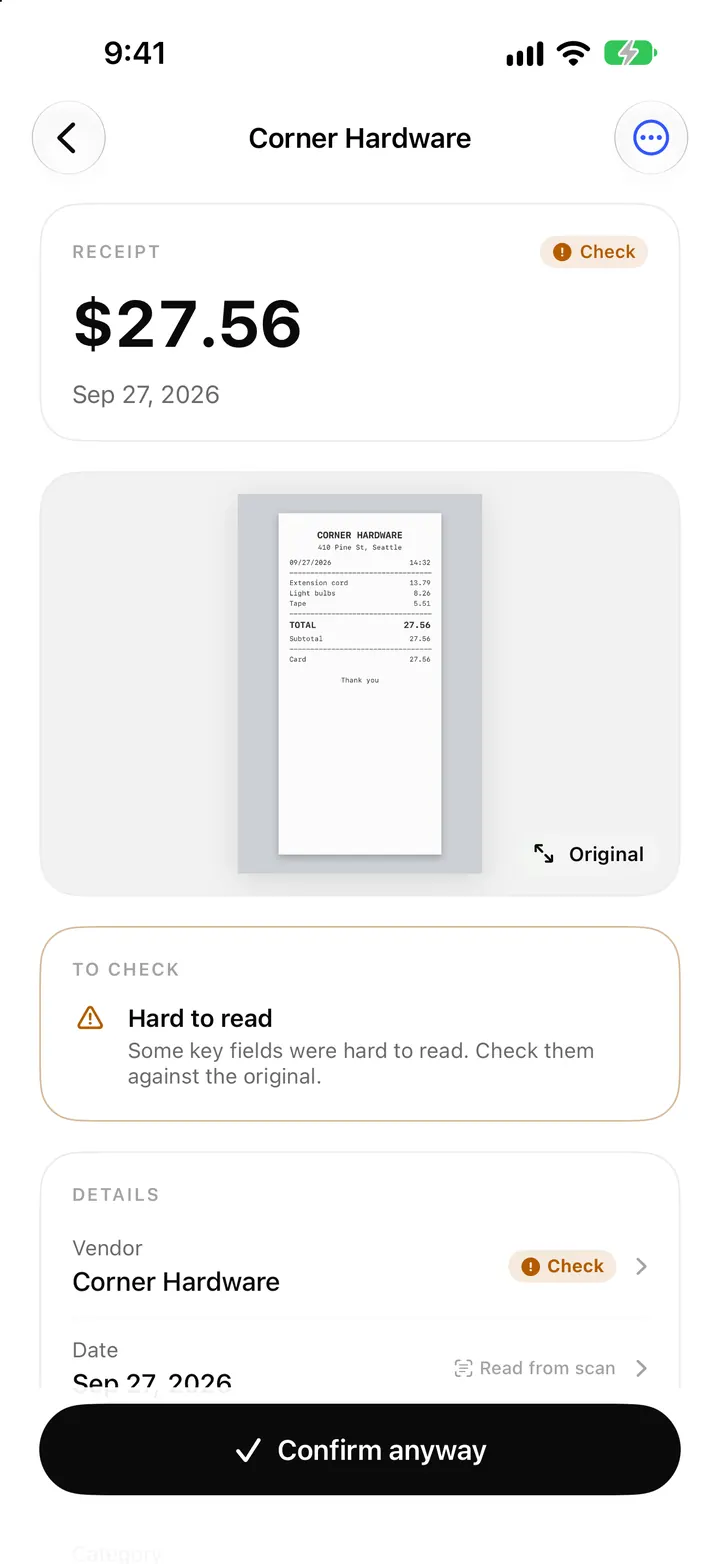
- Open the document and make sure the total is right. ReceiptBook asks you to add the total first, then split it.
- Tap Split in the details.
- Pick a category for the first part and type its amount.
- Tap Add a part for each further category. The last part takes what's left.
- Save once the parts add up to the total. To undo it later, open Split again and choose Don't split.
Splits are for expenses. The Book's Where it went card counts each part under its own category, and in transactions.csv a split document gets a row per category, so the accountant sees exactly how the receipt was divided. The original receipt is still one document with one image.
Business use percentage
Some costs are partly private: a phone contract, a car, a home internet line. Open the document, tap Business use and enter the share that is business, or tap one of the shortcuts 100 %, 75 %, 50 % or 25 %. The editor shows the result right away, for example Business part: $30.00 of $60.00.
From then on:
- the Book's Totals count the business share, with the note that totals count the business share of documents used partly for business
- the VAT by rate card counts the business share only
transactions.csvadds the business-use share and the business amounts, and bookkeeping-software files use the business part- the document itself still shows the full amount you paid
Which percentage is right for you is a question for your accountant or tax office; ReceiptBook only applies the number you enter. Separating personal and business expenses has more on that.
No VAT on this document
Not every receipt carries VAT: a train ticket from a small operator, a foreign purchase, a supplier below the VAT threshold. In the VAT field you can pick one of your country's rates, which also shows the resulting VAT and net, or choose No VAT on this document. If several rates were read from the receipt, the editor points out that picking one replaces them. For receipts with several rates, see foreign currency and VAT rates.
FAQ
Will my own categories confuse my accountant's import?
No. Exports keep the standard category's code in the usual column. Your name only appears in the extra own_category column.
Can I split a receipt and also set a business share?
Both are fields on the same document. The split divides the amount between categories, and the business share sets how much of it counts for the business.
Does business use change the original receipt?
No. The original image and the full amount stay as they are. Only totals and exports use the business part.
What happens if I delete one of my categories?
Its documents are filed under the standard category it counted under. Nothing is lost, and totals don't change.
Download ReceiptBook and sort this quarter's receipts the way your accountant wants them.
Keep reading
Vendor and category rules: file receipts automatically in ReceiptBook
Let ReceiptBook file receipts for you: vendor rules it offers after a few receipts, and category rules by keyword, amount, currency, VAT rate or payment method.
Read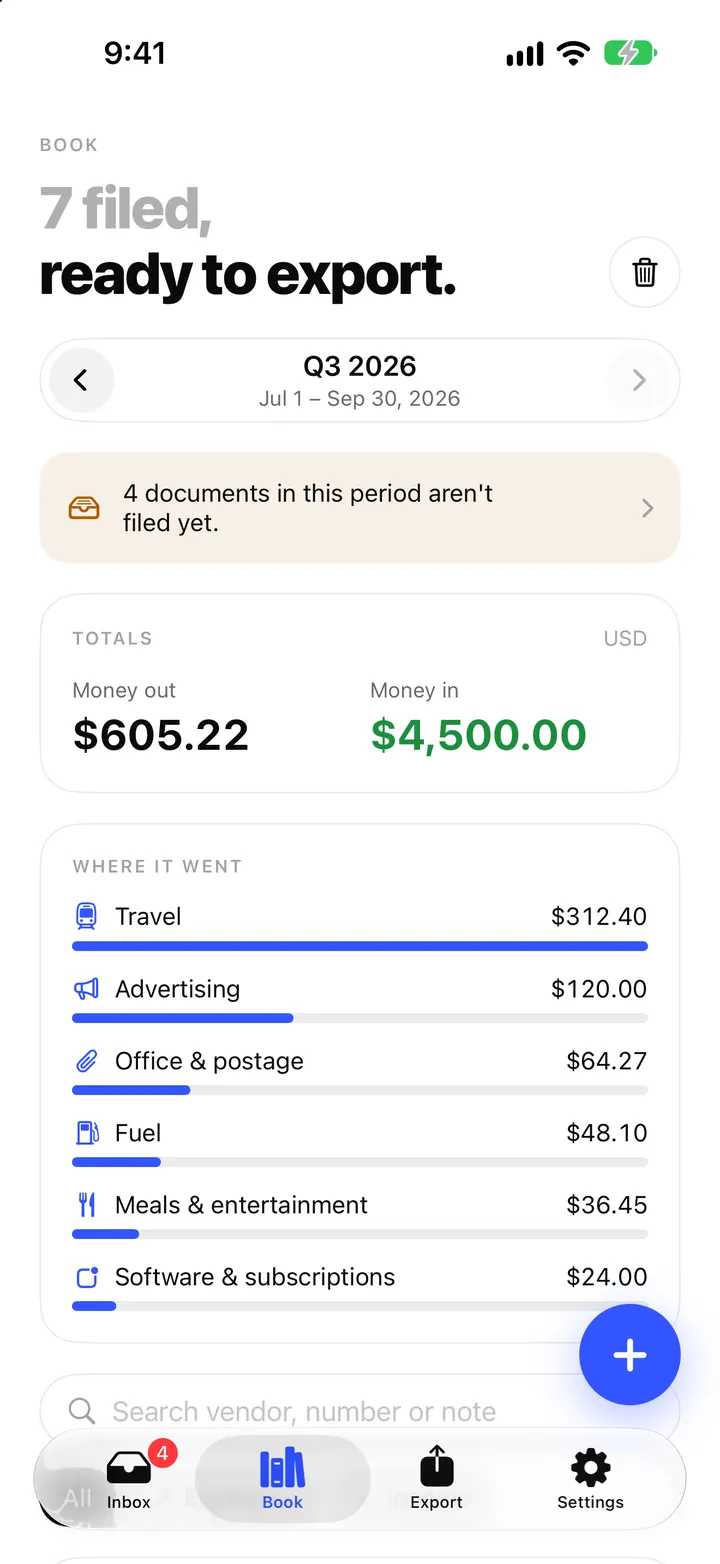
The Book in ReceiptBook: period totals, search, filters and project tags
See money in and out per period, VAT by rate and where it went by category, find any receipt by vendor or amount, and tag costs by project in ReceiptBook.
Read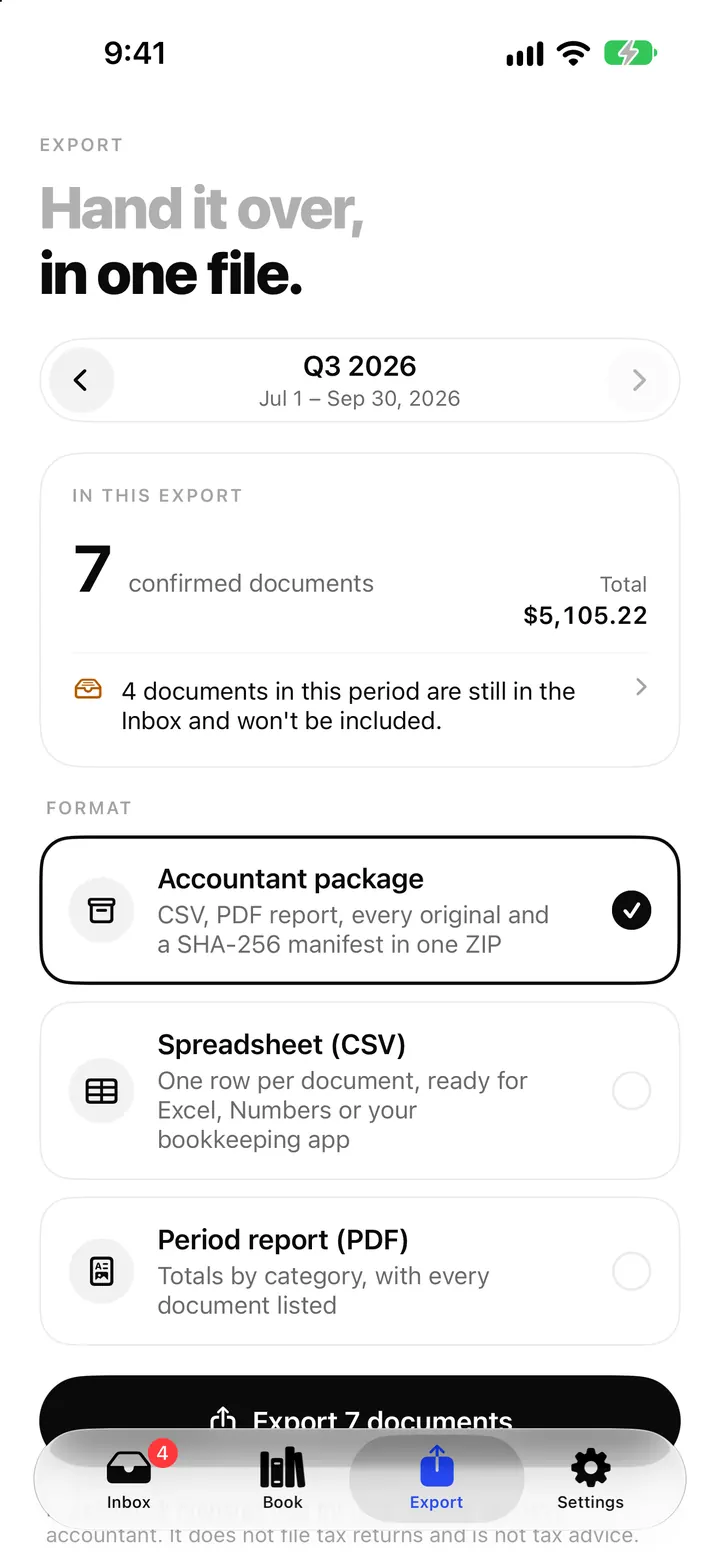
The accountant package: export a whole period as one ZIP from ReceiptBook
Export a period as one ZIP with transactions.csv, summary.csv, a PDF report, every original and a SHA-256 manifest, or as CSV, Excel or PDF, all on your iPhone.
ReadHow to Separate Personal and Business Expenses in ReceiptBook
Label personal, business and mixed receipts in ReceiptBook without hiding the source or making unsupported tax conclusions.
Read guide