The accountant package: export a whole period as one ZIP from ReceiptBook
Export a period as one ZIP with transactions.csv, summary.csv, a PDF report, every original and a SHA-256 manifest, or as CSV, Excel or PDF, all on your iPhone.
Short answer
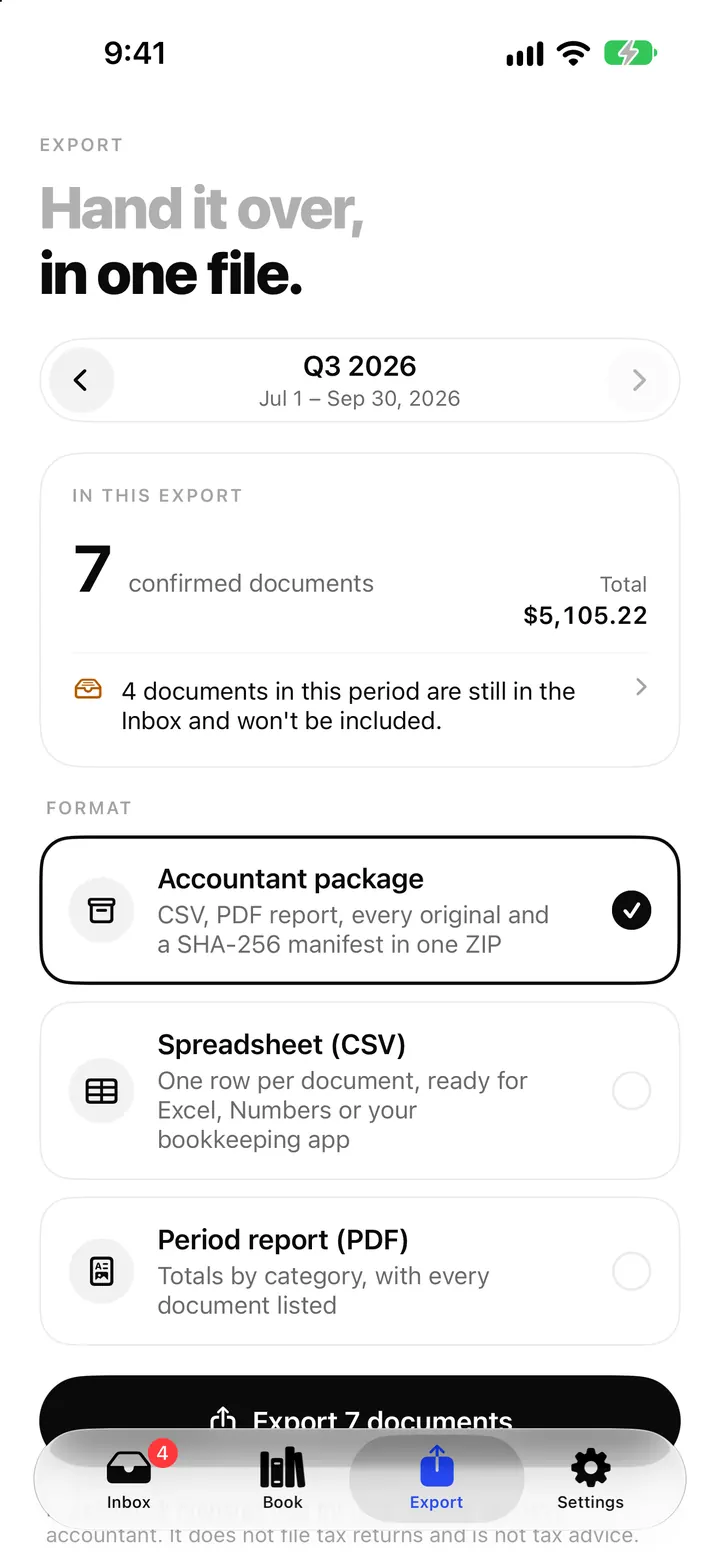
On the Export tab, ReceiptBook builds the files for one period on your iPhone. The Accountant package is a ZIP with transactions.csv, summary.csv, a PDF report, an audit log, every original and a SHA-256 manifest. You can also export just a Spreadsheet (CSV), a Spreadsheet (Excel) or a Period report (PDF). Period exports need ReceiptBook Pro; Export all originals is free.
Most accountants ask for the same things every quarter: a list of what you spent and earned, the receipts behind it, and some confidence that nothing went missing. ReceiptBook puts all of that in one file you can email, drop into a shared folder or hand over on a USB stick.
Before you export: In this export
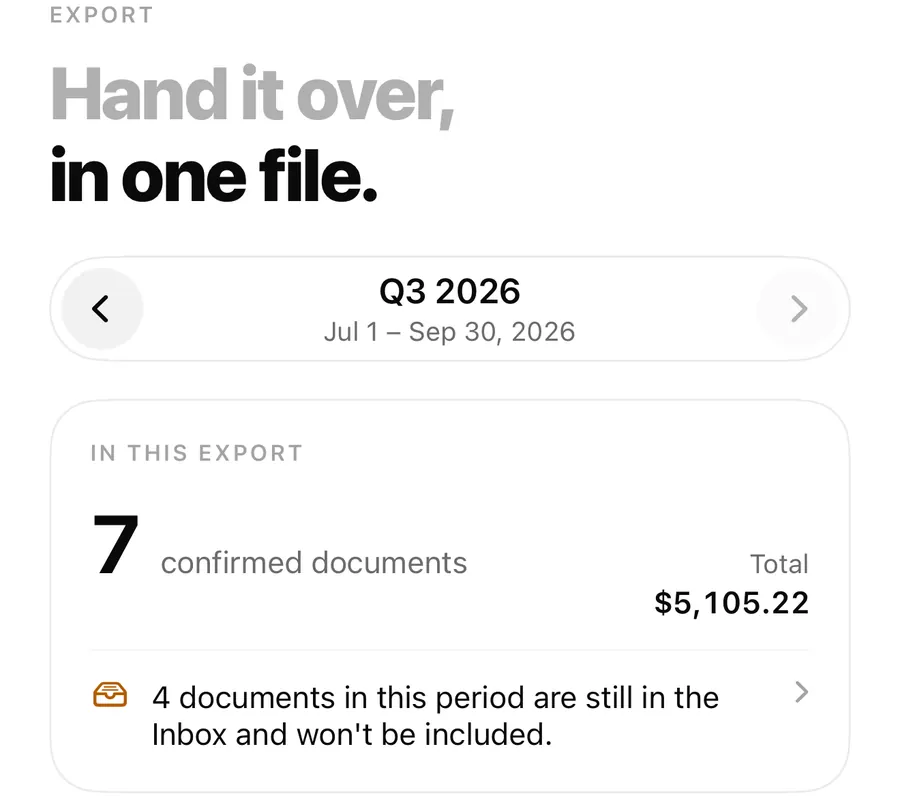
The Export tab opens on the same period as the Book, with the same arrows and Custom range. Under it, the In this export card shows how many confirmed documents will go in and their totals, money out and money in. It also lists anything worth fixing first:
- documents in this period that are still in the Inbox and won't be included
- documents that have no category
- documents in another currency that have no exchange rate
- in the US, expenses that miss a business purpose or a receipt the IRS expects
None of these block the export, but each is worth a minute before you send the file. When everything is in order, the card says Everything in this period is filed.
If you exported this period before and then added or edited documents, a card says Changed since your last export, so you know to send a fresh file. If nothing changed, it says the period was already exported.
What's inside the accountant package
The ZIP is named like ReceiptBook_<period>_<stamp>.zip and contains:
| File | What it is |
|---|---|
README.txt | What each file is, for whoever opens the ZIP |
transactions.csv | One row per document and VAT rate: date, vendor, tax ID, invoice number, type, direction, category, currency, net, VAT, gross, payment method, status, original file name, SHA-256, tag, business-use share, exchange rate and converted amounts, split and own_category |
summary.csv | Totals by direction, category, VAT rate and property or project |
period.pdf | Totals by category and VAT rate, then a page per document with its original |
audit.csv | Every change made to these documents, with time and source |
originals/ | Each receipt or invoice exactly as captured, renamed by date and vendor, like 2026-07-05_Shell_1a2b3c4d.jpg |
accounting/ | Files for your country's bookkeeping software, where there are any |
manifest.csv | Path, size and SHA-256 of every file above |
Credit notes appear as negative amounts. Split documents have a row per category. The transactions.csv guide and the manifest guide go column by column.
Why the SHA-256 manifest matters
Each original gets a SHA-256 fingerprint when it comes into ReceiptBook. The manifest lists the fingerprint of every file in the package, so your accountant, or anyone later, can check that nothing was changed or swapped after the export. When the export is ready, ReceiptBook shows the SHA-256 checksum of the manifest and lets you copy it, for example to paste into the email that goes with the file.
The other formats
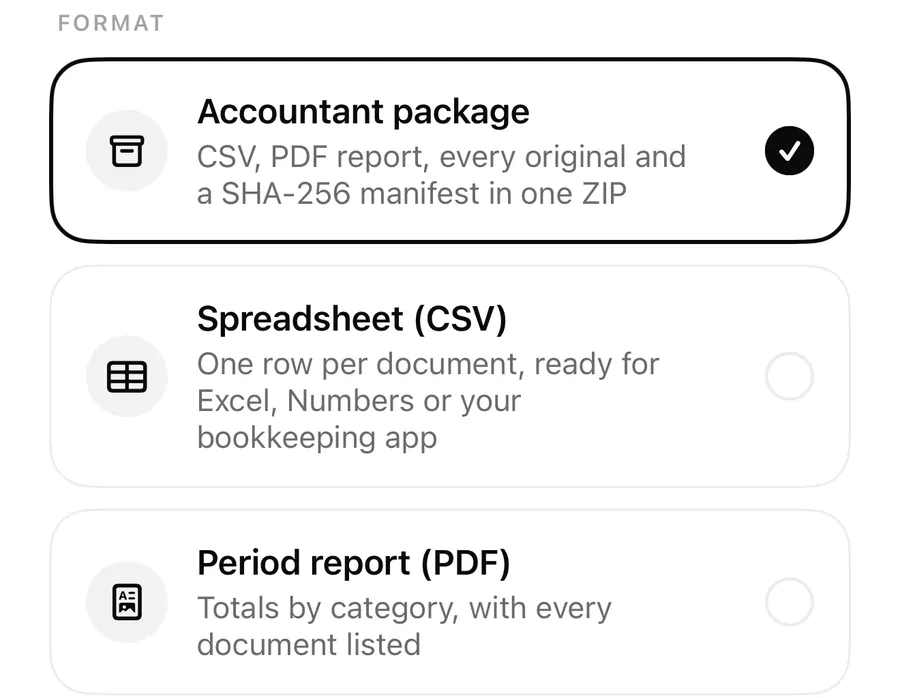
- Spreadsheet (CSV): one row per VAT rate (one row per document if you aren't VAT-registered), ready for Excel, Numbers or your bookkeeping app. Files are UTF-8 with dates as YYYY-MM-DD. Germany, France, Austria and Vietnam use a semicolon and a decimal comma, Switzerland a semicolon and a decimal point, the UK and US a comma and a decimal point.
- Spreadsheet (Excel): documents and totals with real numbers and dates, for Excel and Numbers.
- Period report (PDF): the readable version, totals first and then a page per document with its original.
- For bookkeeping software: depending on your country, files for Xero, QuickBooks, FreeAgent, a DATEV booking batch (EXTF), lexoffice, sevDesk or French FEC entries. These are files to import, not a live connection; see bookkeeping software exports.
Export a quarter for your accountant
- Open the Export tab and pick the period with the arrows.
- Read In this export and clear anything still in the Inbox.
- Choose Accountant package (or another format).
- Tap Export with the document count. If Face ID lock is on, confirm it's you.
- When Export ready appears, tap Share or save and send it by Mail, save it to Files, or AirDrop it.
Past exports
Every ZIP, CSV and PDF you export is kept in Settings > Past exports, and the latest ones are listed on the Export tab, so you can send the same file again without rebuilding it. When Face ID lock is on, past exports stay hidden until you unlock.
Export all originals, free
Separately from Pro, Settings > Export all originals makes a ZIP of every receipt and invoice exactly as captured, with a sha256.csv list. It's free, always, whether or not you subscribe. It's also the way out if you ever stop using the app.
FAQ
Is the export made on my iPhone?
Yes. The ZIP, CSV and PDF are built on the device. Nothing is uploaded; the file leaves your iPhone only when you share it.
Can my accountant open the CSV in Excel?
Yes. The files are UTF-8. If accented characters look wrong, see opening a UTF-8 CSV in Excel, or use Spreadsheet (Excel) instead.
What if I edit a receipt after exporting?
The Export tab shows Changed since your last export. Export the period again and send the new file.
What happens to my exports if Pro ends?
Everything you captured stays, and Export all originals stays free. New period exports need Pro again. More on the support page.
Download ReceiptBook and hand over your next quarter in one file.
Keep reading
Export receipts for Xero, QuickBooks, FreeAgent, DATEV and FEC
ReceiptBook makes import files for Xero, QuickBooks, FreeAgent, DATEV, lexoffice, sevDesk and the French FEC, matched to your country. Here is what each holds.
Read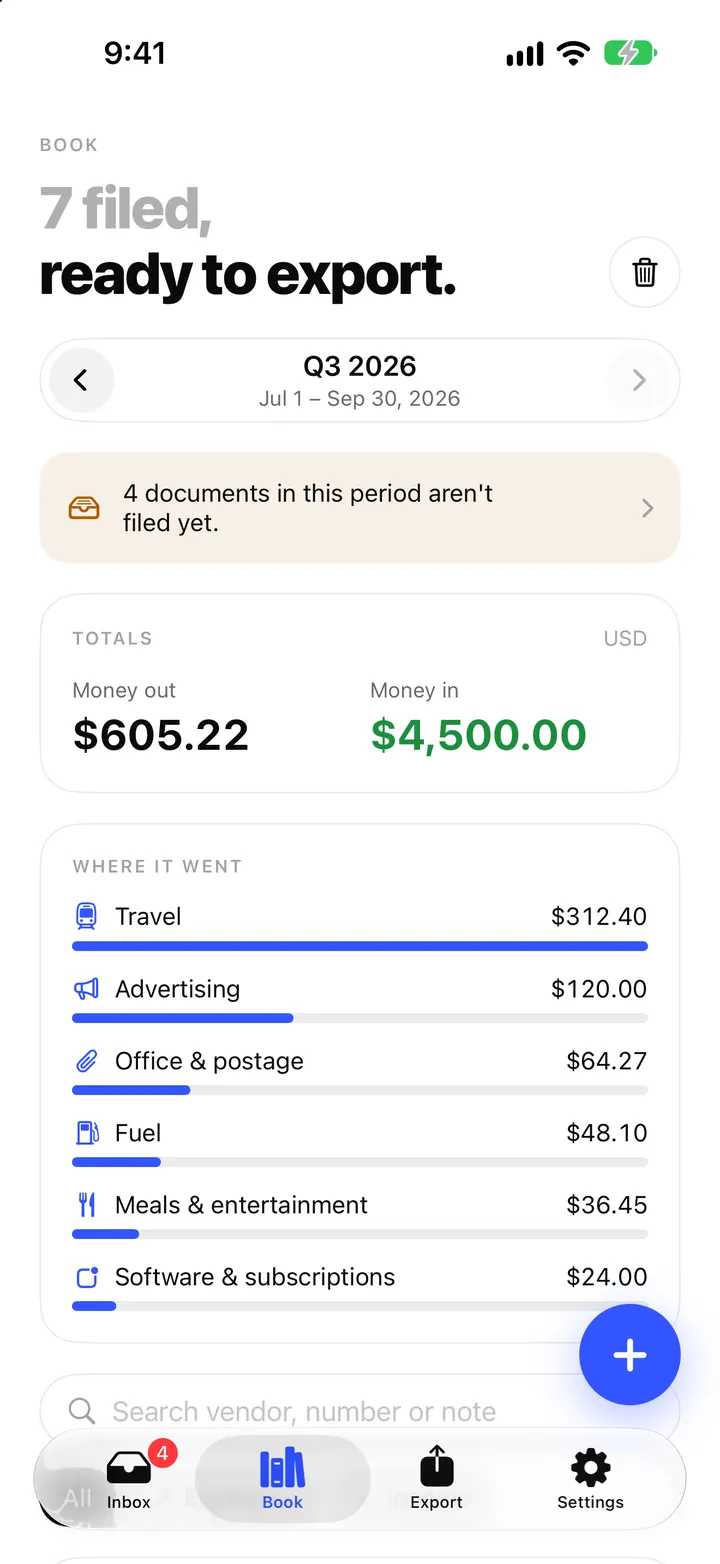
The Book in ReceiptBook: period totals, search, filters and project tags
See money in and out per period, VAT by rate and where it went by category, find any receipt by vendor or amount, and tag costs by project in ReceiptBook.
ReadReceiptBook Pro: what it adds, the plans, and what stays free
Scanning, reading, the Inbox, the Book and exporting your originals are free in ReceiptBook. Pro adds accountant exports, auto-categories and more businesses.
ReadWhat should an accountant package contain?
Learn how ReceiptBook accountant packages connect transactions, summaries, PDFs, audit data, manifests and original receipts.
Read guide