What is transactions.csv used for in ReceiptBook?
transactions.csv is a spreadsheet-friendly file that lets you review and process expense records from ReceiptBook. It can be filtered by period, category, vendor or review status. It does not turn records into a tax return and it does not replace the original receipt. Treat it as a data layer for checking and handoff, not the only evidence for every decision.
How is CSV different from a receipt image?
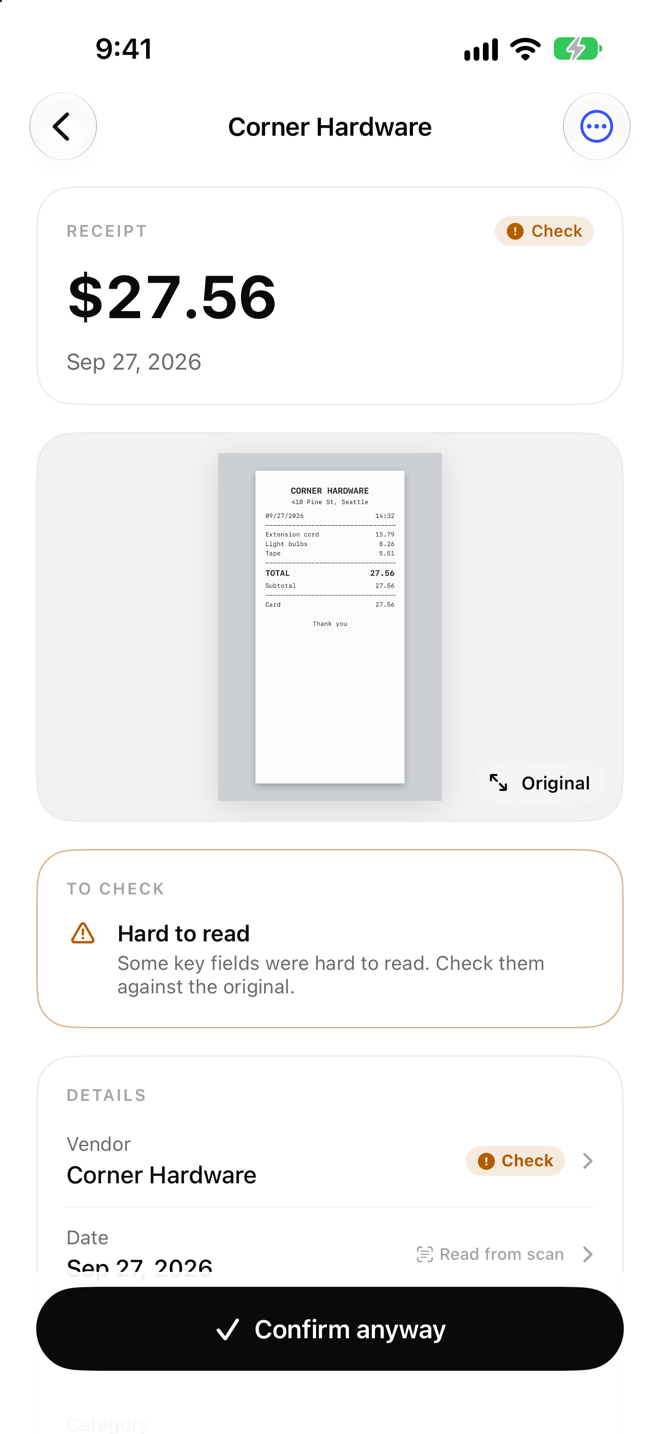
An image or PDF preserves the visual context of the document: vendor, date, line items, VAT and notes. CSV is better for sorting, filtering, totals and further processing. When a line has a suspicious amount or date, return to the original image. If you send only a CSV without a link to the source record, the recipient may not know where a number came from.
Columns worth checking
Review the header, encoding, delimiter, currency, date format, vendor, amount, VAT, category and review status before using the file. Do not assume every blank means zero: it may mean unread, not applicable or not entered. Check refunds, duplicate receipts, multi-page receipts and mixed expenses. Record the filter and period so another person can reproduce the report.
A practical review process
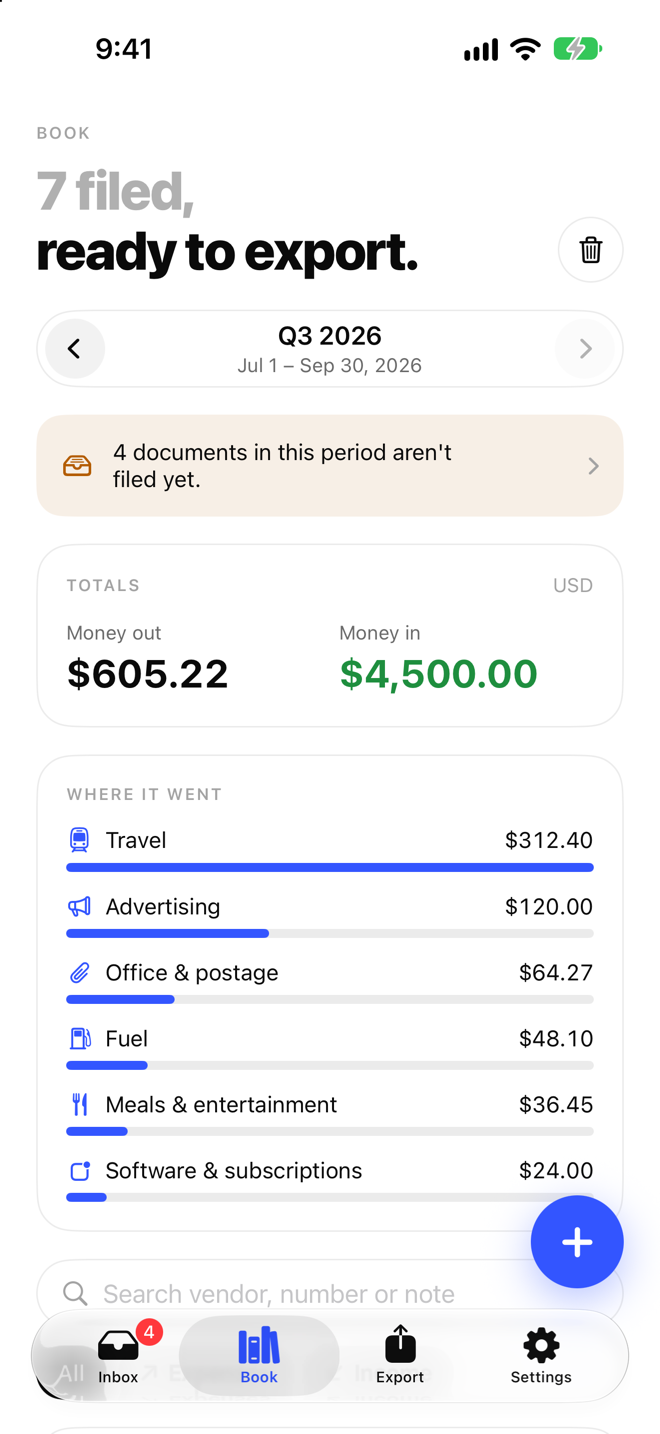
Open the file in the tool your recipient will use. Filter for a familiar vendor, then compare several random rows with their receipt images. Recalculate category subtotals and compare them with ReceiptBook. If totals differ, stop and investigate filters, rounding, VAT or record status. Save the export with a date and version instead of overwriting a file that has already been sent.
Sending it to an accountant
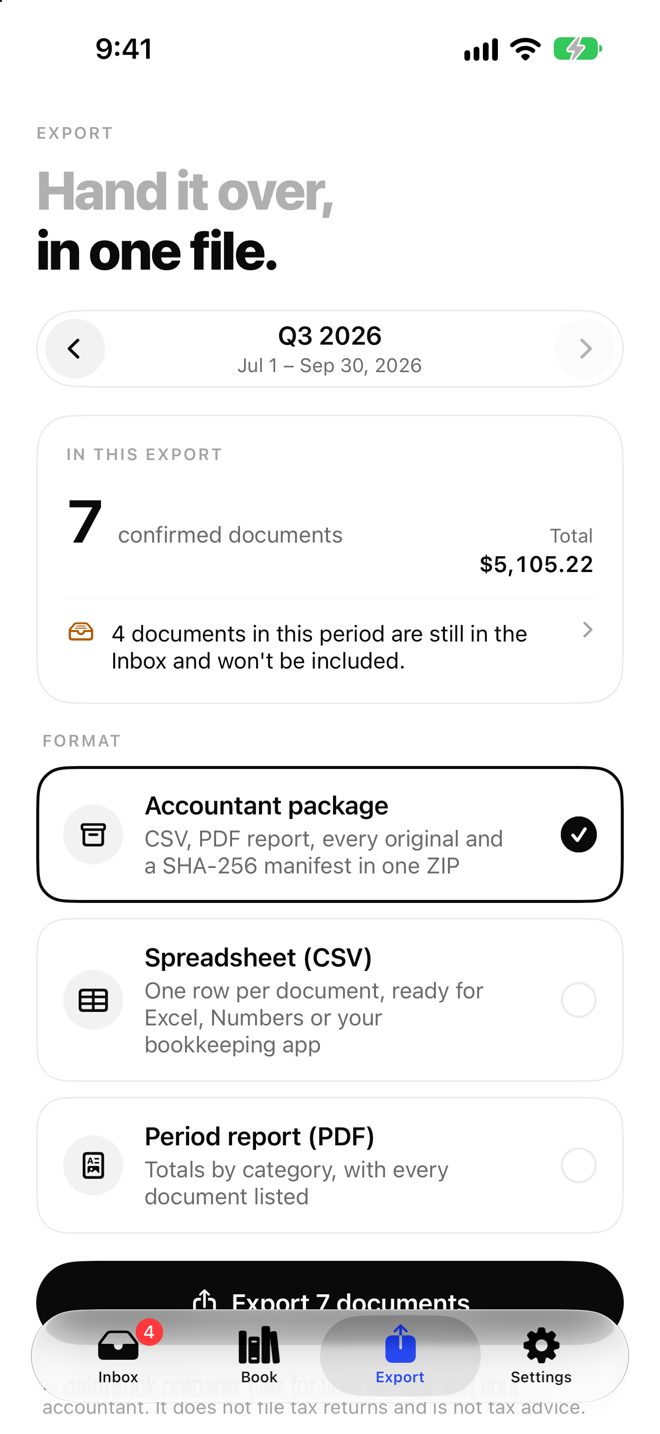
Ask which CSV, date format and supporting originals your accountant needs. Use ReceiptBook and read the export support guidance, but let the authorised professional decide how records should be used for tax or accounting. Share only the required scope, use appropriate access controls and keep your own copy.
Conclusion
transactions.csv is useful for filtering, checking and discussing expense data. Its strength is structured data, not the full context of a document. Use it with original receipts, period notes and a review history so each important number can be traced back to its source.
Note: ReceiptBook is not a tax filing service and is not tax, accounting or legal advice. Confirm formats and treatment with your accountant.
A practical workflow for this topic
When you search for “What is transactions.csv used for in ReceiptBook?”, the useful answer is usually a repeatable way to check the detail that matters. Use this ReceiptBook guide as a starting point, then confirm the current source before acting. The product can organize information and shorten a review; it cannot fill in missing facts or replace a professional decision.
Quick checklist before you act
- Keep the original receipt image available for review.
- Check merchant, date, amount, currency and category after OCR.
- Separate business, personal and tax-sensitive items instead of guessing.
- Export the original and the structured file together when handing records off.
Keep the decision traceable: record the version, date and source you relied on when the detail may change.
Detailed step-by-step workflow
This extended section turns “What is transactions.csv used for in ReceiptBook?” into a repeatable ReceiptBook workflow. The goal is not to create a longer checklist for its own sake. It is to make the important inputs visible, show what should be checked first, and leave a useful record of what was known at the time. That approach is especially helpful for receipt capture, OCR review, expense categories and structured exports. Read the steps in order the first time, then return to the relevant step when the situation changes.
Step 1: Define the question and the record you need.
Start with this action in ReceiptBook, then pause long enough to verify the result against the original source or observation. For “What is transactions.csv used for in ReceiptBook?”, record the date, the relevant context and anything that was not available. A structured record is more useful when another person can understand what was checked without guessing what happened between two screenshots, notes or exports.
Step 2: Gather the original inputs before interpreting the result.
Start with this action in ReceiptBook, then pause long enough to verify the result against the original source or observation. For “What is transactions.csv used for in ReceiptBook?”, record the date, the relevant context and anything that was not available. A structured record is more useful when another person can understand what was checked without guessing what happened between two screenshots, notes or exports.
Step 3: Review the result and record uncertainty or missing data.
Start with this action in ReceiptBook, then pause long enough to verify the result against the original source or observation. For “What is transactions.csv used for in ReceiptBook?”, record the date, the relevant context and anything that was not available. A structured record is more useful when another person can understand what was checked without guessing what happened between two screenshots, notes or exports.
Step 4: Save the version, date and next action for later comparison.
Start with this action in ReceiptBook, then pause long enough to verify the result against the original source or observation. For “What is transactions.csv used for in ReceiptBook?”, record the date, the relevant context and anything that was not available. A structured record is more useful when another person can understand what was checked without guessing what happened between two screenshots, notes or exports.
Quality checks and common mistakes
Long-form guidance is most useful when it explains the boundaries as well as the happy path. Before relying on a ReceiptBook record, run the checks below. They help separate a missing input from a negative result, an approximate value from a verified value, and a convenient summary from the original evidence.
Check 1
Do not start with the conclusion. Write down the question, the person or property involved and the time period first. In ReceiptBook, keep the source, context and limitation close to the record so the next review can reproduce the decision.
Check 2
Do not mix old and new records without a date. Keep the original observation visible when you add a correction or update. In ReceiptBook, keep the source, context and limitation close to the record so the next review can reproduce the decision.
Check 3
Do not treat a missing field as proof that the event, ingredient, expense or condition does not exist. In ReceiptBook, keep the source, context and limitation close to the record so the next review can reproduce the decision.
Check 4
Do not share a polished summary before checking the original image, note, label, receipt or export behind it. In ReceiptBook, keep the source, context and limitation close to the record so the next review can reproduce the decision.
Check 5
Do not use an app record as a substitute for a professional, medical, legal, financial or safety decision when the situation requires one. In ReceiptBook, keep the source, context and limitation close to the record so the next review can reproduce the decision.
Frequently asked questions
What should I verify before I rely on this guide?
For “What is transactions.csv used for in ReceiptBook?”, use ReceiptBook to organize the observation and then verify the part that affects the decision. If a source, image, measurement or input is incomplete, mark it as incomplete instead of silently filling the gap. Add a date and a short note about the method used. When the consequence is important or the question sits outside the product’s purpose, confirm it with the current official source or an appropriate professional.
What should I do when the information is incomplete?
For “What is transactions.csv used for in ReceiptBook?”, use ReceiptBook to organize the observation and then verify the part that affects the decision. If a source, image, measurement or input is incomplete, mark it as incomplete instead of silently filling the gap. Add a date and a short note about the method used. When the consequence is important or the question sits outside the product’s purpose, confirm it with the current official source or an appropriate professional.
How can I make the record easier to compare later?
For “What is transactions.csv used for in ReceiptBook?”, use ReceiptBook to organize the observation and then verify the part that affects the decision. If a source, image, measurement or input is incomplete, mark it as incomplete instead of silently filling the gap. Add a date and a short note about the method used. When the consequence is important or the question sits outside the product’s purpose, confirm it with the current official source or an appropriate professional.
When should I ask for another source or a specialist?
For “What is transactions.csv used for in ReceiptBook?”, use ReceiptBook to organize the observation and then verify the part that affects the decision. If a source, image, measurement or input is incomplete, mark it as incomplete instead of silently filling the gap. Add a date and a short note about the method used. When the consequence is important or the question sits outside the product’s purpose, confirm it with the current official source or an appropriate professional.
A practical review before you finish
Before closing this topic, read the title “What is transactions.csv used for in ReceiptBook?” as a question rather than a promise. Confirm the current version of the information, check the original evidence, and record the next action in ReceiptBook. A useful record says what was observed, when it was observed, what remains uncertain and who should review it next. This makes the article easier to apply today and easier to revisit when the facts change.
See the product in action