The ReceiptBook Inbox: Needs a look, Looks right and Confirm all
How the ReceiptBook Inbox sorts new receipts into Reading, Couldn't read, Needs a look and Looks right, and when to use Confirm all or open a receipt first.
Short answer
Every new document goes to the Inbox first. It sits under Reading while it is read on your iPhone, then moves to Looks right if every key field is trusted and nothing is wrong, or to Needs a look with the reason shown. Documents that couldn't be read go to Couldn't read with a retry button. Nothing reaches your book or an export until you confirm it, one by one or with Confirm all for the ones that look right.
Most receipt apps either make you type everything or file what they guessed without asking. ReceiptBook sits in between: it reads the document, sorts it by how sure it is, and leaves the final yes to you. The Inbox is where that happens. Its headline tells you how much is waiting, such as Inbox 4 to file, or all clear when you're done.
The four sections, in order
| Section | What it means | What to do |
|---|---|---|
| Reading | The document is being read on the iPhone. | Nothing; it moves on by itself. |
| Couldn't read | Reading stopped after a few tries. | Tap Try again, or open it and fill in the details yourself. |
| Needs a look | Something is uncertain or doesn't add up. The reason shows under the vendor. | Open it, compare with the original, fix or confirm. |
| Looks right | Every key field was read with confidence and no checks failed. | Glance at amount and vendor, then confirm. |
Sections only appear when they have something in them. On a normal day you'll mostly see Looks right, with an occasional receipt in Needs a look.
Reading and Couldn't read
Documents are read one after another in the background, and the queue survives the app being closed: if you lock the phone mid-import, reading continues the next time you open ReceiptBook. Each document gets up to three tries. When reading still fails, the document moves to Couldn't read with the message that reading stopped after a few tries, and you can try again or fill in the details yourself. The Try again button shows how many are waiting, such as Try again (2), and retries them all.
Needs a look: blocking issues and warnings
A document lands in Needs a look for two reasons. Either a key field has an amber Check badge because it was read with low confidence, or one of the checks found a problem. ReceiptBook separates problems that keep a document out of Looks right from warnings that only ask for attention.
These keep a document in Needs a look:
- No total found and No date found
- VAT doesn't add up (net plus VAT doesn't equal the total)
- Date is in the future
- Hard to read (the vendor, date or total was hard to read; check them against the original)
These are shown as warnings: Unusual VAT rate, Foreign currency, E-invoice check, QR differs from print and, for US businesses, No business purpose and Keep the receipt. Looks like a duplicate is a warning too, but it also sends the document to review so you can compare it with the earlier copy.
The Check badges post explains each badge and where every value came from.
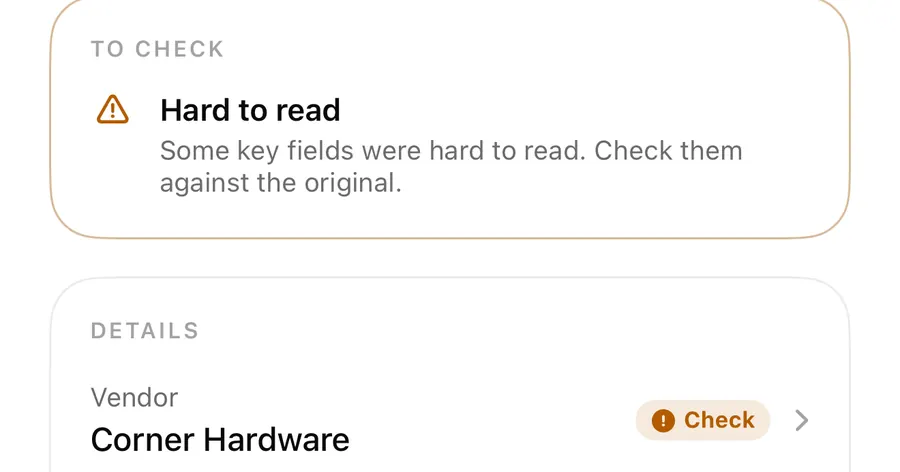
Clear Needs a look
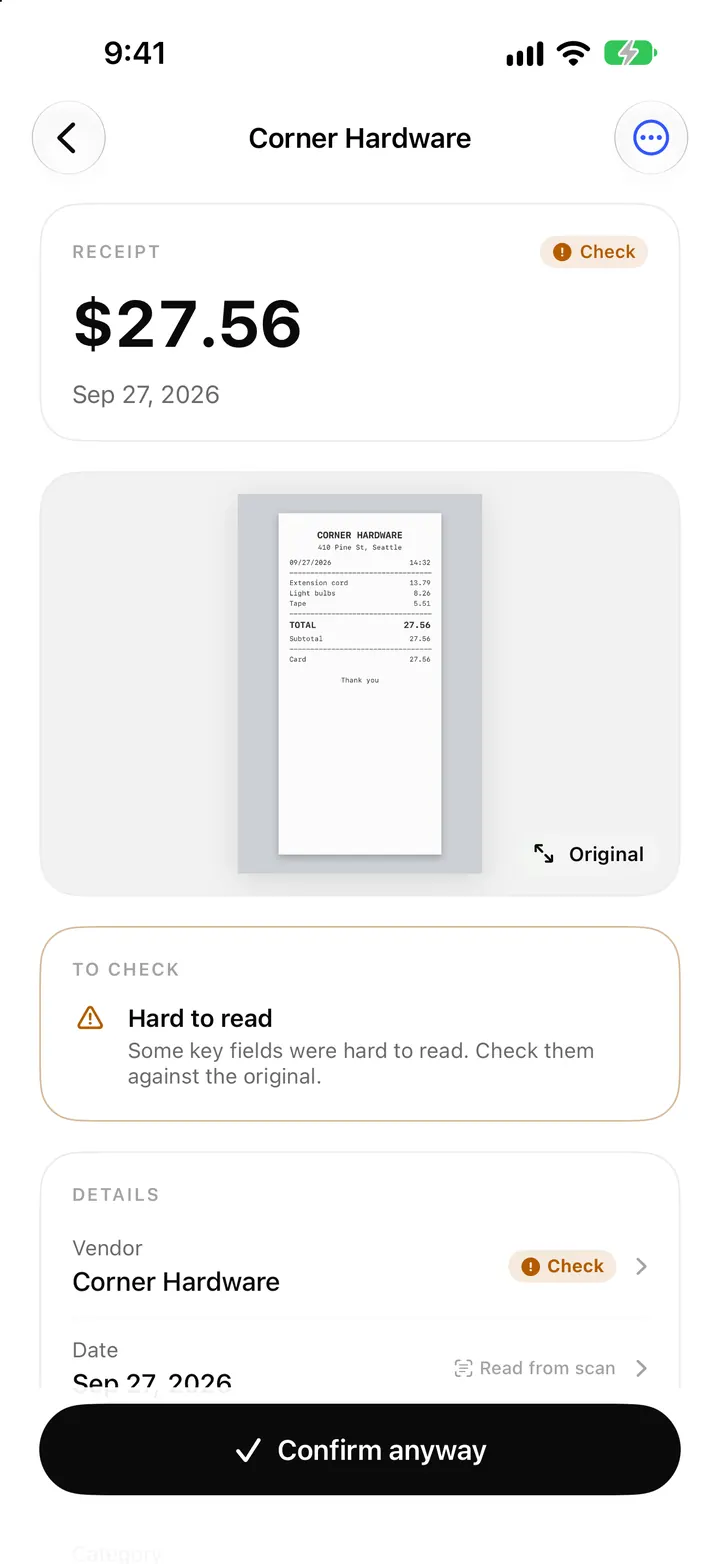
- Tap a document in Needs a look. The review screen opens with the amount, the original and a To check card.
- Tap the field marked Check and compare it with the original. Tapping shows Where it was read on the image.
- Correct the value if it's wrong. The field now shows Edited.
- Add anything missing, such as the category. A total is required: without one you'll see Add the total to file it.
- Tap Confirm. If some issue remains and you're sure the document is right, the button reads Confirm anyway.
Looks right and Confirm all
When the vendor, date and total are all trusted and no blocking check fails, the document goes to Looks right. The section header has Confirm all with the count, such as Confirm all (2), which files every document in that section in one tap. There is no extra prompt, so use it after a quick look down the list.
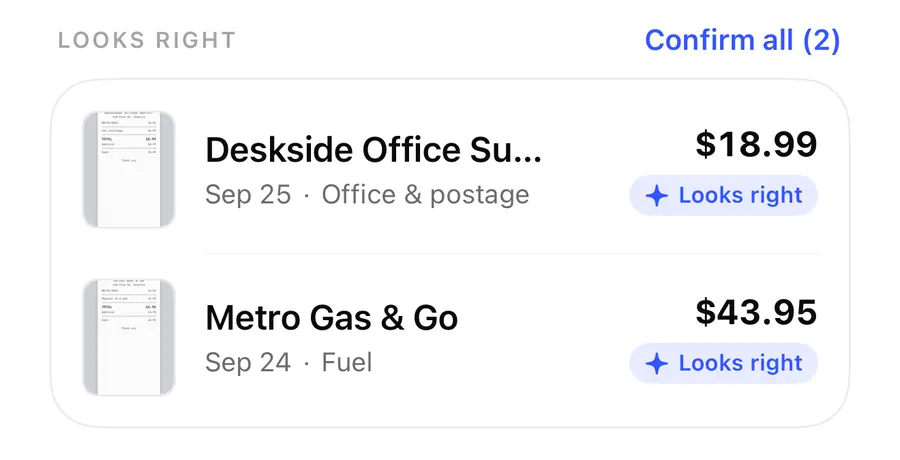
When is Confirm all safe? When the amounts and vendors in the list match what you remember paying, and the categories are right. When not to use it: after importing a folder of old files you haven't looked at, or when a category shown is clearly off. Open those first; it takes a few seconds per document.
Confirm all only touches Looks right. Anything in Needs a look or Couldn't read stays in the Inbox until you deal with it.
After filing: Filed in, and Reopen
A confirmed document moves to the Book tab, in the period its date belongs to. Open it again from the Book and the bottom bar shows Filed in with the period, such as Q3 2026, and a Reopen button. Reopening takes it out of the book again so you can correct it and confirm it once more; the change is recorded in the document's History.
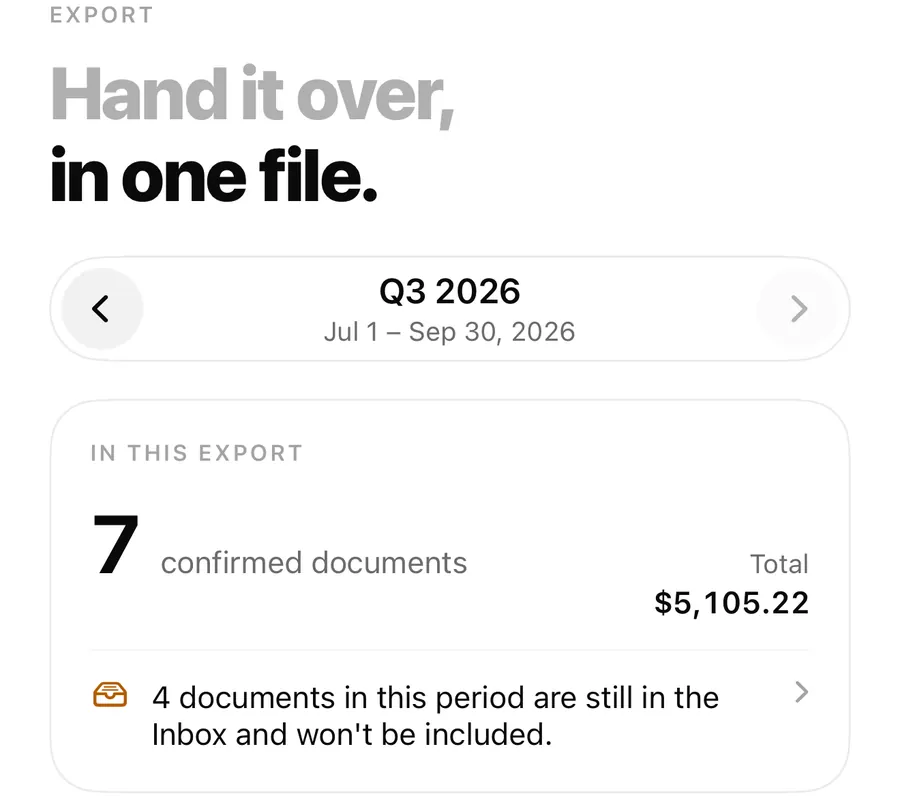
Documents left in the Inbox are not part of your book. The Book reminds you with a banner like 4 documents in this period aren't filed yet, and the Export tab warns that they are still in the Inbox and won't be included.
FAQ
Can I confirm a document that still has a Check badge?
Yes, as long as it has a total. The button changes to Confirm anyway. Compare the marked fields with the original first.
Why is a receipt with a clear total still in Needs a look?
Another field may be uncertain, such as the vendor or the date, or a check failed, for example VAT doesn't add up. The reason is shown under the vendor name in the Inbox.
Can I undo Confirm all?
There's no single undo, but every filed document can be opened from the Book and sent back with Reopen.
What happens to documents that stay in the Inbox?
They stay there, safe, but they aren't counted in the Book's totals or included in an export until you confirm them.
Download ReceiptBook and clear your Inbox in a few taps.
Keep reading
Check badges and field sources: how ReceiptBook shows what it read
What the amber Check badge means in ReceiptBook, where each value came from (scan, PDF, e-invoice, your rule), and how duplicates and edits are flagged.
Read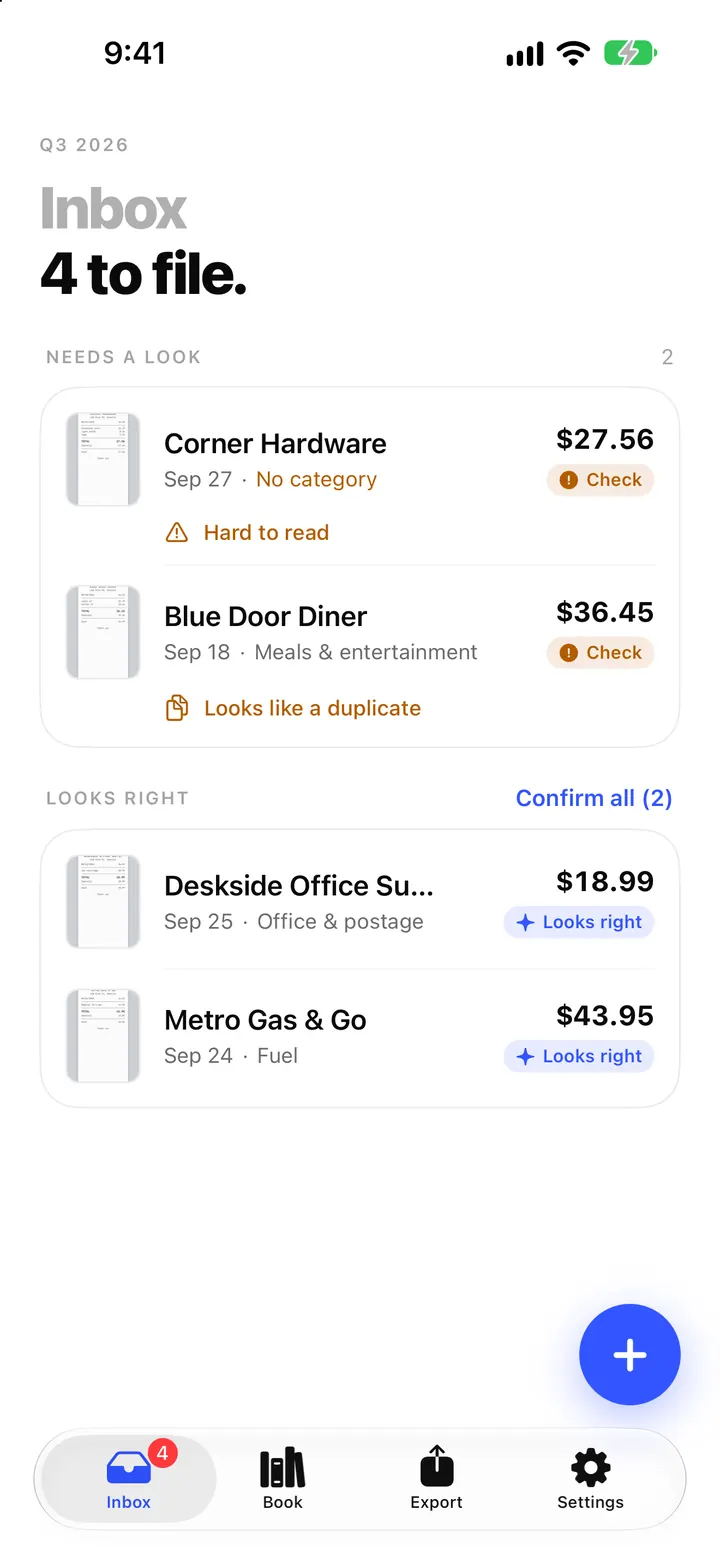
Scan receipts with your iPhone: how ReceiptBook reads and files them
Scan a paper receipt, pick a photo or import a PDF, and ReceiptBook reads vendor, date, total and tax on your iPhone, then files it once you have checked it.
Read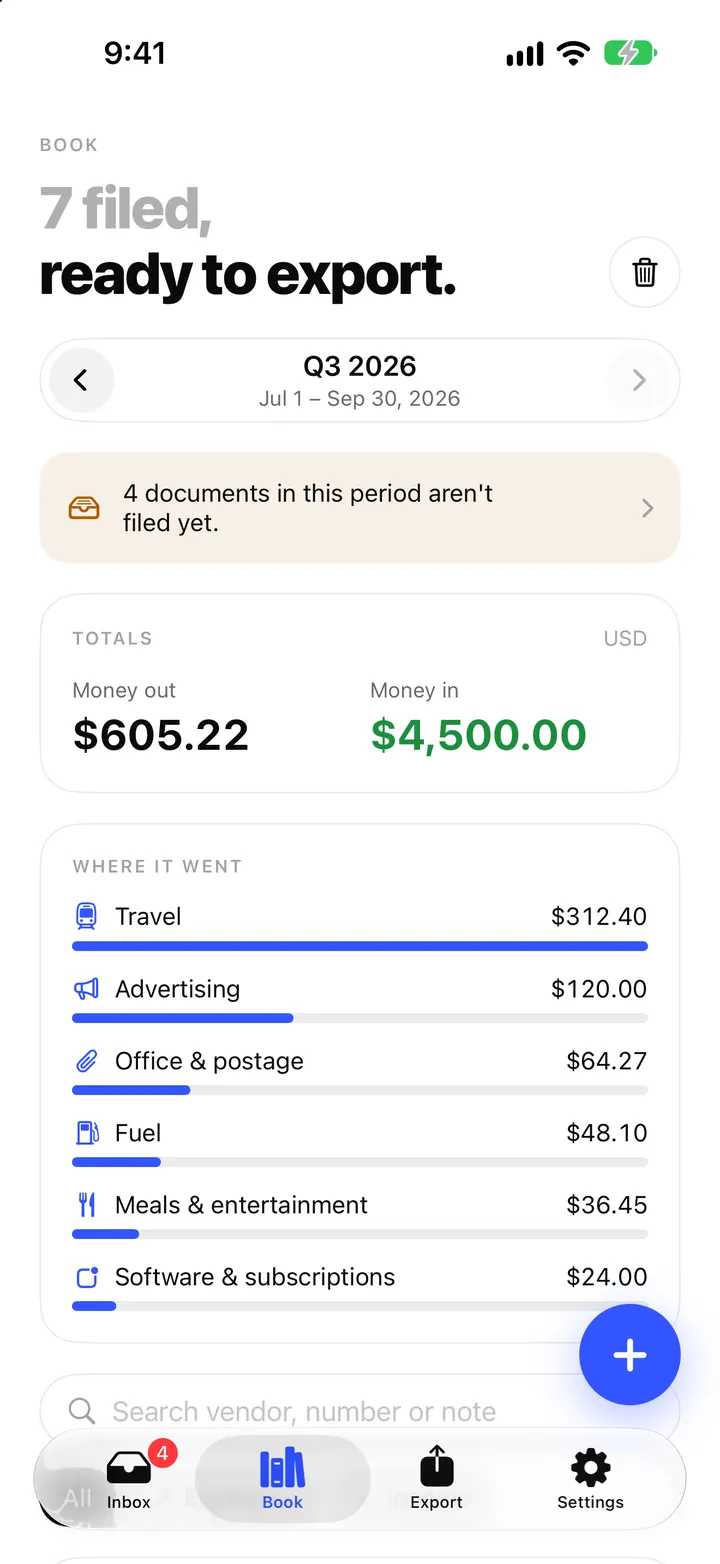
The Book in ReceiptBook: period totals, search, filters and project tags
See money in and out per period, VAT by rate and where it went by category, find any receipt by vendor or amount, and tag costs by project in ReceiptBook.
ReadA ReceiptBook Workflow for Capturing, Reviewing, and Exporting Invoices
Build a repeatable ReceiptBook process from invoice capture and OCR review to categorisation, source checks, and scheduled exports.
Read guide