Import PDF invoices on iPhone: share sheet, Files and whole folders
Send PDF invoices to ReceiptBook from Mail or Files, open e-invoices directly or import a whole folder at once. Files already in ReceiptBook are skipped.
Short answer
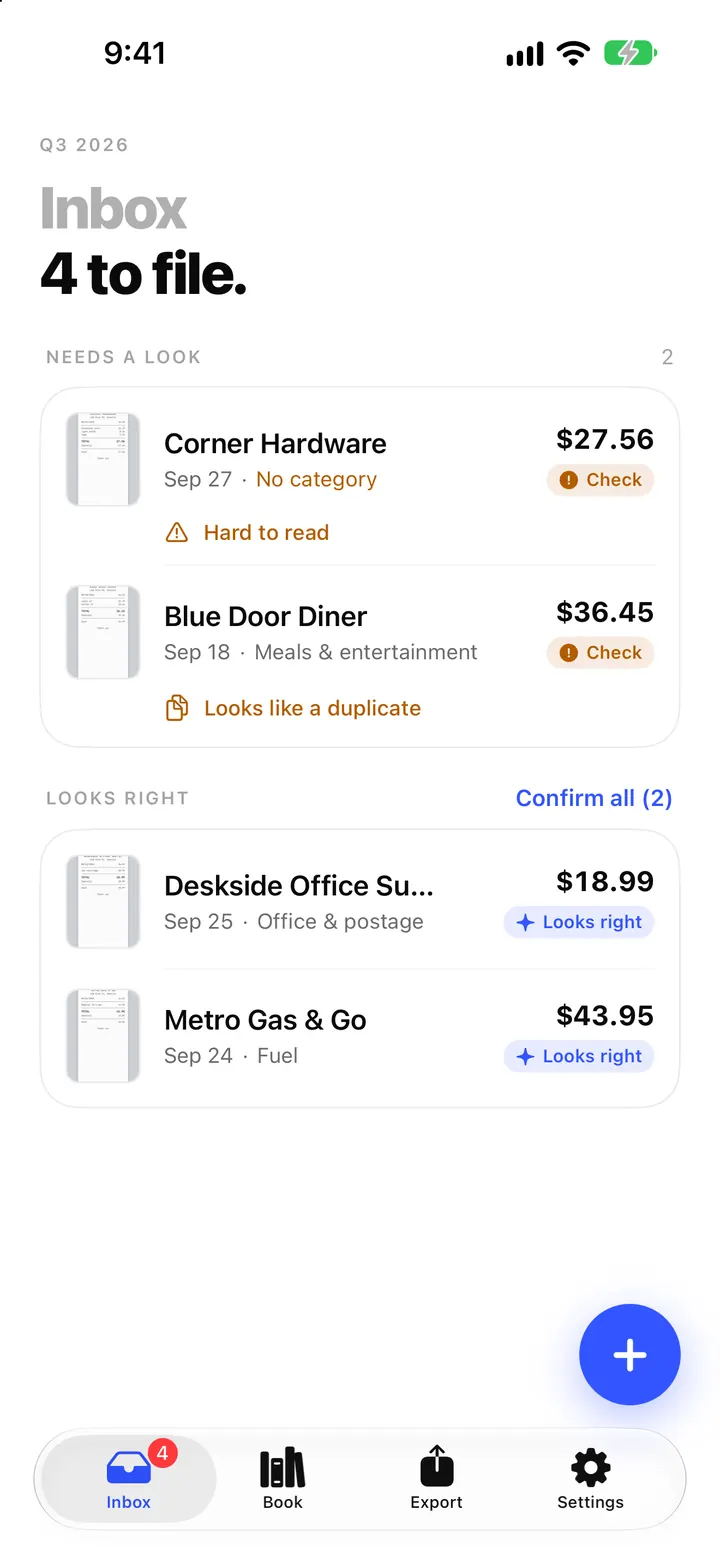
ReceiptBook takes PDF invoices, receipt images and XML e-invoices four ways: the share sheet in Mail or Files (up to 20 files at a time, 50 MB each), Open with ReceiptBook, Import PDF or e-invoice from the + menu, and Import a folder for a whole backlog. Everything lands in the Inbox and is read on your iPhone. A file that is already in ReceiptBook is skipped rather than added twice.
Many invoices never exist on paper. Software subscriptions, phone bills, hosting and supplier orders arrive as PDF attachments, and more and more suppliers send structured e-invoices. ReceiptBook treats these the same as a scanned receipt: they go to the Inbox, get read, and wait for you to confirm them. The difference is that a PDF with a text layer or an XML e-invoice is read from its data, not from a picture, so there is far less to check.
Which files ReceiptBook reads
ReceiptBook reads PDF files, images (JPG, PNG and HEIC) and XML e-invoices. Anything else is turned away with the message that ReceiptBook reads PDF, image and XML files. Each file can be up to 50 MB.
The reading order follows the best source available. XML e-invoices are read exactly, a PDF's text layer comes next, and images are read with Apple's on-device text recognition. ZUGFeRD and Factur-X PDFs carry an XML invoice inside, and ReceiptBook reads that embedded data; the e-invoice post goes into the formats.
From Mail or Files: the share sheet
The quickest route for a single invoice is the share sheet. In Mail, touch and hold the PDF attachment (or open it) and tap the share button. In Files, select one or several files and tap share. Then choose ReceiptBook.
Share a PDF invoice from Mail
- Open the email and touch and hold the PDF attachment, or open it and tap the share button.
- Choose ReceiptBook in the share sheet. If you don't see it, tap More and add it.
- Wait for Adding to ReceiptBook… to change to Added to your Inbox. The sheet closes on its own.
- Open ReceiptBook. The new documents are read and appear in the Inbox.
- Check what was read and confirm, or fix anything marked Check.
The share sheet only copies the files; it doesn't read them. As the sheet says, ReceiptBook reads new documents the next time you open it. It takes up to 20 files at a time. If you share more, or a file is too big or of a type it doesn't read, the sheet tells you which limit applied and shows how many of the files were added.
Many apps also offer Open with ReceiptBook or an Open In option for PDFs and XML files. That opens the app directly with the file.
From inside the app: Import PDF or e-invoice
If the invoices are already saved in Files, iCloud Drive or another storage provider, tap + in the Inbox and choose Import PDF or e-invoice. The Files picker opens and you pick the PDF, image or XML files to bring in. This is the route to use when an email client doesn't offer ReceiptBook in its share sheet: save the attachment to Files first, then import it here.
A whole backlog: Import a folder
Starting with ReceiptBook at the end of a year, or switching from a folder of scans? Import a folder takes everything in one pass. Pick a folder and ReceiptBook walks through it and its subfolders, imports every PDF, image and XML file it finds, and shows a progress bar with the count of files done. Files in iCloud Drive that aren't downloaded yet are fetched as part of the import.
When it's finished, the sheet title changes from Importing folder to Folder imported and shows a report:
| Row | Meaning |
|---|---|
| Imported | New documents now in the Inbox, read one after another. |
| Already in ReceiptBook | Exact copies of files you imported before, or the same file twice in the folder. |
| Couldn't import | Files that were empty, damaged, larger than 50 MB, not downloaded, or couldn't be saved because the iPhone was full. Each is listed with its reason. |
| Skipped | Files of other types, such as spreadsheets or text files, left alone and listed by name. |
You can tap Stop at any time. If an import stops before the end, the report says to import the folder again to add the rest, because files already imported are skipped. That makes it safe to run the same folder twice, for example after you add next month's PDFs to it.
How duplicates are handled
Two kinds of duplicate are caught. An exact copy of a file, byte for byte, is recognized by its SHA-256 fingerprint and not added again; the notice says Already in ReceiptBook. This is what protects you when you re-import a folder or share the same attachment twice.
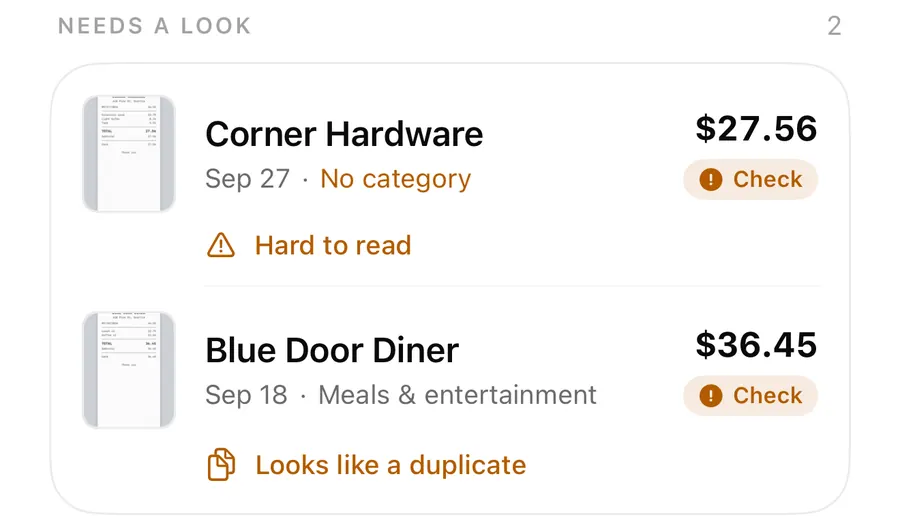
A different file for the same purchase, such as the PDF invoice and a photo of the printed copy, is not an exact copy, so it is imported. ReceiptBook then compares the vendor, date, total and invoice number and marks the match Looks like a duplicate, with a link to Open the earlier copy. You decide which to keep. Check badges and field sources covers that warning.
FAQ
Why doesn't ReceiptBook show the shared invoice right away?
The share sheet only copies the file. ReceiptBook reads it the next time you open the app, and then it appears in the Inbox.
Can I import a ZIP file?
No. ReceiptBook reads PDF, image and XML files. Unzip the archive in Files first, then use Import a folder.
What happens if I import the same folder twice?
Files that are already in ReceiptBook are counted under Already in ReceiptBook and not added again. Only new files are imported.
Can I import e-invoices in XML?
Yes. XRechnung, UBL, CII and ZUGFeRD or Factur-X invoices are read from their data. ReceiptBook checks that the sums add up, but it is not a full e-invoice validator.
Download ReceiptBook and bring your PDF invoices into one Inbox.
Keep reading
Scan receipts with your iPhone: how ReceiptBook reads and files them
Scan a paper receipt, pick a photo or import a PDF, and ReceiptBook reads vendor, date, total and tax on your iPhone, then files it once you have checked it.
Read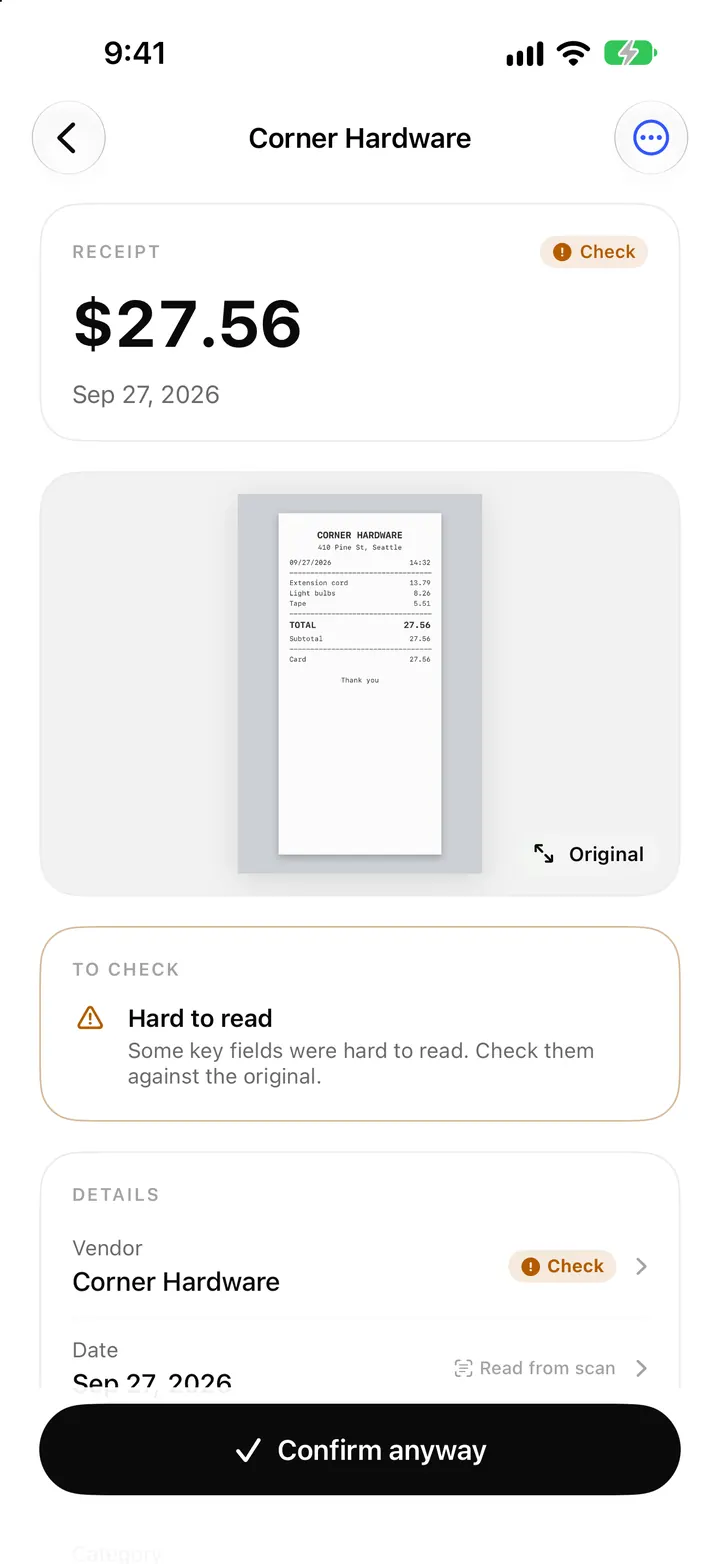
E-invoices and receipt QR codes: XRechnung, Factur-X and UBL in ReceiptBook
ReceiptBook reads XRechnung, ZUGFeRD / Factur-X, UBL and CII e-invoices exactly, checks the sums, and uses till QR codes to fill fields you still review.
ReadThe ReceiptBook Inbox: Needs a look, Looks right and Confirm all
How the ReceiptBook Inbox sorts new receipts into Reading, Couldn't read, Needs a look and Looks right, and when to use Confirm all or open a receipt first.
ReadTurn a Folder of Receipt Photos into a ReceiptBook Expense Register
Move scattered receipt photos into structured ReceiptBook data without losing originals or creating duplicate expense records.
Read guide