E-invoices and receipt QR codes: XRechnung, Factur-X and UBL in ReceiptBook
ReceiptBook reads XRechnung, ZUGFeRD / Factur-X, UBL and CII e-invoices exactly, checks the sums, and uses till QR codes to fill fields you still review.
Short answer
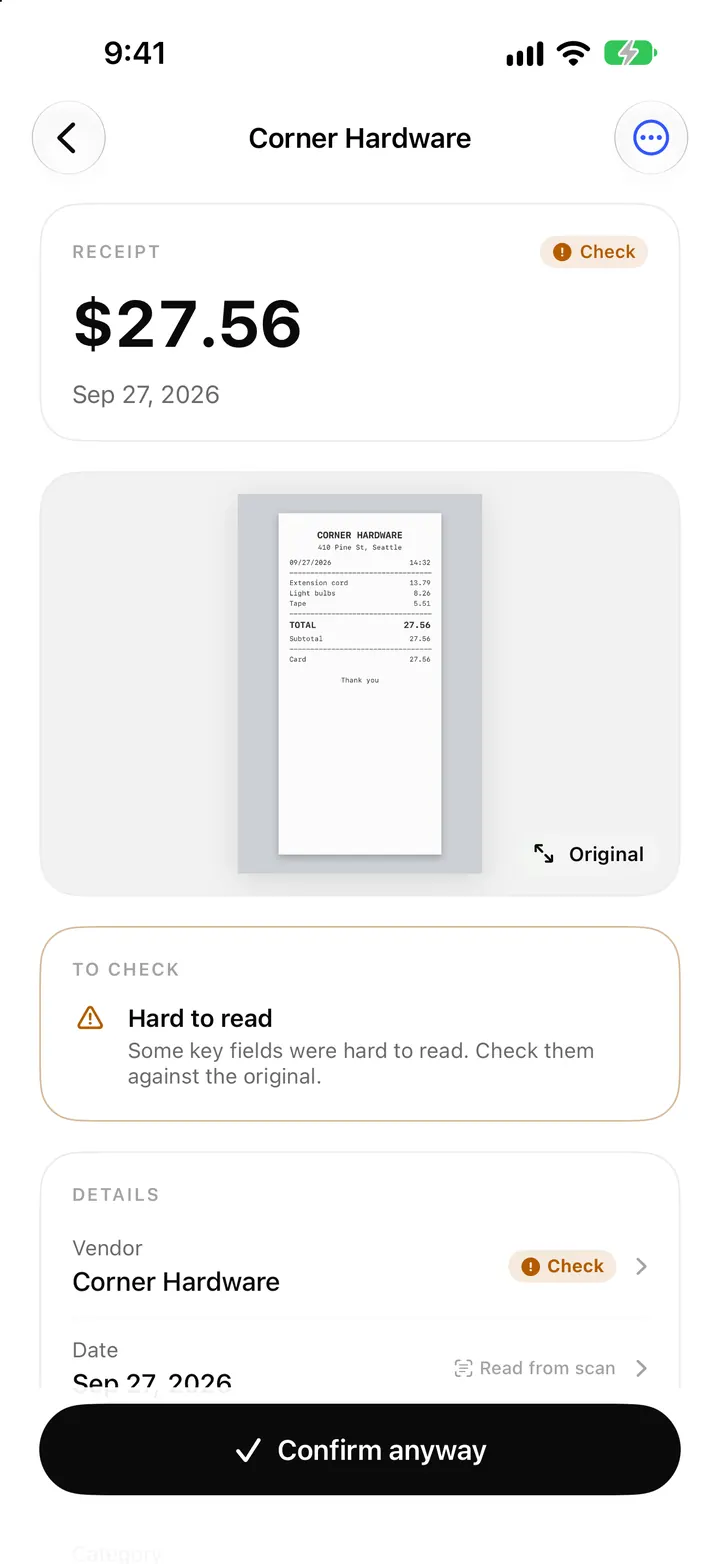
ReceiptBook reads structured e-invoices (UBL, UN/CEFACT CII, XRechnung, ZUGFeRD / Factur-X and Vietnamese e-invoice XML) field by field, so there is no guessing from a picture. It checks that the sums add up and flags anything odd with E-invoice check. On paper till receipts from Austria and Germany, and on Vietnamese invoices, it also reads the QR code and warns when it doesn't match the print.
More and more suppliers send invoices as data instead of a picture of a page. A German supplier may email an XRechnung XML file, a French one a Factur-X PDF with the XML tucked inside. ReceiptBook reads both on your iPhone and files them next to your scanned paper receipts, in the same book and the same export.
Which e-invoice formats ReceiptBook reads
| Format | What it looks like | How ReceiptBook labels it |
|---|---|---|
| XRechnung | XML file, UBL or CII syntax | XRechnung (UBL) or XRechnung (CII) |
| ZUGFeRD / Factur-X | A normal PDF with the invoice XML embedded | Factur-X / ZUGFeRD, with its profile when it has one |
| UBL 2.1 and Peppol BIS | XML file | UBL e-invoice or Peppol BIS |
| UN/CEFACT CII | XML file | CII e-invoice |
| Vietnamese e-invoice | The tax authority's XML layout | Hóa đơn điện tử (TT78) |
The label shows on the review screen as a card that opens Every line of the structured e-invoice, so you can read the invoice lines as the supplier sent them.
Because the data is structured, each value is taken as it is written: vendor, date, total, net, VAT per rate, currency, invoice number and the vendor's tax ID. Those fields carry the source From e-invoice instead of Read from scan. Apple Intelligence never runs on an e-invoice; there is nothing for it to guess.
How to add an e-invoice
E-invoices arrive by email or sit in a folder, so they come in through import rather than the scanner.
Import an XRechnung or Factur-X invoice
- In Mail, open the attachment and share it to ReceiptBook. From Files, you can also use Open with ReceiptBook.
- Or open the Inbox, tap + and choose Import PDF or e-invoice, then pick the XML or PDF file.
- For a backlog, choose Import a folder. Files already in ReceiptBook are skipped.
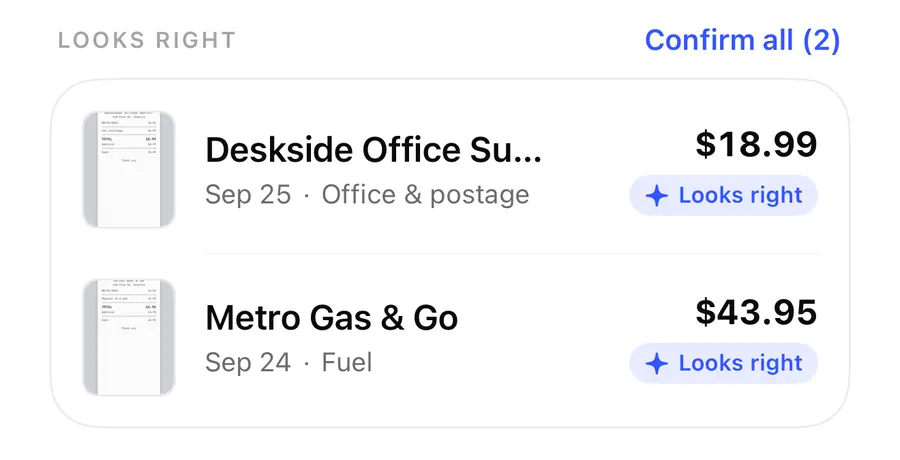
- Wait for the document to leave Reading. If nothing needs a look, it moves to Looks right.
- Open it, check the category, and confirm. If it shows E-invoice check, read the note before you file it.
The share sheet takes up to 20 files at a time, each up to 50 MB. Sharing PDFs and importing folders covers those routes in detail.
The sums check
When the e-invoice is read, ReceiptBook runs a set of checks based on part of the EN 16931 rules. It looks at things like:
- whether the total with VAT is the total without VAT plus VAT
- whether the VAT breakdown adds up to the VAT total
- whether the line net amounts add up, including allowances and charges
- whether the amount due matches the total, prepaid amount and rounding
- whether required details are there, such as the seller's name, the invoice number and the issue date
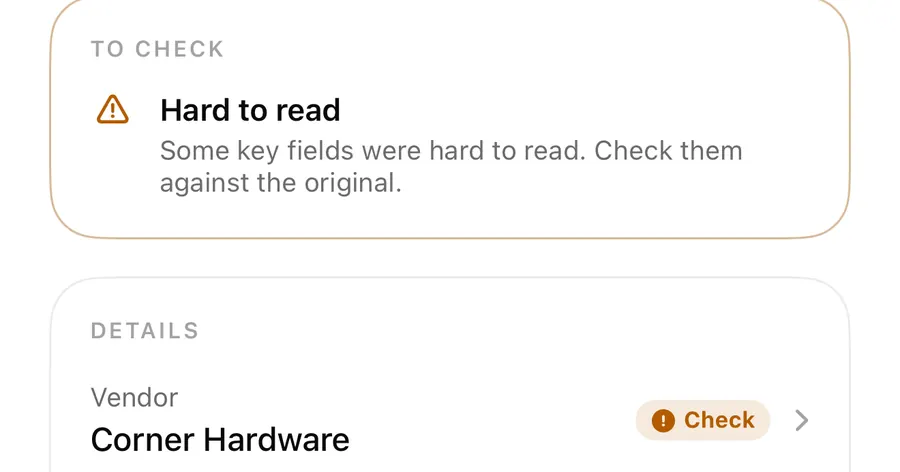
If something is off, the document gets the warning E-invoice check ("The e-invoice data has a problem worth a look.") with the specific line, for example The VAT breakdown doesn't add up to the VAT total. It's a warning, not a block, so you decide whether to ask the supplier for a corrected invoice.
If a file ends in .xml but isn't UBL or CII, you'll see Couldn't read the e-invoice. The original is still stored, so nothing is lost, and you can fill in the details by hand.
The XML stays untouched
An XML e-invoice has no picture. ReceiptBook keeps the file exactly as received, with its SHA-256 fingerprint, and says so on the review screen: the XML file is kept unchanged and has no image to show. For a Factur-X invoice, the PDF itself is the original, with the XML inside it. Both go into the originals/ folder of the accountant package when you export.
QR codes on till receipts
Some paper receipts carry a signed QR code from the till. ReceiptBook reads these on the iPhone:
- Austria, RKSV: the receipt number, date and time, and the gross amount per VAT rate.
- Germany, TSE: the transaction number, time and the gross per VAT rate.
- Vietnam: the QR code printed on an invoice.
The QR values help fill the fields, which you still review. ReceiptBook doesn't verify the till's signature; that needs the till's certificate.
When the QR code and the print disagree
If the QR code gives a different total, date, invoice number, tax code or VAT split than the printed text, the document gets the warning QR differs from print: "The receipt's signed QR code gives other values than the printed text. Check them against the paper." The detail line tells you exactly which value differs, so you know where to look.
Vietnam: look it up on the tax portal
For an invoice in đồng with a valid Vietnamese tax code (MST), the review screen adds a Tax portal lookup card with the tax code, invoice symbol, number and total. Look up on the tax portal opens the government's e-invoice site in your browser. Nothing is sent from the app; you check the invoice there yourself.
FAQ
Can ReceiptBook read a ZUGFeRD PDF?
Yes. Import the PDF and ReceiptBook finds the XML inside it and reads the invoice from that data. The PDF is kept as the original.
Does ReceiptBook validate XRechnung?
No. It reads the invoice and checks that the sums add up, using part of the EN 16931 rules. It is not a full validator.
What happens if the QR code doesn't match the receipt?
The document gets QR differs from print with the value that differs. Compare it with the paper and correct the field if needed before you confirm.
Do I still need to check an e-invoice?
A quick look is enough in most cases: the amounts come straight from the data. Check the category, and read any E-invoice check warning before filing.
Download ReceiptBook and drop your next e-invoice straight into the book.
Keep reading
Import PDF invoices on iPhone: share sheet, Files and whole folders
Send PDF invoices to ReceiptBook from Mail or Files, open e-invoices directly or import a whole folder at once. Files already in ReceiptBook are skipped.
ReadCheck badges and field sources: how ReceiptBook shows what it read
What the amber Check badge means in ReceiptBook, where each value came from (scan, PDF, e-invoice, your rule), and how duplicates and edits are flagged.
Read
Foreign currency receipts and VAT rates in ReceiptBook
Handle receipts in another currency with the rate your bank charged, read several VAT rates on one receipt, and catch VAT that doesn't add up in ReceiptBook.
ReadWhat is an electronic XML invoice? Keep XML with the PDF
Understand XML invoices, structured data versus a readable PDF and how ReceiptBook keeps originals for later checking.
Read guide