ReceiptBook widget, Siri, Shortcuts and Spotlight: file receipts faster
Scan from a Home Screen widget or a Control Center button, ask Siri what you spent this quarter, log an expense by voice and find receipts in Spotlight.
Short answer
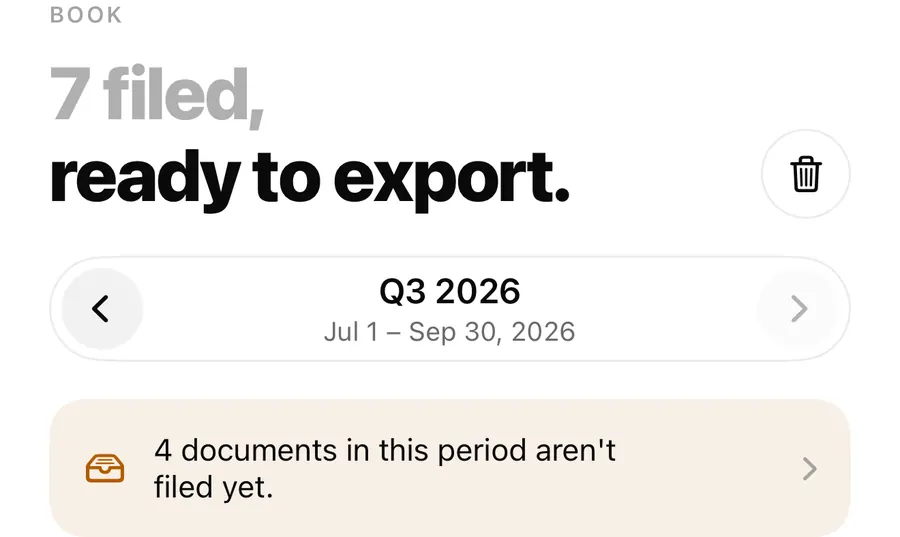
ReceiptBook reaches beyond its own screens. The Spend and scan widget shows money out this period with a button to scan. The Scan receipt control works from Control Center, the Lock Screen and the Action button. Siri and Shortcuts know Add receipt, Total spend this quarter, Log expense and Open receipt, and filed receipts show up in Spotlight. With the app lock on, all of them stop showing your figures.
The fastest receipt to file is the one you scan before you leave the counter. ReceiptBook puts the scanner and your running total where iOS already looks: the Home Screen, Control Center, Siri and search. Everything below is free.
The Spend and scan widget
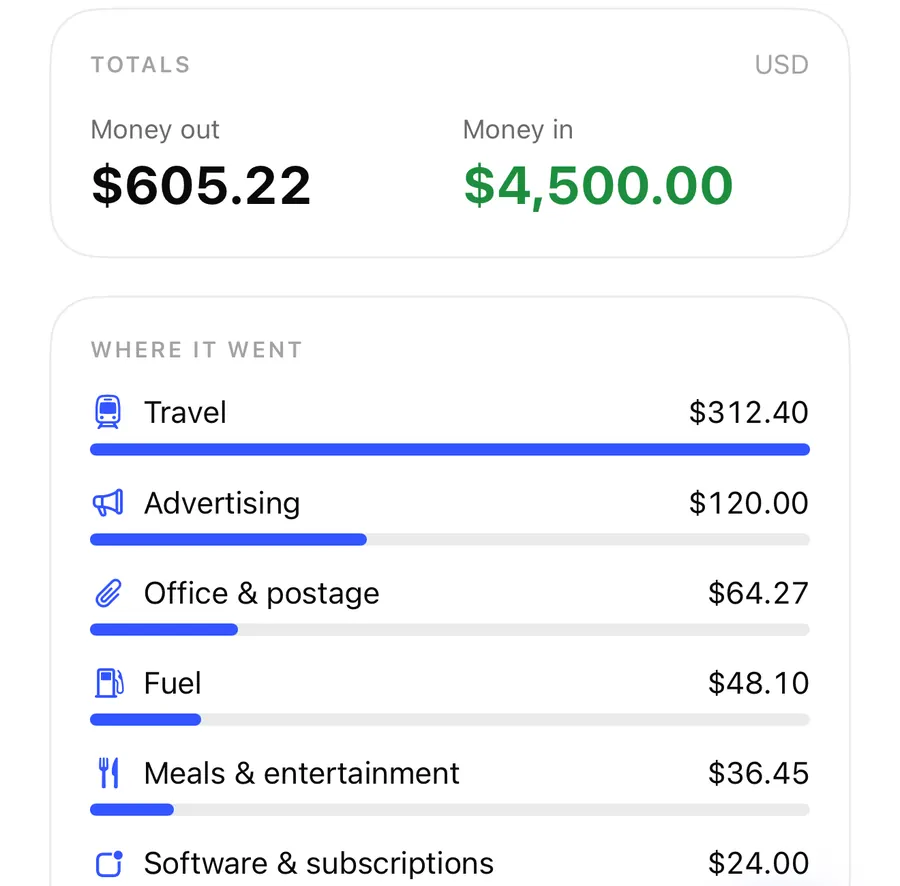
Add the Spend and scan widget from the Home Screen widget gallery, in small or medium size. It shows Money out for the current period, with the period's name, and a Scan button.
- On the medium widget, tap the total to open the Book, or Scan to open the scanner.
- The small widget opens the scanner wherever you tap it.
When a new period starts, the widget asks you to open ReceiptBook to update. If the app lock is on, it doesn't show the total at all and asks you to open the app instead.
Scan receipt from Control Center, the Lock Screen and the Action button
The Scan receipt control can sit in Control Center, on the Lock Screen in place of a default button, or on the Action button. It reads nothing from the app and shows no figures.
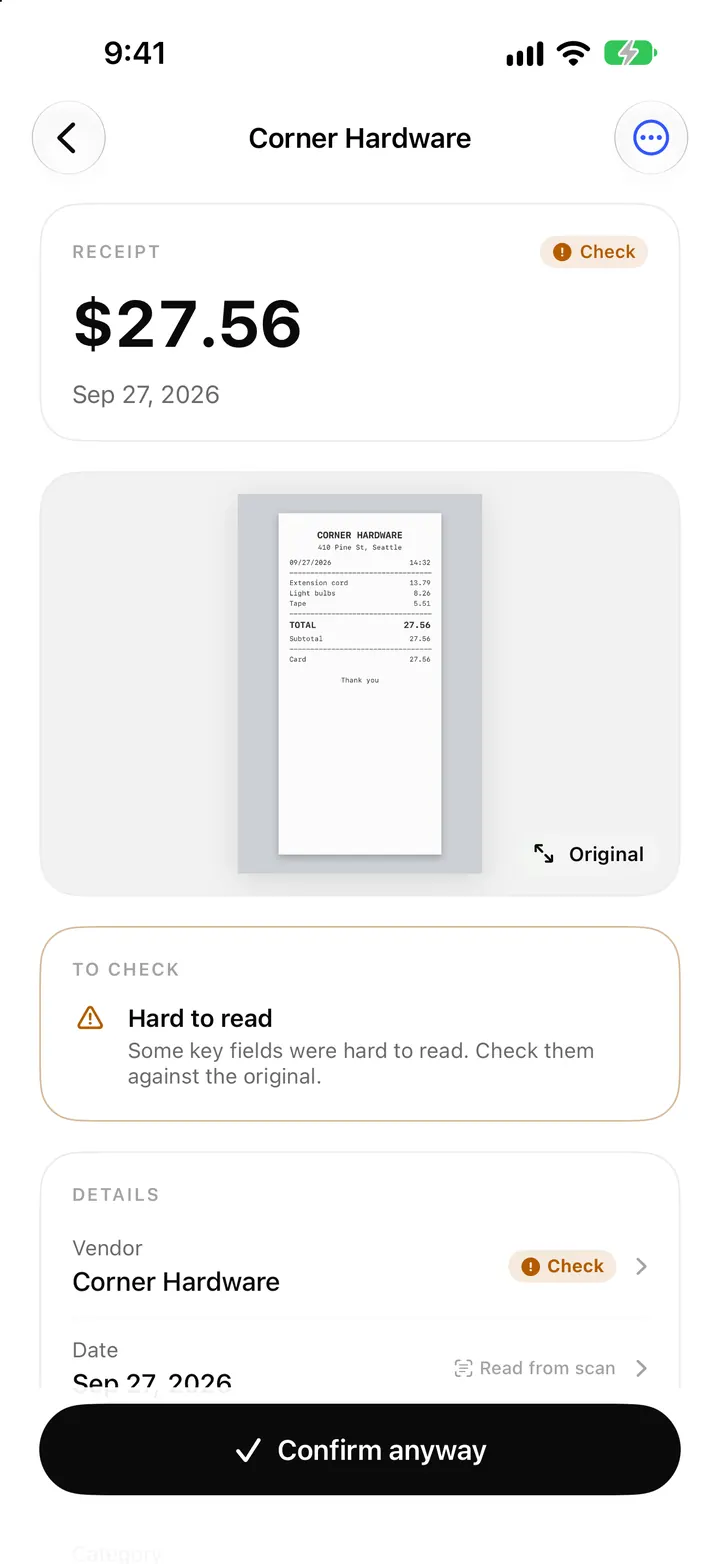
- On a locked iPhone it opens ReceiptBook's camera, which can only take photos. Nothing in ReceiptBook can be seen from there. The photos wait and go to your Inbox when you next open the app.
- On an unlocked iPhone it opens the app's scanner directly.
On iPhones with Camera Control, ReceiptBook can be the camera app it opens, and in the capture view the volume buttons and Camera Control take a photo too. The Lock Screen capture post covers the camera itself.
Put Scan receipt in Control Center
- Open Control Center and touch and hold an empty area, or tap + at the top.
- Tap Add a Control and search for ReceiptBook.
- Choose Scan receipt and place it.
- Tap it next time you get a receipt, take the photos and open ReceiptBook later to file them.
Siri and Shortcuts
ReceiptBook adds four actions to the Shortcuts app. Three of them have phrases Siri knows without any setup, and they can be assigned to the Action button.
| Action | Example phrase | What it does |
|---|---|---|
| Add receipt | Add a receipt in ReceiptBook | Opens the app at the scanner |
| Total spend this quarter | How much did I spend this quarter in ReceiptBook | Answers with what you spent on filed documents this quarter, without opening the app |
| Log expense | Log an expense in ReceiptBook | Adds an expense without a receipt: amount, supplier or purpose, and an optional category |
| Open receipt | (in Shortcuts) | Opens a receipt you pick |
Log expense files the entry straight away in your business's currency and marks it as typed in, like one added in the Book. It is handy for parking or a tip, but typed-in entries have no original, so keep the paperwork where you can find it. The answer for Total spend this quarter only counts documents you have confirmed, not those still in the Inbox.
Both actions that touch your figures need the iPhone to be unlocked; they don't run from the Lock Screen.
Spotlight and Visual Intelligence
Filed receipts are added to Spotlight, so you can type a vendor name in the iPhone search and open the receipt directly. Spotlight only gets the vendor, the date and the total. No category, note, tax ID, text or image leaves the app this way. Inside the app, the Book's own search goes further; see the Book post.
On iOS 26, Visual Intelligence can find receipts you already have. Point the camera at a receipt, or use a screenshot of one, and ReceiptBook lists the receipts it already holds from that vendor. The words on screen are compared with your vendor names on the iPhone. Visual Intelligence can't add new receipts; use the scanner or the control for that.
FAQ
Can someone see my spending from the Lock Screen?
The Scan receipt control shows no figures, and the spend questions need the iPhone unlocked. With the app lock on, the widget hides its total too.
Does Log expense need a receipt?
No. It adds an expense by amount and supplier. Because there is no original, the app marks it as typed in.
Can I use Visual Intelligence to add a receipt?
No. It only finds receipts you already have, by vendor name.
Why does the widget show an old total?
When a new period starts, the widget asks you to open ReceiptBook so it can update.
Download ReceiptBook and put the scanner one tap away.
Keep reading
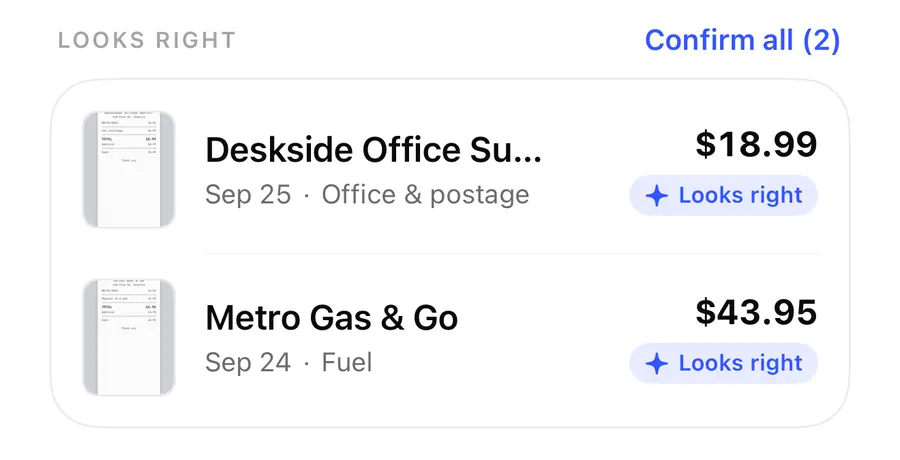
Photograph receipts from the Lock Screen, Control Center and Camera Control
Snap receipts without unlocking your iPhone: the ReceiptBook Scan receipt control opens a camera on the Lock Screen and files the photos when you open the app.
Read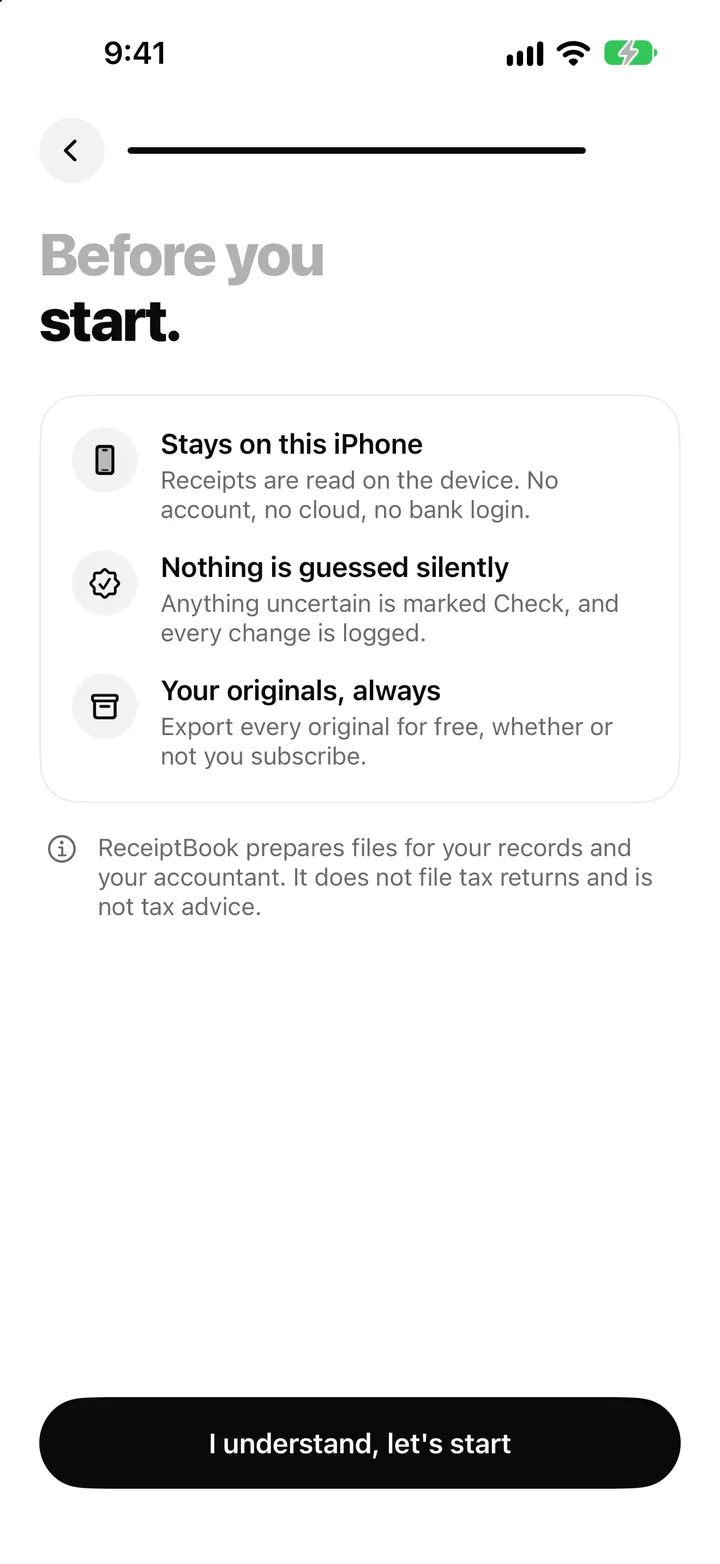
ReceiptBook privacy: on-device receipts, Face ID lock and encrypted backup
ReceiptBook keeps receipts on your iPhone with no account. Lock it with Face ID, make a password-protected backup and check that no original has changed.
Read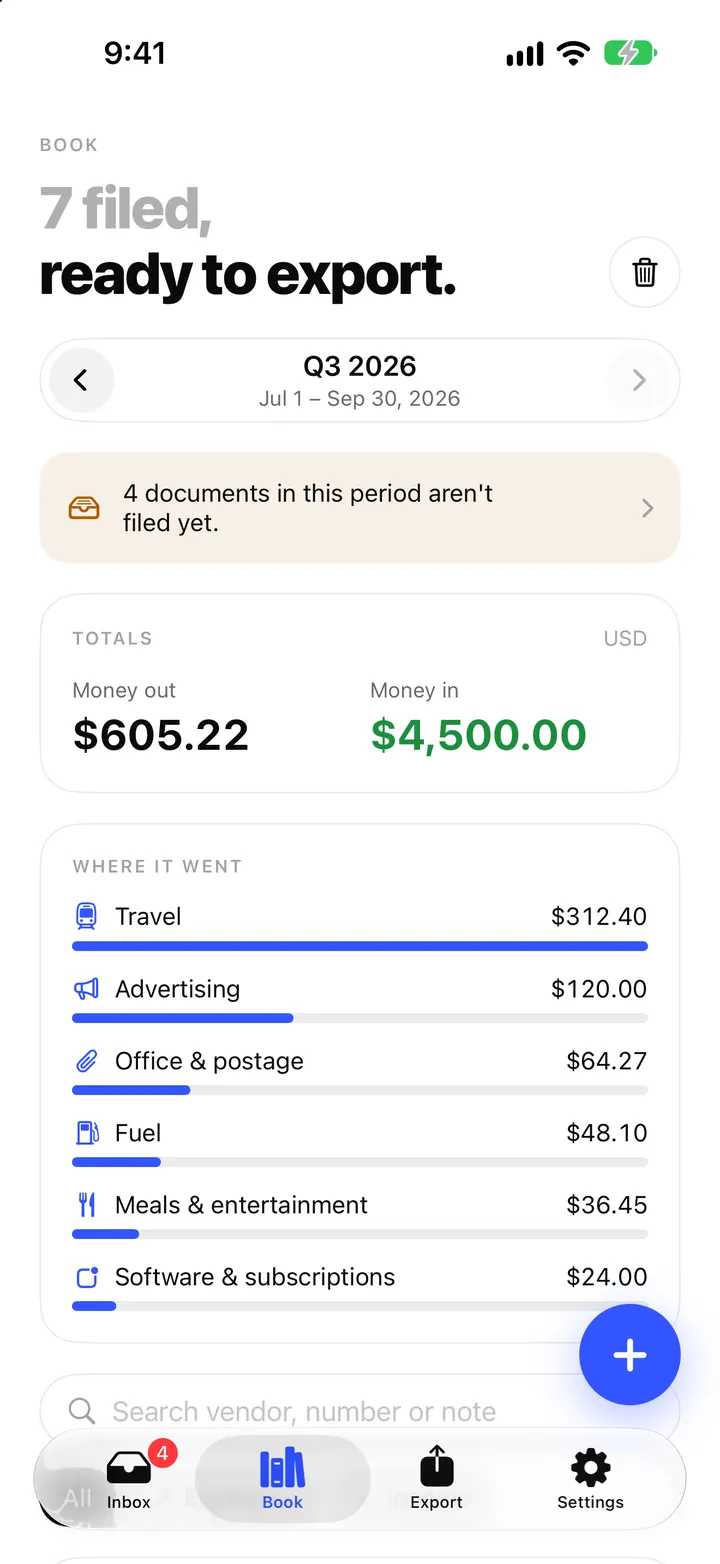
The Book in ReceiptBook: period totals, search, filters and project tags
See money in and out per period, VAT by rate and where it went by category, find any receipt by vendor or amount, and tag costs by project in ReceiptBook.
ReadA ReceiptBook Workflow for Capturing, Reviewing, and Exporting Invoices
Build a repeatable ReceiptBook process from invoice capture and OCR review to categorisation, source checks, and scheduled exports.
Read guide