ReceiptBook privacy: on-device receipts, Face ID lock and encrypted backup
ReceiptBook keeps receipts on your iPhone with no account. Lock it with Face ID, make a password-protected backup and check that no original has changed.
Short answer
ReceiptBook reads and stores your receipts on your iPhone. There is no account, no cloud sync and no bank login, and documents leave the device only when you share or export them. You can lock the app with Lock with Face ID, make an encrypted Backup protected by your own password, and let the Integrity check confirm that no original has changed. Anonymous usage sharing is on by default and can be switched off.
Receipts say a lot about you: where you eat, who you buy from, what you earn. ReceiptBook is built so that this stays on your phone. Here is what that means in practice, and the few settings that control it.
What stays on the iPhone
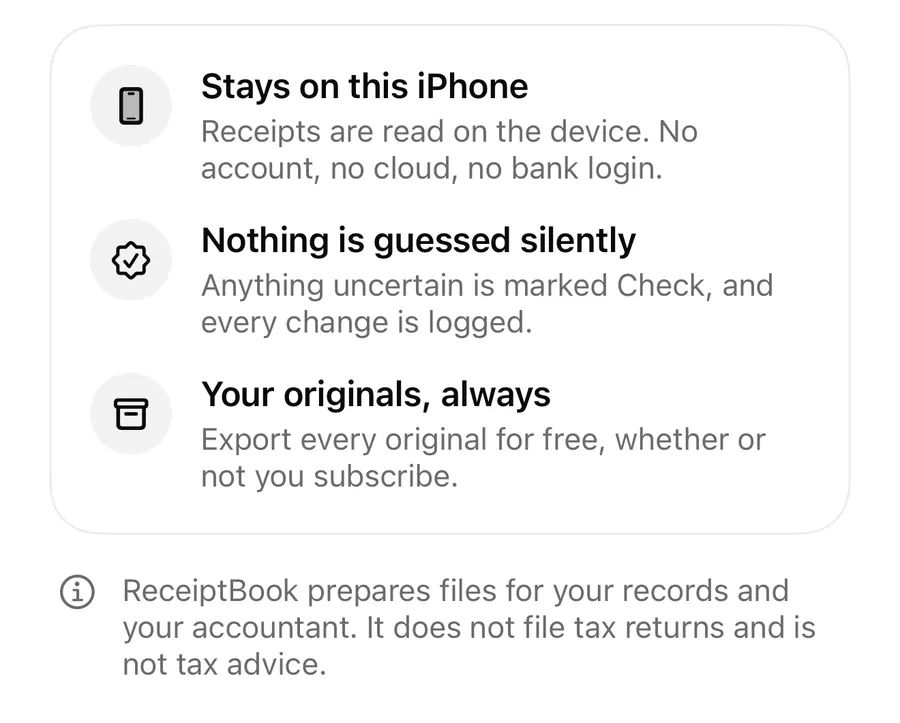
The setup screen makes three promises before you start:
- Stays on this iPhone: receipts are read on the device. No account, no cloud, no bank login.
- Nothing is guessed silently: anything uncertain is marked Check, and every change is logged.
- Your originals, always: export every original for free, whether or not you subscribe.
Text recognition runs on the iPhone, and so does Apple Intelligence reading where it is available. Dictated notes are turned into text on the iPhone too. ReceiptBook makes no network calls of its own for your documents, and there is no iCloud sync, so your library lives on this one device until you back it up or export it.
Anonymous usage sharing
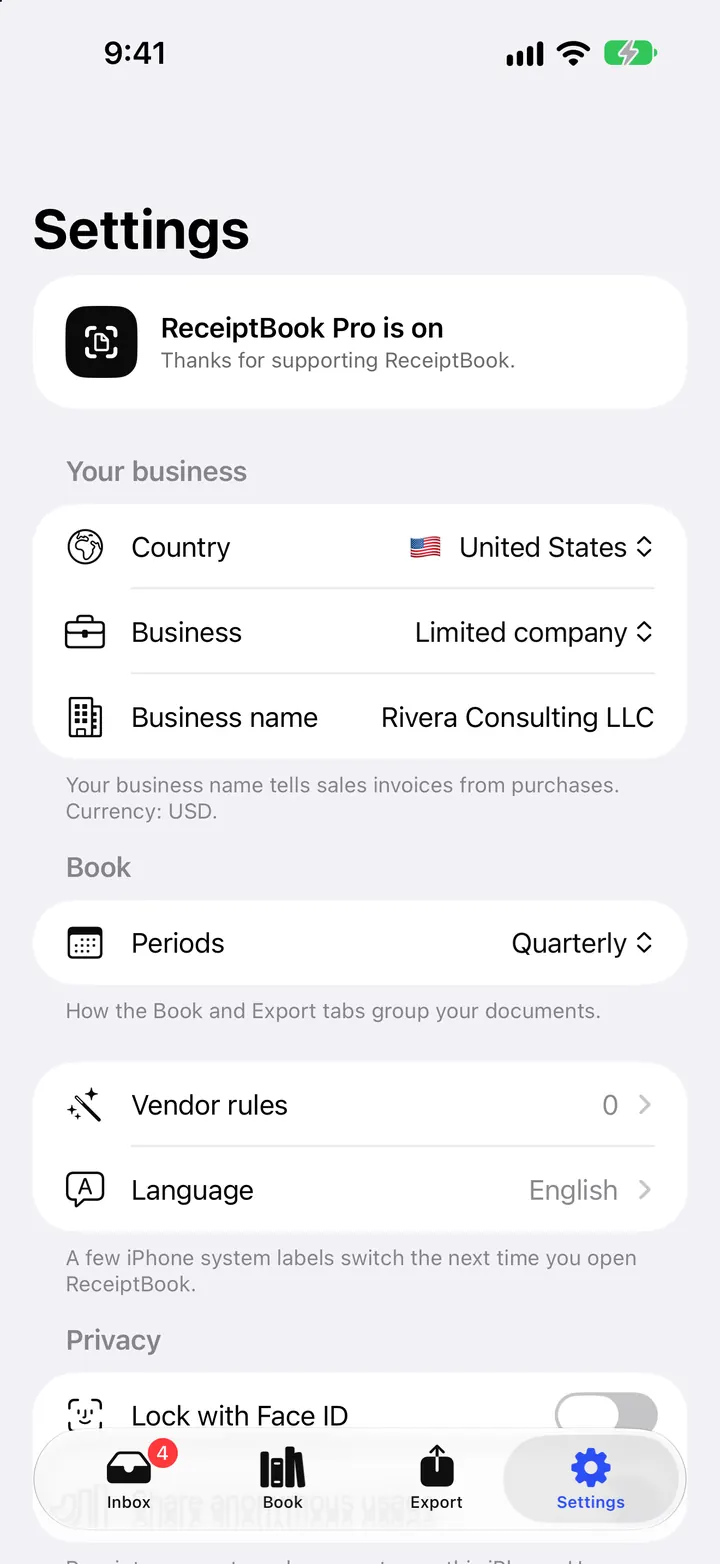
There is one exception, and you control it. Share anonymous usage in Settings > Privacy is on by default. In the app's words, receipts, amounts and names stay on this iPhone; usage data counts which screens and features are used, a few coarse settings such as Pro or the accent color, and error codes when something fails. Switch it off to stop it. The privacy policy has the details.
Lock with Face ID
Switch on Lock with Face ID in Settings > Privacy (it says Touch ID on iPhones that have it). With the lock on:
- ReceiptBook asks for Face ID when you open it: ReceiptBook is locked.
- It asks again before you export or share: Confirm it's you to export your receipts.
- Past exports are hidden until you confirm it's you.
- Receipts are removed from Spotlight, the widget hides its total, and Visual Intelligence finds nothing.
- Siri can't read out your quarterly spend or log an expense without you unlocking the app first.
The app switcher always shows a privacy cover, with or without the lock. The widget and Shortcuts post shows how each system feature behaves when the lock is on.
Encrypted backup
Because nothing syncs, a backup is your safety net if you lose or replace the iPhone.
Make an encrypted backup
- In Settings, under Records, open Backup.
- Tap Make a backup and choose a password of at least 8 characters, then repeat it.
- Save the .sctbackup file where you keep important files, for example in Files on a drive you trust.
- Store the password somewhere safe. ReceiptBook doesn't keep it, and without it the backup can't be opened.
The backup holds everything on the iPhone in one encrypted file (AES-256-GCM): documents, originals, history, rules and businesses. Restore a backup replaces everything on the iPhone with the backup's contents, and checks each original against its SHA-256 before anything is replaced. If you have new documents you want to keep, make a fresh backup first. Backup and restore are free.
Integrity check and history
Every original gets a SHA-256 fingerprint when it comes in, and every change is chained to the one before. Once a week ReceiptBook checks both on the iPhone, and you can run it yourself under Settings > Integrity check with Check now. If a file changed outside the app, Settings lists it, and an export still records the fingerprint the original had when it came in.
Each document has its own History: every import, edit and confirmation with the time and where the value came from, which goes into audit.csv when you export. Separately, Storage & history lists your last 500 actions; you can switch Keep activity history off or clear it. The Check badges post shows the history from a document's point of view.
Deleting
- Move to Recently Deleted keeps a document with its original for 30 days, so a slip is easy to undo. If your country usually expects the record to be kept longer, the app warns you when you delete it.
- Erase all data at the bottom of Settings removes every document, original, rule, kept export and your activity history. It asks twice, ending with Erase everything, and can't be undone. Export your originals first if you need them.
FAQ
Does ReceiptBook upload my receipts?
No. Receipts are read and stored on the iPhone. They leave it only when you share or export them, or save a backup file somewhere.
Is there really no tracking at all?
Anonymous usage sharing is on by default and counts screens, features, a few coarse settings and error codes, never receipts, amounts or names. You can turn it off in Settings > Privacy.
Can I move my receipts to a new iPhone?
Yes. Make a backup on the old iPhone, move the .sctbackup file, install ReceiptBook on the new one and use Restore a backup with the same password.
What does Face ID hide from the rest of the iPhone?
Spotlight results, the widget total, Visual Intelligence results and Siri answers about your spending, until you unlock the app.
Download ReceiptBook and keep your receipts on the one device you always carry.
Keep reading
ReceiptBook widget, Siri, Shortcuts and Spotlight: file receipts faster
Scan from a Home Screen widget or a Control Center button, ask Siri what you spent this quarter, log an expense by voice and find receipts in Spotlight.
Read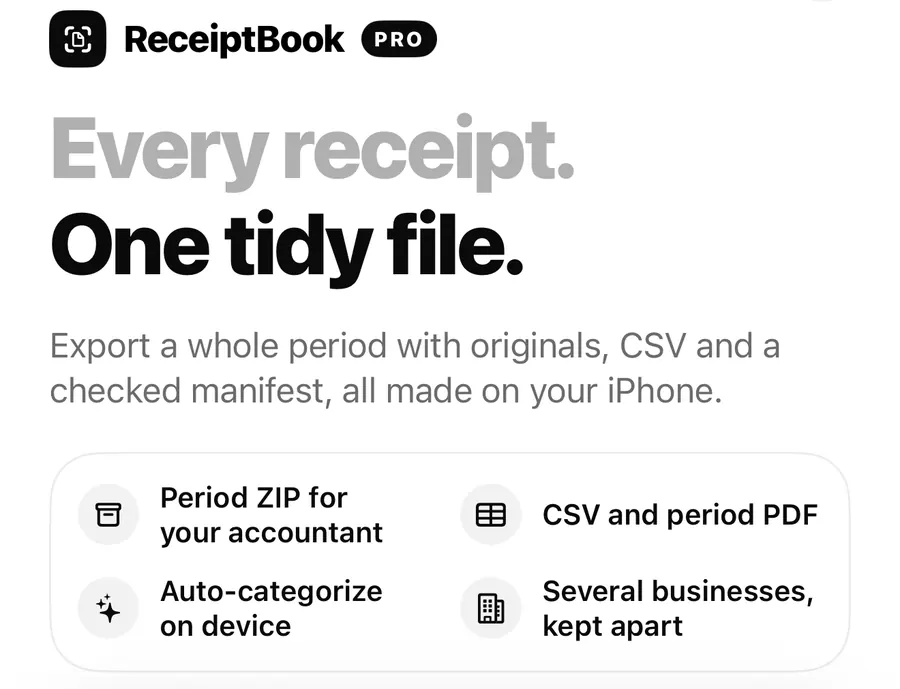
ReceiptBook Pro: what it adds, the plans, and what stays free
Scanning, reading, the Inbox, the Book and exporting your originals are free in ReceiptBook. Pro adds accountant exports, auto-categories and more businesses.
Read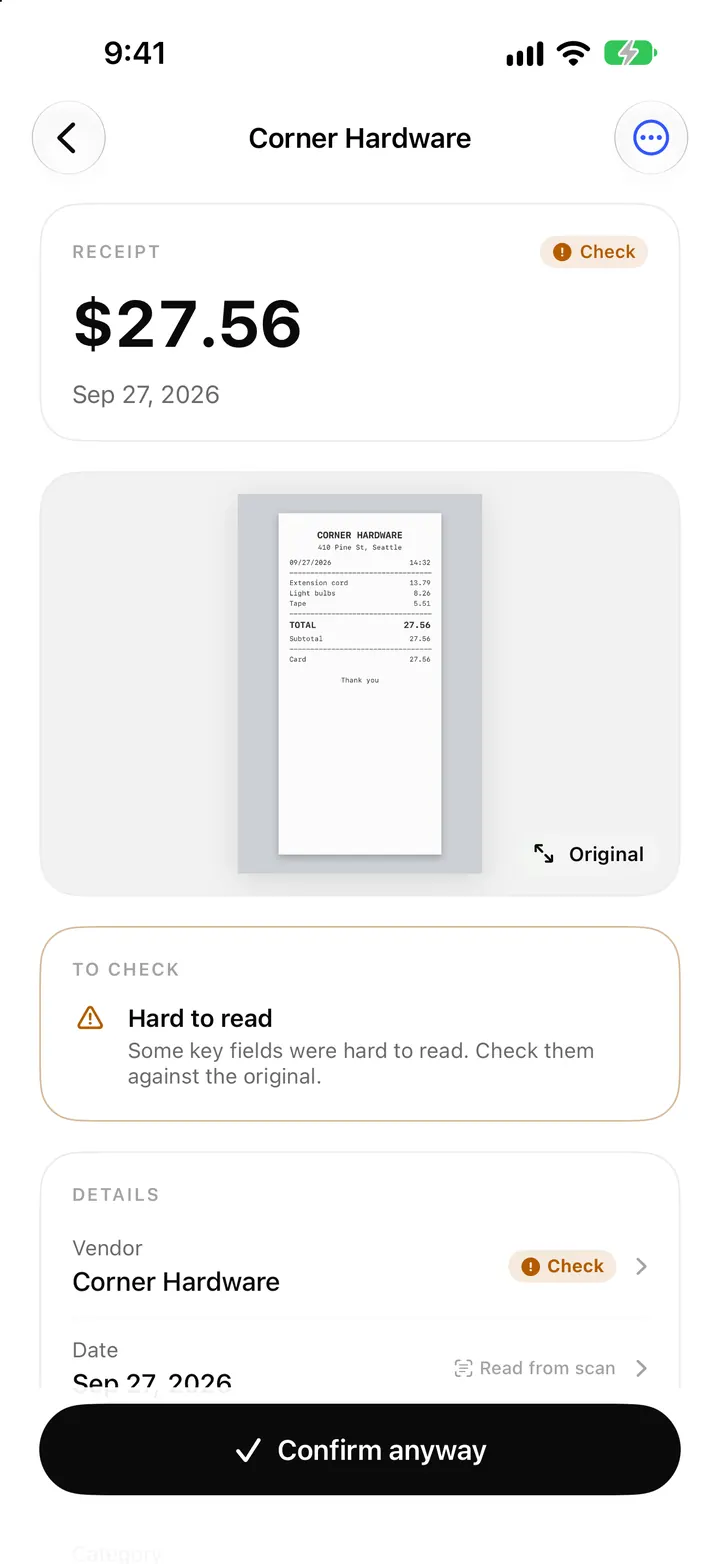
Check badges and field sources: how ReceiptBook shows what it read
What the amber Check badge means in ReceiptBook, where each value came from (scan, PDF, e-invoice, your rule), and how duplicates and edits are flagged.
ReadHow Does Face ID Protect a ReceiptBook Record?
Use Face ID, device locks, backup and export permissions together when storing sensitive receipts in ReceiptBook.
Read guide